
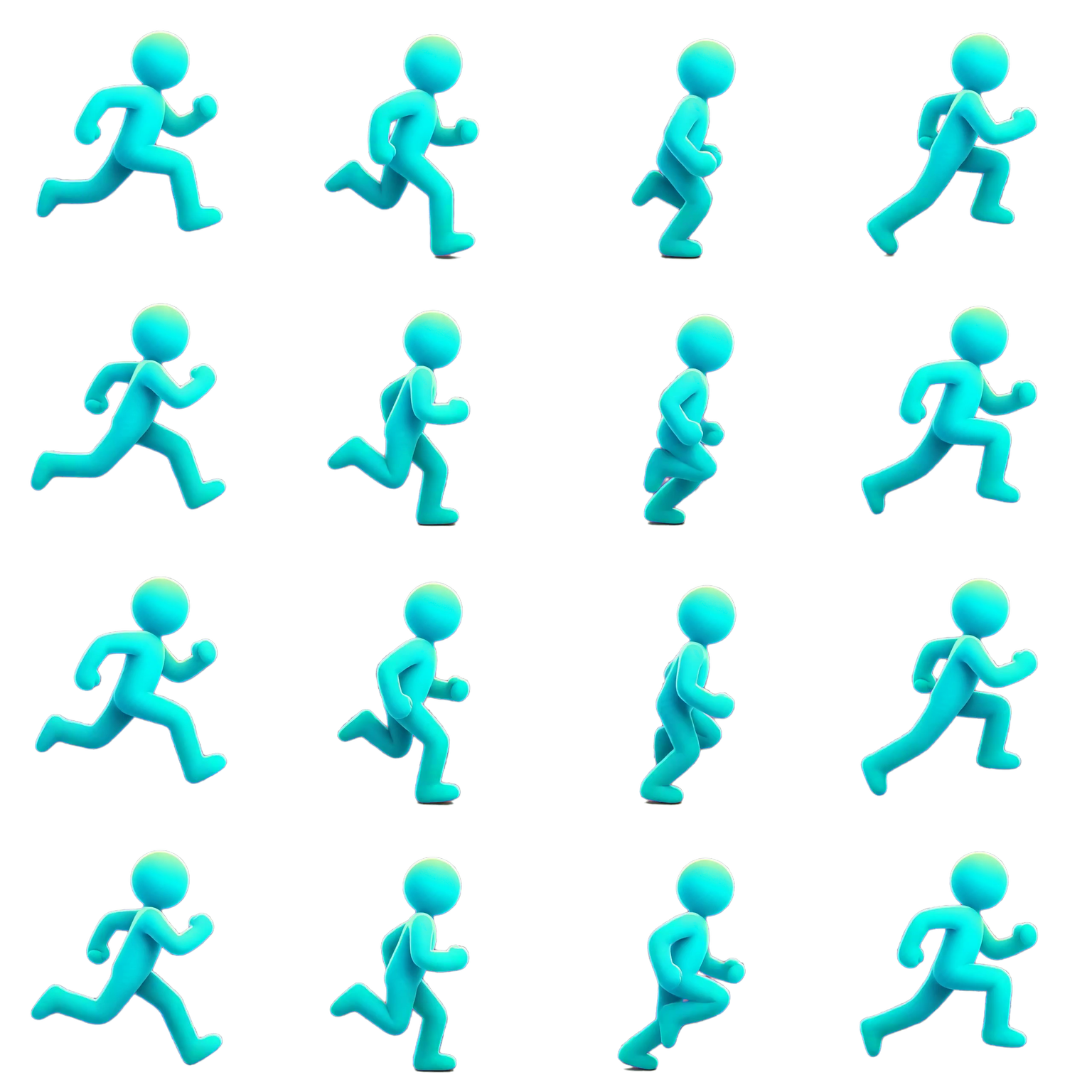
PNG frames ZIP
Free here. Numbered PNG frames, all the same size, in one ZIP archive.
Free · runs in your browser
Convert an MP4, WebM, or MOV clip into a sprite sheet with JSON frame data. Pick the range and frame rate, remove a green-screen background, then download the PNG, the JSON, or numbered frames. The video is not uploaded, and no account is needed.
Drop a video to make a sprite sheet
MP4, WebM, or MOV your browser can play, processed on this device
Runs in your browser. Your file is not uploaded, and no account is needed.
Verified conversion example
This project-owned example keeps the 4.00-second source intact, selects a clean 1.292-second interval, and samples it into a transparent 16-frame sprite sheet. It is a real AnimGen workflow result, not a mock interface.
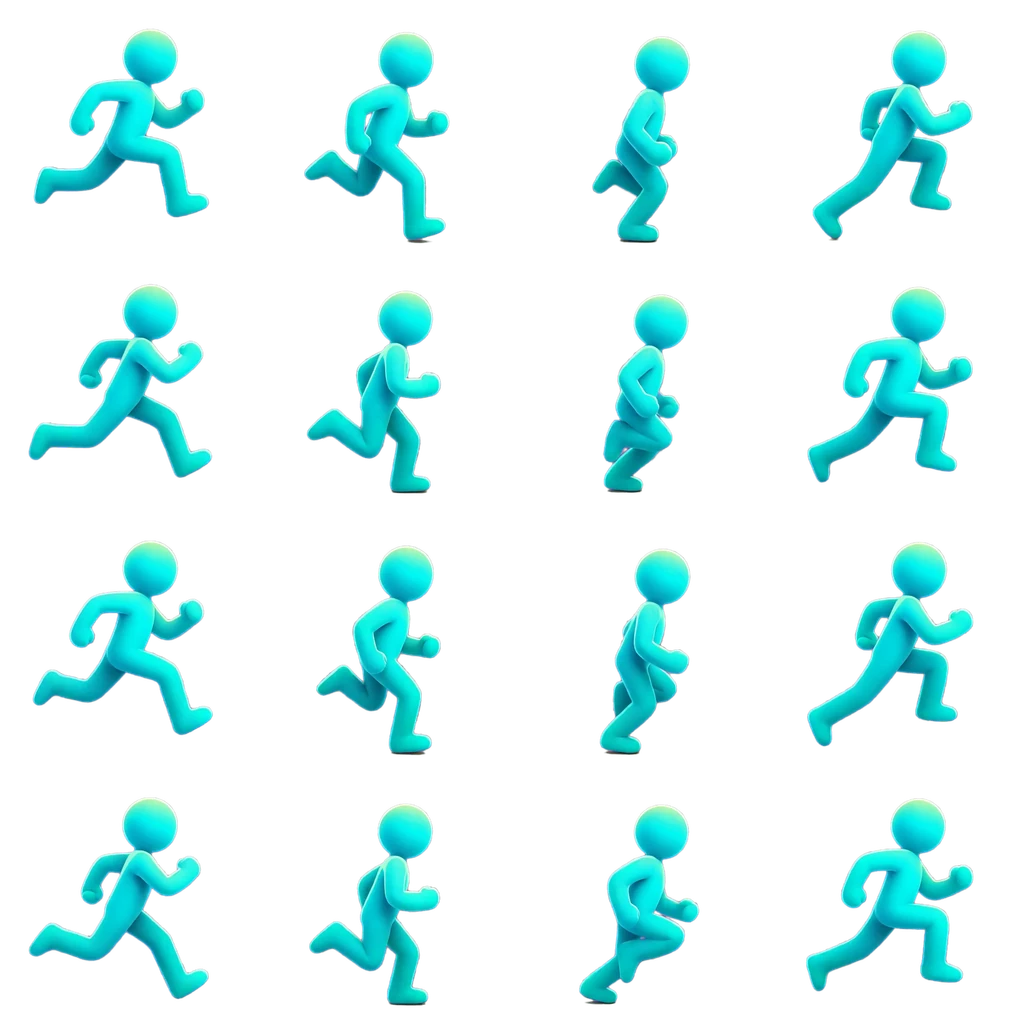
The downloadable PNG and JSON are public inspection samples. Results from your own footage depend on clip choice, output size, frame count, and transparency settings.
How it works
Everything happens in this browser tab: the video is read on your device, and the files are created there.
Choose an MP4, WebM, or MOV clip, or try the sample. The timeline fills with thumbnails of the whole clip.
Drag the handles around the frames you need and press Play range to loop them. The selection shows how many frames you will get.
Pick 8 to 60 fps and a frame width. Solid and green-screen backgrounds are detected, and you can remove them.
Save the sprite sheet PNG, Aseprite-format JSON, or a ZIP of numbered PNG frames.
In the AnimGen studio
The free converter samples frames at the rate you choose. The studio decodes every source frame, so you can step through them one by one, set in and out points on exact frames, and fix individual frames before export.
Export formats
PNG frames and the sprite sheet with JSON are free in the converter above. Engine packs are part of the AnimGen studio, which needs an account.
Free here. Numbered PNG frames, all the same size, in one ZIP archive.
Free here. A packed sprite sheet PNG with Aseprite-format JSON that Phaser, PixiJS, and engine importers read.
In the studio. Ready-to-import packages for Unity, Godot 4, Unreal Paper2D, Cocos Creator, and Construct 3.
Background removal
The free converter removes solid and green-screen backgrounds with a color key, and keeps the transparency of WebM files that already have it. When the background is not one clean color, the studio's alpha matting separates the character instead. Either way, inspect the edges: hair, motion blur, shadows, and similar colors affect the result.
Yes. The converter at the top of this page runs in your browser: the video is not uploaded, and no account is needed. It extracts frames, can remove a solid or green-screen background, and exports a sprite sheet PNG, JSON, and PNG frames. Engine packs, alpha matting, and AI-generated motion are in the AnimGen studio, which needs an account.
The current web workflow accepts MP4, WebM, and MOV imports. Browser decoding and the actual media encoding can still affect whether a particular file can be previewed.
No. You can import supported footage directly, or continue from a generated image-to-animation preview in the same workspace.
The sprite sheet export includes a PNG plus JSON metadata. Engine-ready packages are also available for Unity, Godot 4, Unreal Paper2D, Cocos Creator, and Construct 3.
No. Color similarity, shadows, fine details, compression, and motion blur all influence the result. Select the suitable method and inspect the exported alpha before production use.
Create an account, upload one character image, and describe the move. AnimGen generates the animation and exports it as a sprite sheet, PNG frames, or an engine pack.
Animate a character with AI