Inspect one project-owned result from source image and full video through exact timeline trimming, frame sampling, sprite-sheet export, and the next import step for Unity or Godot 4.
From one character image to a trimmed 16-frame run cycle
This project-owned example follows the same media through the full workflow. The 4.00-second source video stays intact, while source frames 62–92 are selected for the loop and sprite-sheet export. Results still vary with source art, prompt, model, and settings.
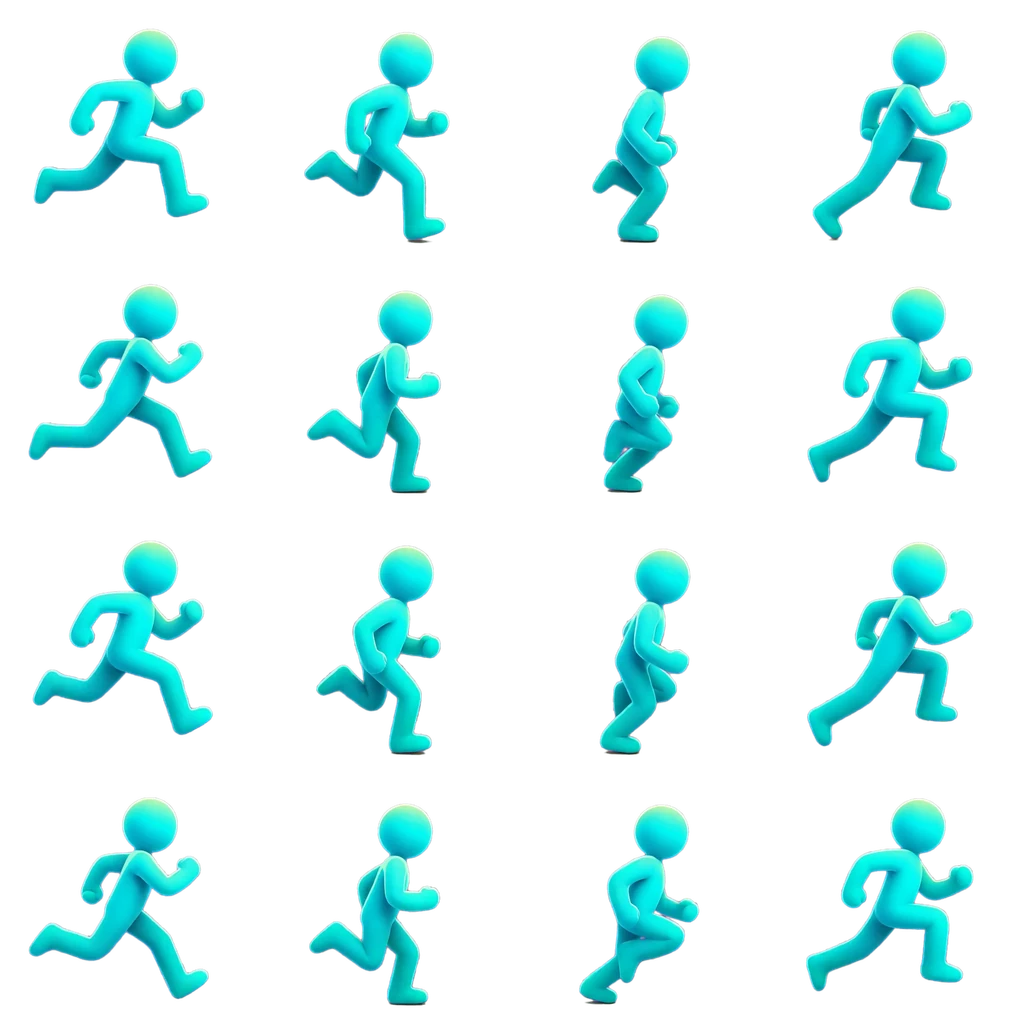
1 · Source image
A transparent side-view character with a clear silhouette and room for limb motion.
Motion brief
“Side-view run cycle. Keep the character centered, facing right, with a stable silhouette.”
2 · Generated source video
640 × 640 · 24 fps · 96 frames · 4.00 s
Review the complete result before deciding which motion should become the reusable game loop.
3 · Select the clean loop
The highlighted range keeps the useful middle cycle and leaves the lead-in and trailing motion in the source video.
Selected: 1.29 s · source frames 62–92
0s0.000 s2.54s2.542 s3.83s3.833 s4s4.000 s
Selected loop preview
640 × 640 · 24 fps · 31 source frames
The exact 1.292-second, 31-frame interval is checked as a repeating loop before frame sampling.
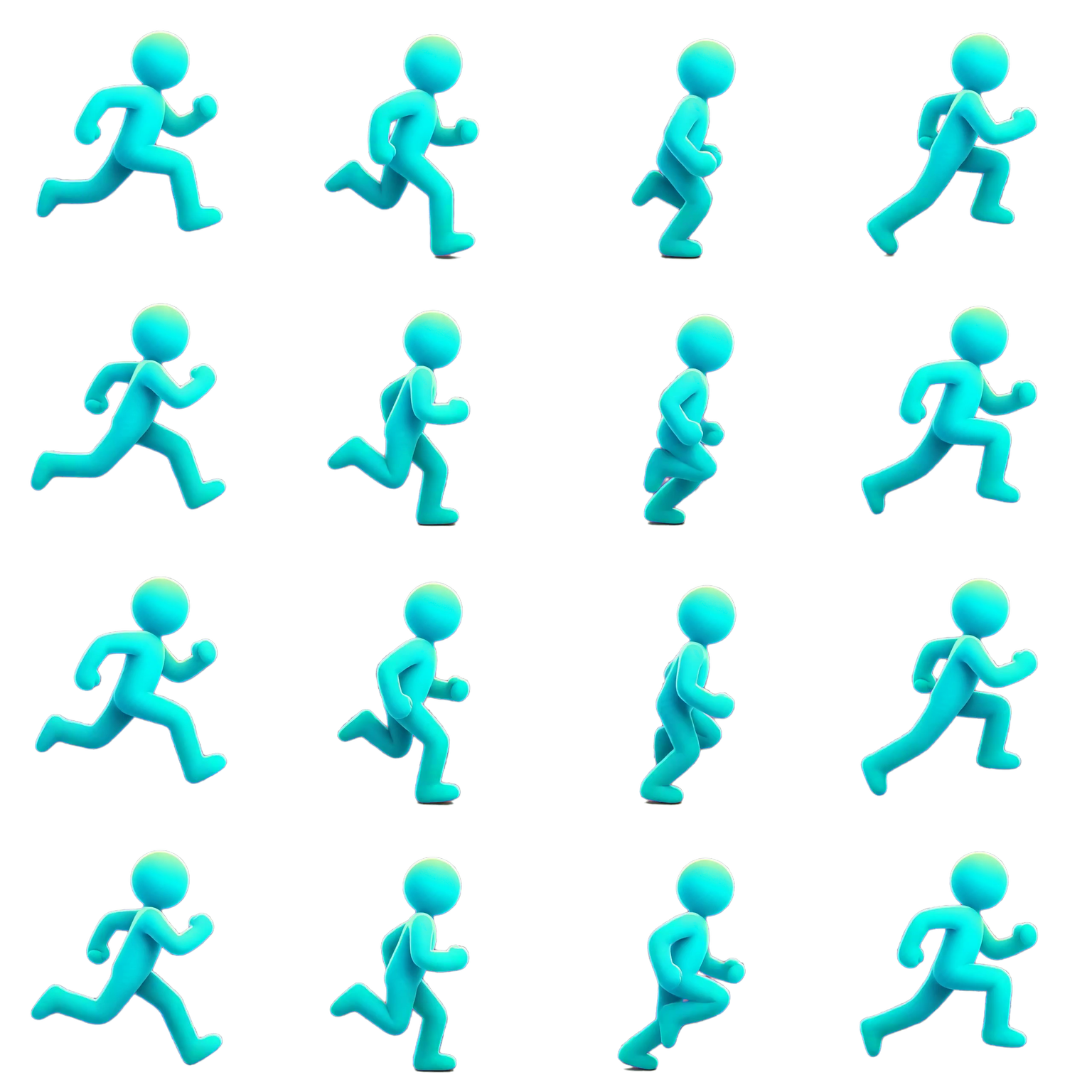
4 · Sprite sheet export
1536 × 1536 PNG · 16 frames
Every other source frame is sampled at 12 fps and packed into a transparent 4 × 4 sheet.
Available output package
16 transparent PNG frames sampled from the selected loop
These files are public inspection samples. Generate and export your own animation for production use and the rights attached to your current plan or Credit Pack.
Next step
Use this exact 4 × 4 layout in Unity or Godot 4
The public sample can be imported manually at 384 × 384 pixels per frame and 12 fps. For your own exports, choose the engine pack to receive the metadata and project files described in each guide.
Import into Unity
For the sample PNG, choose Sprite (2D and UI), Multiple, then slice a 4 × 4 grid at 384 × 384 and build the clip in numeric frame order.
AnimGen's Unity pack also includes adjacent .meta, JSON, a manifest, and import instructions.
Start with an image when you need new motion, or start with an existing clip when the animation already exists and you need production-ready game files.
The complete generated video remains visible beside the trimmed result.
Exact in and out points make the selected 31-frame source interval easy to verify.
Frame sampling turns that interval into a compact 16-frame, 4 × 4 sprite sheet.
Transparency and edge quality should be checked against contrasting backgrounds before export.
Example workflow questions
Are these customer case studies?
No. They are product workflow examples built from project-owned artwork and the capabilities currently available in AnimGen. We do not present fabricated customer results.
Will every image produce the same quality?
No. Output depends on the artwork, motion prompt, selected model, resolution, duration, and other settings. Review the generated preview before exporting production files.
Can I begin with a video instead?
Yes. Import a supported video, choose the useful clip, and export PNG frames, sprite sheet assets, or an engine package without running image-to-video generation first.