
In this guide
A sprite sheet is not useful just because it downloads successfully. Godot still needs to find the texture, read every frame rectangle, play the intended animation at the right speed, and place the character around a stable pivot.
This guide uses an actual AnimGen Godot export in a small Godot 4 project. You can download the public Godot pack, follow the steps yourself, or download the complete validation project used for the test below.
What the Godot pack contains
After extracting the demo pack, one named folder contains five files:
AnimGenDemoGodot/
├── spritesheet.png
├── animation.tres
├── animation.tscn
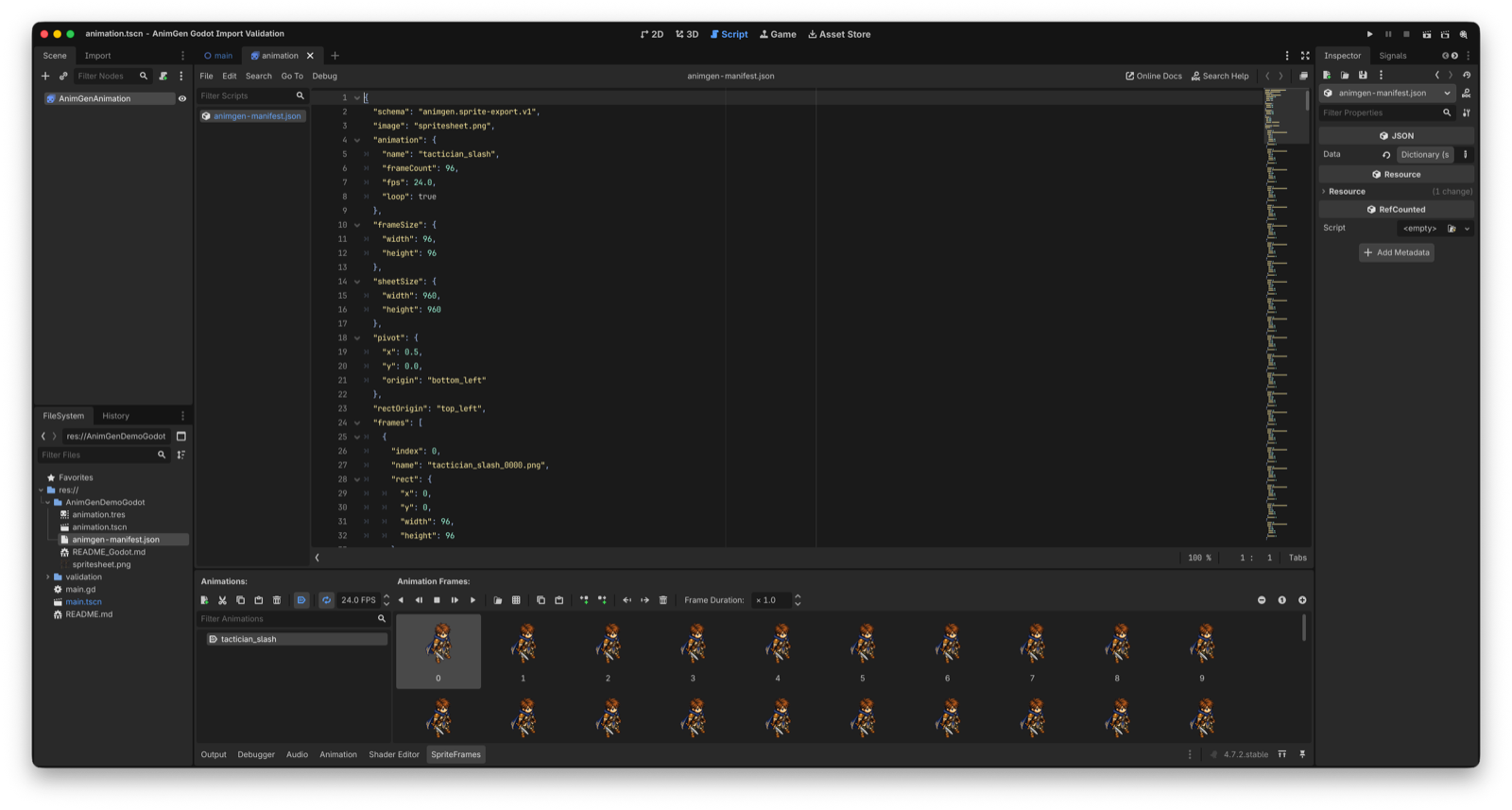
├── animgen-manifest.json
└── README_Godot.md
The files have different jobs:
spritesheet.pngholds the transparent frame pixels.animation.tresis a Godot 4SpriteFramesresource. Its frames areAtlasTextureregions that point into the sprite sheet.animation.tscnis a ready-to-playAnimatedSprite2Dscene using that resource.animgen-manifest.jsonrecords the engine-neutral frame rectangles, animation name, FPS, loop setting, sheet size, and pivot.- The README records the expected
res://path and basic import steps.
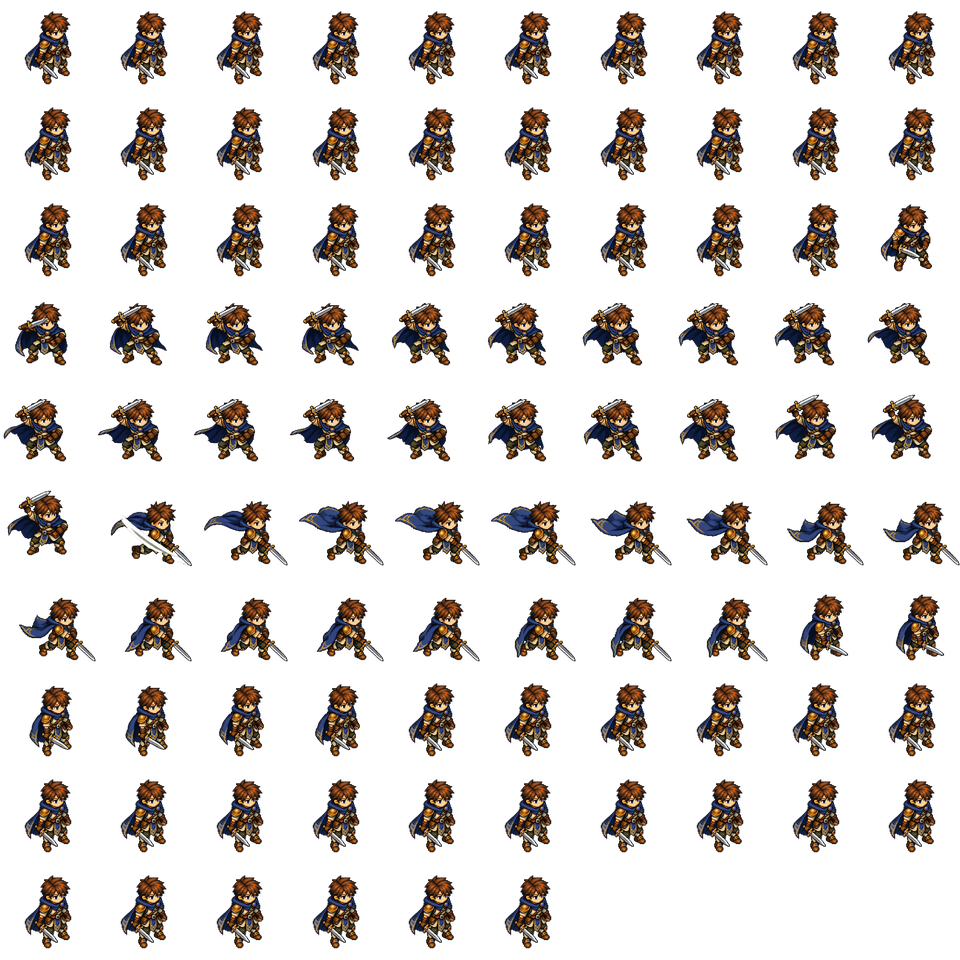
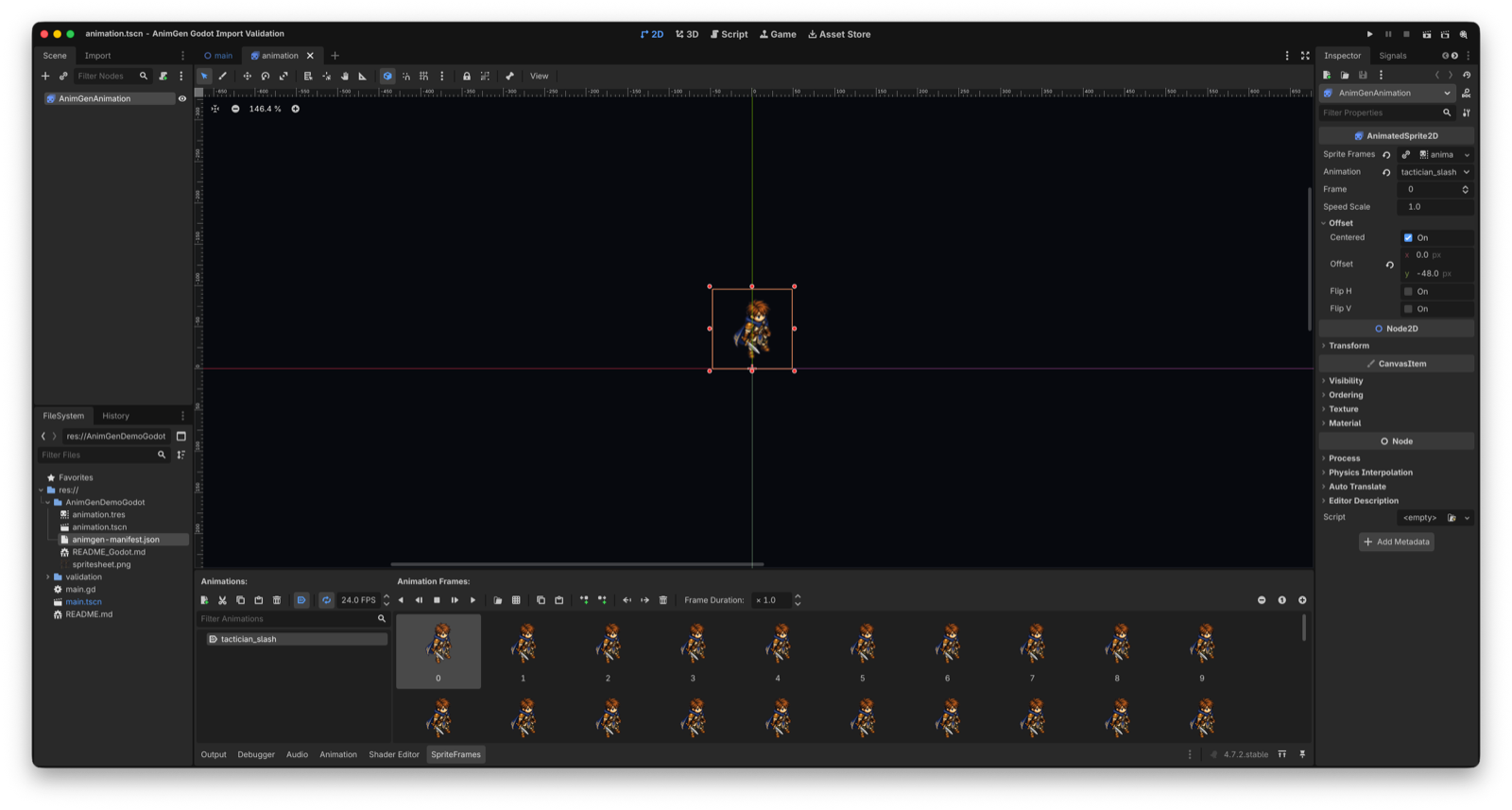
This demo contains 96 frames at 24 FPS. Each region is 96 × 96 pixels inside a 960 × 960 sheet. The manifest uses a bottom-center pivot (x: 0.5, y: 0.0), and the ready scene converts that into an offset of (0, -48) for the centered Godot sprite.
Those values describe this downloadable demo. Your own export can use a different frame count, FPS, canvas size, animation name, or pivot, so read its manifest rather than copying these numbers.
Keep the named export folder intact
Copy the complete AnimGenDemoGodot folder into the root of a Godot project. The result should look like this:
res://
├── project.godot
├── your-main-scene.tscn
└── AnimGenDemoGodot/
    ├── spritesheet.png
    ├── animation.tres
    ├── animation.tscn
    ├── animgen-manifest.json
    └── README_Godot.md
The generated resources use paths such as:
res://AnimGenDemoGodot/spritesheet.png
res://AnimGenDemoGodot/animation.tres
Renaming the folder or moving only the .tres or .tscn breaks those references unless you update them together. Copy the folder first, let Godot import the PNG, and only reorganize the files after the scene is working.
If Godot reports a missing texture or resource, compare the current folder name with the paths at the top of animation.tres and animation.tscn. Do not regenerate the animation until you have ruled out a path mismatch.
Open the supplied AnimatedSprite2D scene
The shortest test is to open animation.tscn and run it inside a small scene. It already selects the exported animation and enables autoplay.
You can also instantiate it from GDScript:
var exported_animation := preload(
    "res://AnimGenDemoGodot/animation.tscn"
).instantiate() as AnimatedSprite2D

exported_animation.position = Vector2(640, 500)
add_child(exported_animation)
Godot's 2D sprite animation guide explains how AnimatedSprite2D and SpriteFrames work generally. With this pack, you do not need to slice the sheet again: the .tres already contains every atlas region in order.
If you want to use an existing AnimatedSprite2D node, assign animation.tres to its Sprite Frames property and select the animation. Also copy the generated scene's offset when you need the same pivot placement. Assigning only the SpriteFrames resource does not copy node properties such as offset, position, scale, or material.
Verify the imported data before judging the motion
For the September 9, 2026 check, we imported the unmodified public pack in Godot 4.7.2 stable on macOS 26.5.2 with the Compatibility renderer. The validation project checked:
| Check | Observed result |
|---|---|
| Export schema | animgen.sprite-export.v1 |
| Animation | tactician_slash exists and autoplays |
| Frame data | 96 AtlasTexture regions match all 96 manifest rectangles |
| Playback | 24 FPS and loop enabled, matching the manifest |
| Pivot | Bottom-center manifest pivot and (0, -48) scene offset preserved |
| Runtime | The animation advanced from frame 0 to frame 18 after 0.75 seconds |
| Capture | 72 frames recorded at 24 FPS, producing a three-second runtime clip |
This separates import problems from animation-quality decisions. A missing texture, wrong slice count, or incorrect FPS is a packaging/import issue. Character shape, pose quality, foot sliding, and whether an attack fits the game are content decisions that still need visual review.
Check transparency and placement on contrasting backgrounds
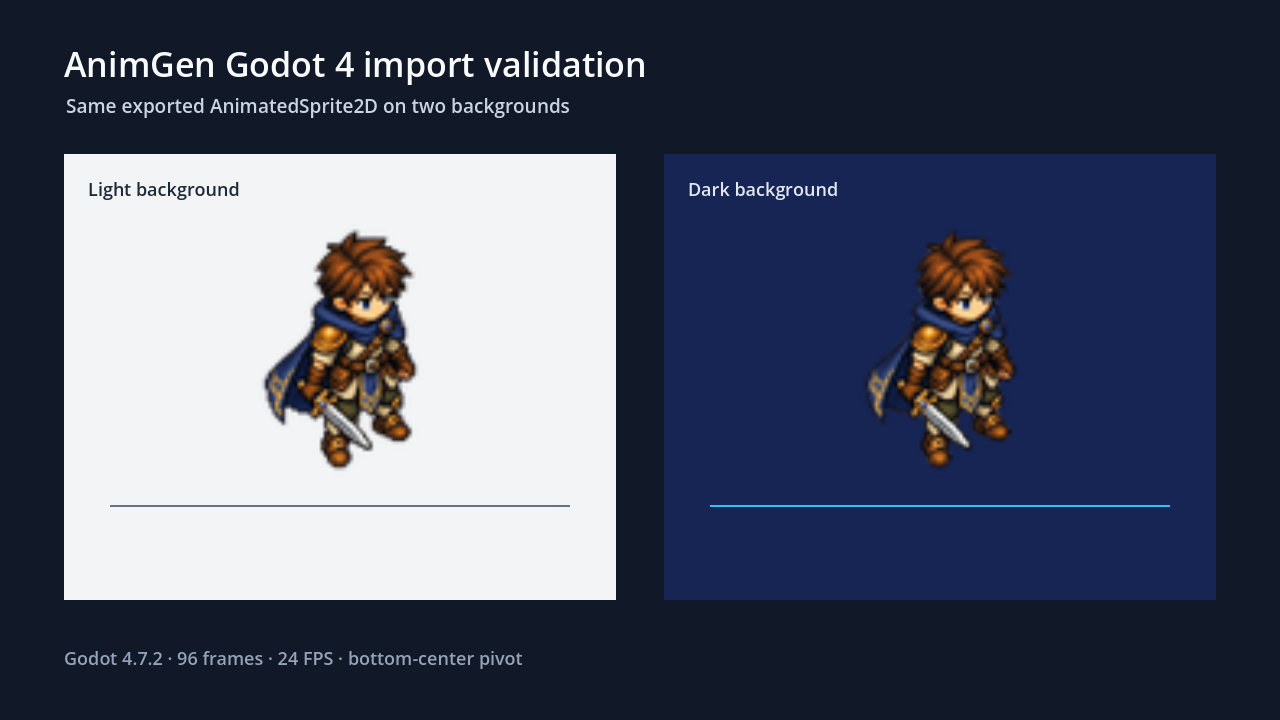
The validation scene instances the same exported AnimatedSprite2D twice—once over a light panel and once over a dark panel.
The line marks the node's bottom-center origin. Visible feet can sit above it because the exported frame contains transparent padding; that is different from the node's origin changing every frame. Watch the whole clip before deciding whether a particular sequence needs trimming or a different pivot.
Play or download the three-second Godot runtime recording. It records the actual project viewport rather than a reconstructed website preview.
Use at least two backgrounds when checking transparent assets. Light backgrounds reveal dark halos; dark backgrounds make pale contamination easier to see. If the source PNG is correct but the scene looks blurred or develops an outline, inspect Godot's texture filtering, scaling, and project rendering settings before changing the animation.
Match the animation to your game
An imported clip is an asset, not a character controller. The pack does not add input, collision, movement, an animation state machine, or transitions between idle, run, jump, and attack.
Before integrating it into gameplay:
- Compare the frame count and FPS with
animgen-manifest.json. - Decide whether the clip should loop. This demo attack loops for inspection; a production attack would usually play once and return to another state.
- Play repeated loops when evaluating a looped animation, especially the final-to-first transition.
- Keep a fixed baseline visible while checking feet and pivot stability.
- Test on the actual renderer and target platform used by the project.
For a character with several moves, keep each export in its own named folder until you have an intentional naming and resource strategy. Copying one pack over another can leave a texture, .tres, and manifest from different exports.
For the complete path and troubleshooting notes, read the AnimGen Godot 4 import documentation. When your animation is ready for export, review the available formats and access before generating an engine pack. You can open AnimGen Studio to start with your own character.