
In this guide
Hold a direction to run, release it to stop, throw a punch, then move again. Connecting animation to those few inputs makes changes in character size, foot placement, and recovery timing much easier to spot.
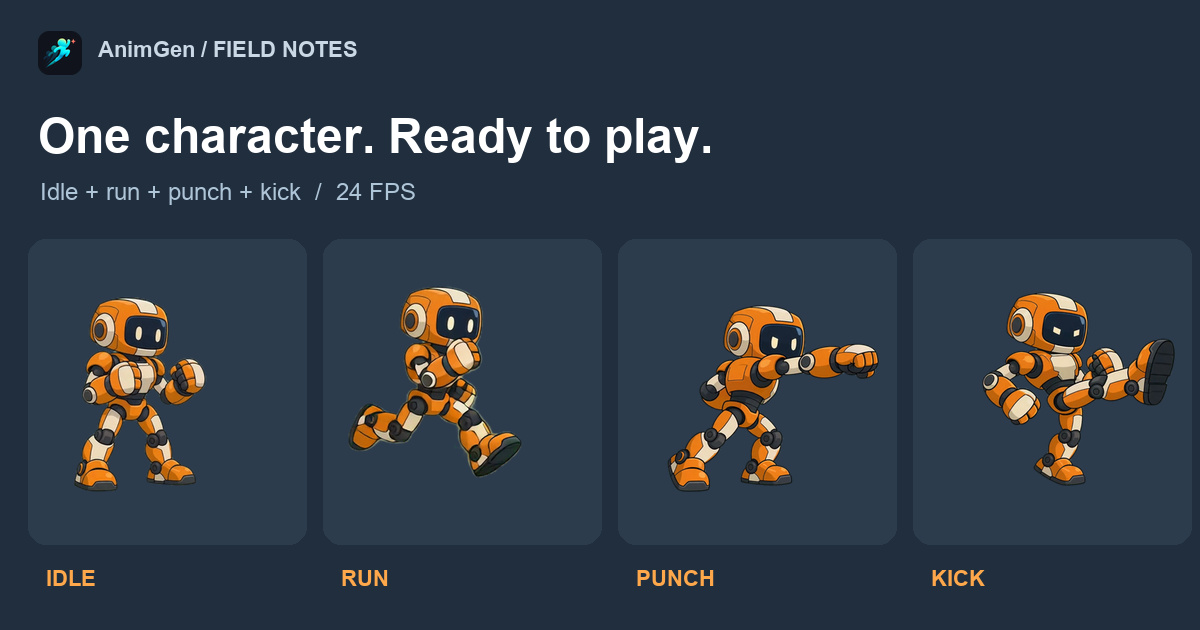
In the previous example, we cut a punch and a kick from one video of this orange robot. This time we used the same character image to generate a guard idle and an in-place run, then connected all four transparent clips to a small scene. Every animation plays at 24 FPS.
Try the playable browser demo: arrow keys or A/D to move, J to punch, K to kick. On a phone, hold the direction buttons. It starts paused; press Start or a control to begin.
Keep the same character image across all four actions
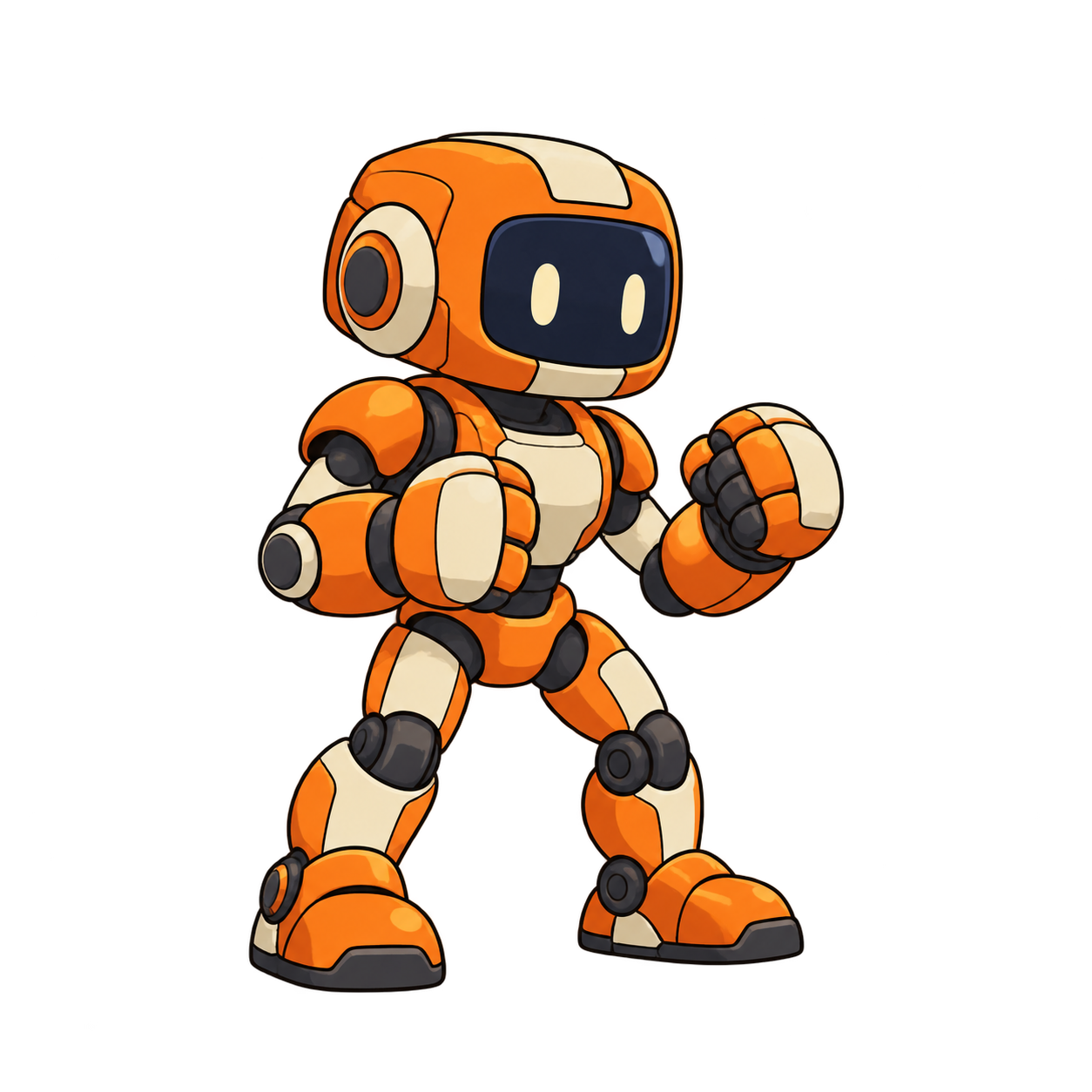
We reused the original orange robot PNG, keeping its armor colors, proportions, and right-facing view. Starting each request from that image removes one source of variation: redrawing the character for every action.
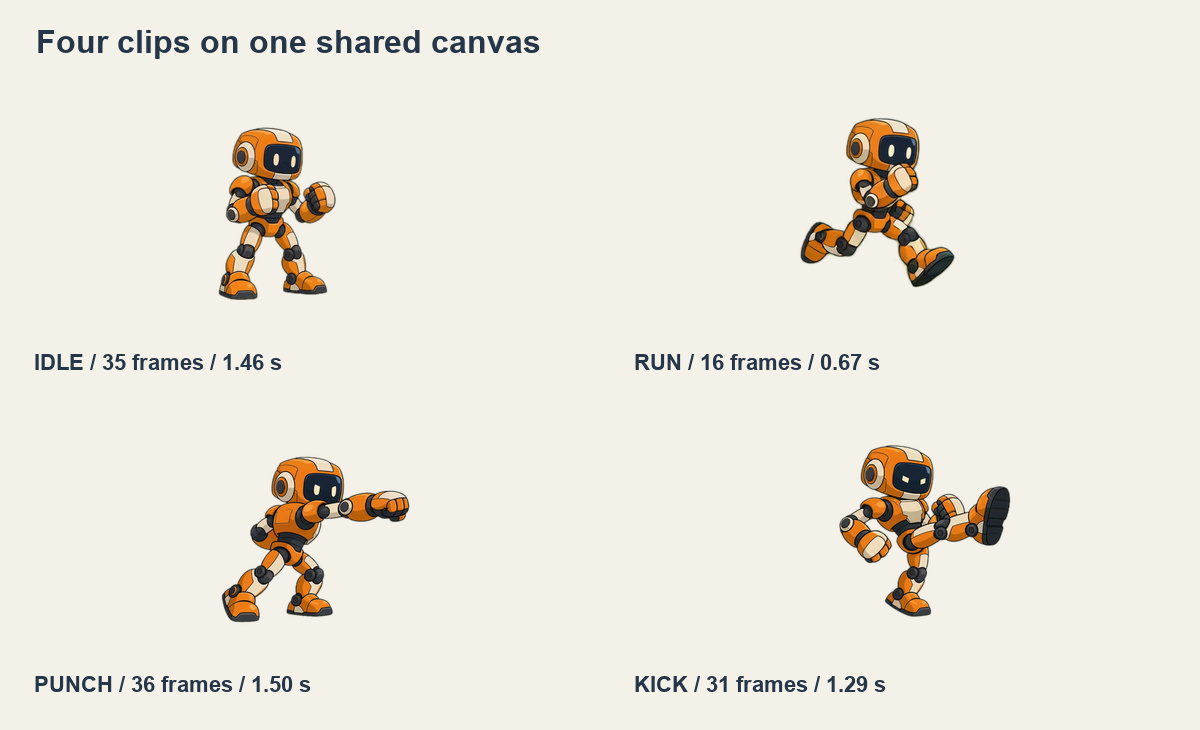
The composition also matches the earlier attacks: a 4:3 canvas, Expand Canvas at 80%, and position X 0.35, Y 0.5. This leaves room for the fist and foot to extend to the right. The Expand Canvas walkthrough shows how to allow for movement beyond the standing pose.
Turning left mirrors the same images horizontally. That is a useful shortcut for this robot, which has no lettering or one-sided weapon. For a character with a shield or text on its clothing, check whether the mirrored design still makes sense.
Generate a quiet idle and a run that stays in place
The idle prompt asks for planted feet and a steady guard, with subtle movement in the chest and shoulders. Releasing a direction should leave the character resting, without immediately stepping around or launching into another gesture.
The run prompt asks for continuous right-facing running in place, with a fixed camera and consistent scale. Code handles horizontal travel through the scene; the frames supply the arm swing, leg motion, and body bounce.
Both requests used Seedance 2.0 Fast, 4 seconds, 480p, 4:3, and Alpha Key. Each generation actually cost 36 credits, for 72 new credits in total. Transparent PNG-sequence and ProRes 4444 exports cost 0 credits. The punch and kick reuse the previous 720p material, with no new generation. These are the recorded costs on October 3, 2026; check the quote before your own request.
Download the exact idle prompt and run prompt, along with the original key-color idle video and run video. Both returned videos are 752 × 560, with 97 frames at 24 FPS, or about 4.04 seconds. The requested resolution tier, returned dimensions, and runtime canvas refer to different stages.
Loop locomotion and let attacks finish
A four-second take gives us several poses to compare when selecting a breathing or stride cycle. We watched the candidate loops repeatedly, then checked the last-to-first transition. These are the contiguous ranges we kept; source indices start at 0 and include both endpoints.
| Action | Source frames | Kept frames | Duration at 24 FPS | Playback |
|---|---|---|---|---|
| Idle | 22–56 | 35 | About 1.46 s | Loop |
| Run | 44–59 | 16 | About 0.67 s | Loop |
| Punch | 9–44 | 36 | 1.50 s | Once |
| Kick | 58–88 | 31 | About 1.29 s | Once |
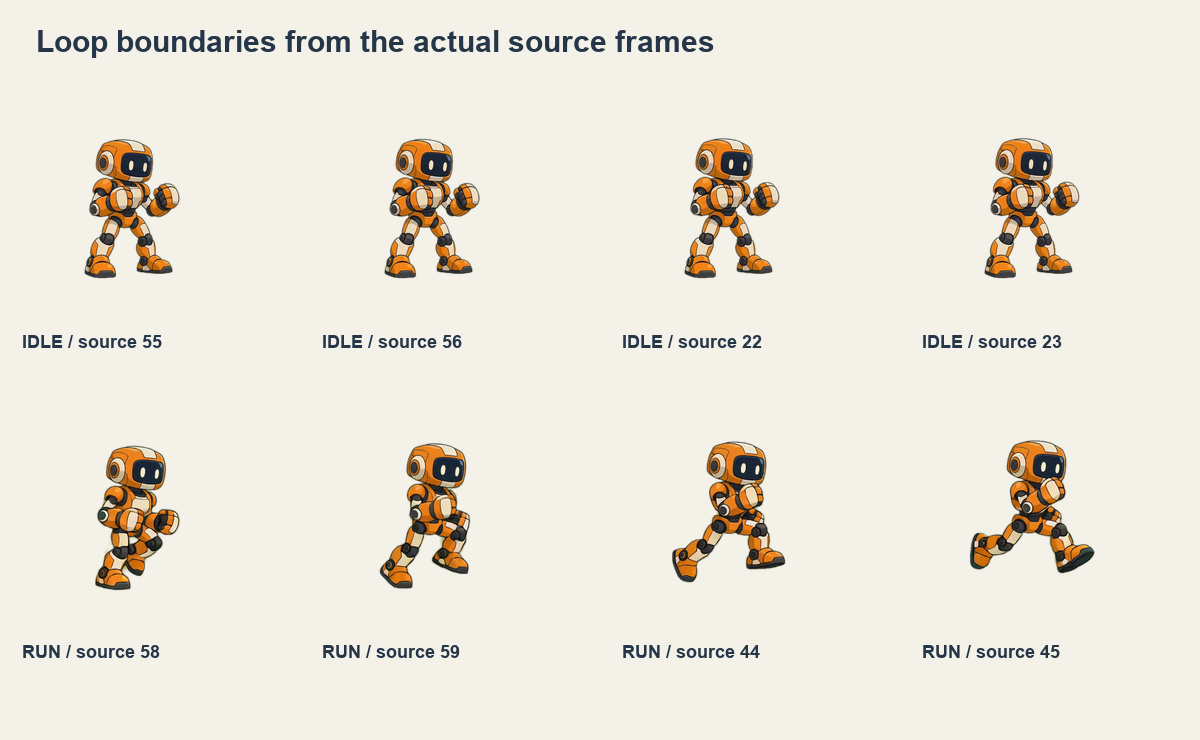
The run keeps a full stride before returning from source frame 59 to frame 44. We kept 24 FPS throughout, with no generated transition frames. The walk-cycle article covers loop selection in more detail. The attacks retain the anticipation and recovery selected in the two-actions example.
Align the canvas and origin before switching clips
Every runtime frame sits on a 512 × 384 transparent canvas, with its aspect ratio preserved. The new idle and run frames scale uniformly to 512 × 381 before being placed on that canvas, avoiding a stretch from the original 752 × 560.
After comparing the stance and foot placement, we applied a fixed X −2, Y +3 pixel translation to the idle and X −24, Y +3 to the run. The attacks retain their previous placement. All four clips use an origin at (224, 321), measured from the top-left, and display at a scale of 0.85.
Those values belong to this robot. With another character, compare head height, feet, and torso position before choosing your own alignment. Moving a whole clip by a fixed amount preserves its body bounce; tightly cropping each frame can introduce unwanted jumps. The canvas and pivot guide explains the distinction.
Read the current direction after the attack ends
The scene uses four states: idle, run, punch, and kick. Outside an attack, a direction starts running and releasing it returns to idle. Holding both directions cancels movement.
Pressing J or K locks horizontal movement and facing while the attack plays once. Additional attacks are ignored during that time. At the end, the controller reads the current direction: keep running if a direction is held, or return to idle if it has been released. Holding an attack key does not repeat it; release and press again for another attack.
The Godot example handles recovery through AnimatedSprite2D.animation_finished. Punch and kick have looping disabled; idle and run loop. Looping animations do not emit that completion signal. Godot documentation
func _attack_finished() -> void:
    if _attacking():
        completed[state] += 1
        _locomotion()
_locomotion() reads the current direction and selects run or idle. The download contains the full implementation, so you do not need to assemble a controller from this fragment. This scene handles movement and animation switching; enemies, hit detection, and damage are still separate work.
Try the controls in Godot and tune movement separately
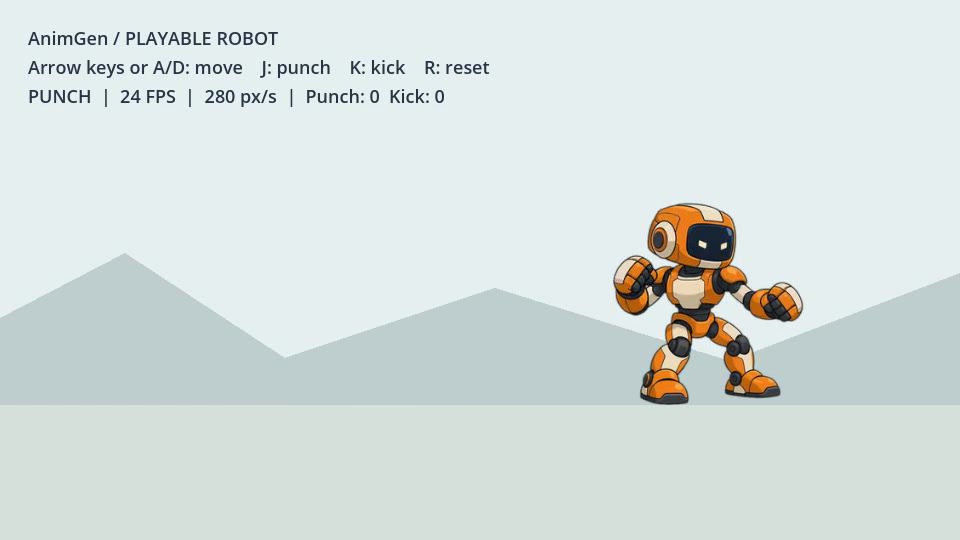
Download the Godot example project, extract it, import project.godot in Godot 4, and press F5. The project builds its SpriteFrames from four transparent sheets and the frame regions in character.json. No plugin is required. The opening video was recorded in Godot 4.7.2 on macOS, using the Compatibility renderer.
Movement defaults to 280 px/s while animation stays at 24 FPS. This is an adjustable demo value: after changing the character or display scale, watch how much the feet slide while touching the ground. The browser slider covers 60–600 px/s; in the Godot project, change defaultSpeed in assets/character.json. Keeping playback fixed while tuning travel speed makes the mismatch easier to judge.
Try punching during a run, holding the opposite direction during an attack, and releasing all keys before recovery ends. The attack should finish before the next movement begins. Hiding the browser page or losing window focus clears held inputs and pauses playback, so an old direction does not remain stuck on return.
Download the assets and substitute your own character
The transparent sprite pack includes four PNG sheets, frame regions, playback rates, and the selection and alignment recipe. Read the frame counts from the JSON: unused cells at the end of a sheet should not enter the animation. The browser and Godot demos use transparent images; inline MP4s include a background for viewing.
This multi-action controller and its packages were assembled for the tutorial from real exports. For your own version, check the assets with the Godot import guide, then replace the four sheets and frame metadata. The media record contains dimensions, hashes, charges, and export checks.
Get stopping, turning, and a complete attack feeling right before deciding which move the character needs next. When you need another animation, return to AnimGen with the same character image, camera view, and canvas spacing.