In this guide
A walking animation can look convincing once and hesitate every time it repeats. The character is already moving through the scene, but the clip returns to a standing pose and starts walking again. That small restart becomes hard to ignore after a few loops.
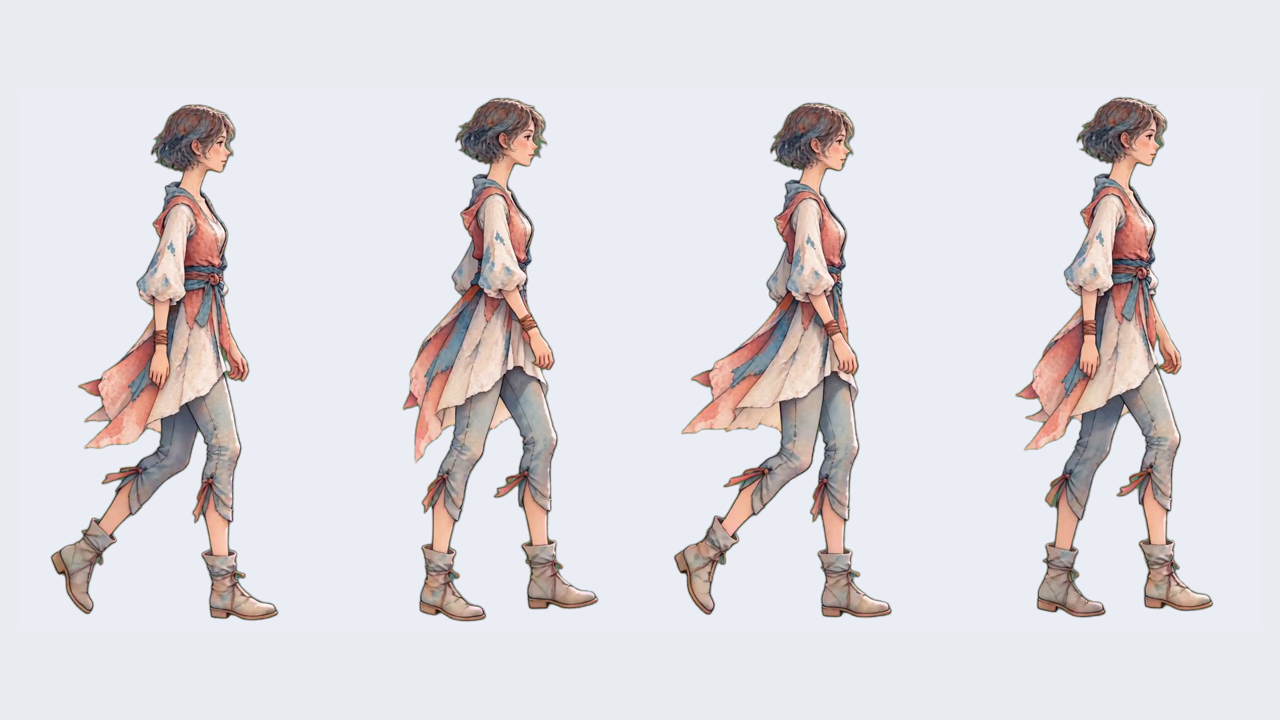
The watercolor woman on AnimGen's homepage gives us a useful example. For this walkthrough, we use her transparent ProRes 4444 source: four seconds at 24 FPS, with 96 frames. It begins with a short lead-in before the walking motion settles into a repeating pattern. We keep 32 frames at the original 24 FPS, for a cycle of about 1.33 seconds.
Open the original, loop, and scene-movement comparison. It starts paused. Play a few repetitions, or scrub the two videos separately to inspect a pose.
Separate the first step from sustained walking
Watch the complete four-second preview (MP4, about 1.1 MB) once. The early poses have a smaller stride; the character then begins alternating through a more sustained walking action.
That lead-in can be useful when a game character starts moving from rest. A continuous walk needs a cycle that can return to its beginning while the feet keep alternating at the same rhythm. Returning to the initial standing pose introduces a new start on every repetition.
Follow the feet first, then check the arms and fabric. A particular leg returning to a similar phase helps identify a full cycle. A similar silhouette with the legs swapped may be only half a cycle. When clothing hides part of the legs, the arm swing and direction of the toes help you keep track.
Keep frames 33–64 from this preview
We checked the selection in the 24 FPS source and retained 32 consecutive frames at zero-based indices 32–63. Both the full preview and the loop are exported from that ProRes file at 496 × 864 pixels, without interpolation or a speed change.
| Property | Full preview | Selected loop |
|---|---|---|
| Frame count | 96 | 32 |
| Playback rate | 24 FPS | 24 FPS |
| Duration | 4 seconds | 32 ÷ 24, about 1.33 seconds |
| Position in the preview | Frames 1–96 | Frames 33–64 |
| Download format | WebM with Alpha transparency | WebM with Alpha transparency |
These frame numbers start at 1. In a tool that starts counting at 0, select indices 32–63. The corresponding time interval starts at 32 / 24 seconds and ends at the 64 / 24 second boundary: approximately 1.33–2.67 seconds, excluding the next frame at the end boundary.
Source indices: 32, 33, 34, ... , 63 (zero-based)
Output frames: 32
Output FPS: 24
Cycle duration: 32 / 24 ≈ 1.333 seconds
Playback: 32 → 33 → … → 63 → 32 → 33 → …
Use these numbers to reproduce this example. Another generated clip may settle into its walk at a different point, with a different number of frames per cycle.
Watch frame 64 return to frame 33
After trimming, play at least three repetitions. The frames inside the selection already follow one another in the source. The transition that needs particular attention is the final frame returning to the first.
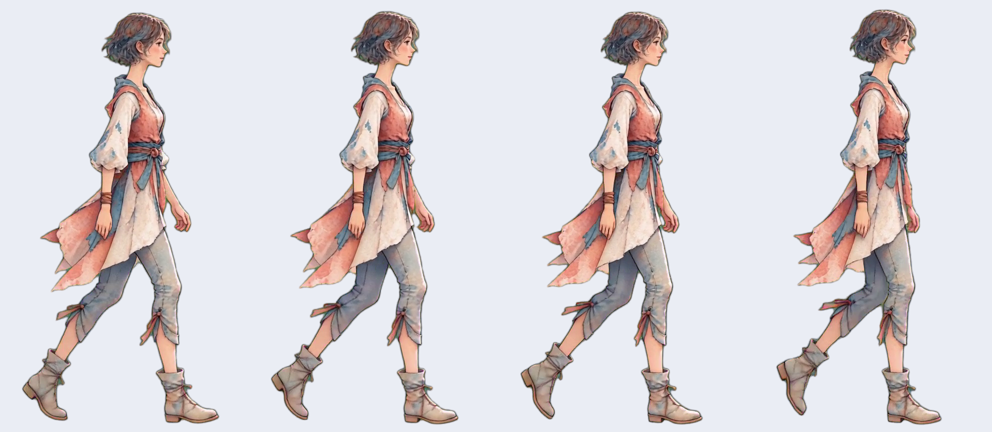
From left to right, the image shows source-preview frames 63, 64, 33, and 34: the final two output frames followed by the first two. These pictures come from the transparent loop, composited onto the same light background without stretching the character.
Look across the middle of the strip. Do the feet continue in the expected direction? Does the body jump in height or position? Does the cloth suddenly change shape? Scrub slowly to examine the poses, then return to normal playback to judge the rhythm.
The first and last pictures do not need to be identical. Each frame remains on screen for a short interval. Adding an exact copy of the first picture at the end can hold that pose twice and create a small hesitation. Aim for a last-to-first change that feels like another ordinary step between neighboring frames.
If the join remains obvious, shift one selection boundary by a frame and play it again. At 24 FPS, one frame lasts about 42 milliseconds, enough to affect the rhythm. Adjusting one end at a time makes the effect easier to judge.
Build the sequence and leave it at 24 FPS first
To inspect this preview in AnimGen, open the fine-tuning editor, find the middle 32 frames in Source Frames, and place them in Animation Sequence in their original order. Remove the other output items. Check an existing sequence before appending, so you do not accidentally keep two copies of the selection. Set the output to 24 FPS and preview it repeatedly.
The Advanced Editor guide explains the panels and selection controls. Keep source position separate from output position: after trimming, output frame 1 corresponds to preview frame 33.
Playing those same 32 frames at 48 FPS would shorten the cycle to about 0.67 seconds and make the character walk faster. We preserve all the source's 24 FPS motion frames so the loop and original play at the same speed. Dropping half the frames and then duplicating the remainder into a 24 FPS file would still leave the intermediate poses missing.
Both the full clip and the selected cycle are available as transparent WebM downloads. The browser comparison uses MP4 copies of the same frames composited onto a light background, giving both previews the same background and frame rate. For your own assets, start with the transparent animation workflow.
| Clip | Web preview (light background) | Transparent asset (Alpha preserved) |
|---|---|---|
| Full four-second clip | MP4 · about 1.1 MB | WebM · about 2.2 MB |
| 32-frame walk cycle | MP4 · about 396 KB | WebM · about 810 KB |
All four files retain the 496 × 864 resolution and 24 FPS timing. Open an MP4 to watch the motion, or download a WebM when you need transparency. The page does not load the roughly 35 MB ProRes original.
Match the walk to movement through the scene
The loop repeats the footsteps. Game logic usually updates the character's position in the world. When those are combined, a clean loop can still appear to skate if the body travels too far or too little while a foot is planted.
The scene-movement demo plays the same 32-frame transparent WebM loop while moving the character across the page at a default speed of 125 px/s. The light background belongs to the scene; the character video retains its Alpha channel. Adjust the travel speed and watch the feet relative to the ground. At the right edge, the character returns to the left; that position reset is separate from the video repeating its gait every 1.33 seconds.
In a game, start at the intended display size and ordinary playback speed. Watch a foot during its contact with the ground, and adjust movement or animation speed to reduce visible sliding. Check again after changing the character's scale: a larger character also has a larger stride on screen.
The demo lets you explore that relationship; its speed values are not a calibrated walking speed for this character. To bring the animation into a game scene, continue with the Godot import case study.
Export the cycle you have checked
Once the selection works, record its frame count, FPS, and canvas size. Play the exported result again to confirm the motion, transparency, and placement. If you change formats or engines, check frame order and timing so the 24 FPS sequence does not end up playing at a different rate.
Use the sprite sheet and PNG sequence comparison to choose a game asset format. If the transparent edges still have color spill, the Alpha and edge-despill walkthrough covers that part of the cleanup.
Try selecting the cycle from the four-second preview, then compare it with the 32-frame loop preview. For your own character, start with one full gait cycle, play several repetitions, and then connect the animation to movement through the scene.