
In this guide
A character that fits its standing pose can run out of space as soon as it jumps. We used PhotoCraft MCP to add transparent space above an orange robot, then sent that exact PNG to AnimGen MCP to generate the motion. Two exported frames needed a small cleanup, which we handled in PhotoCraft too.
The clip below shows a complete jump, including the landing and return to the ready pose, at the original 24 FPS. The cream background is for viewing; the downloadable WebM and PNG frames retain transparency.
Connect PhotoCraft MCP to a local project folder
This example uses the official PhotoCraft 0.9.0 CLI, tested on macOS on October 14, 2026. The CLI can run a headless MCP server; you do not need an editor window for these image operations. For the desktop installation route, see our PhotoCraft download guide.
Create a working folder and an output subfolder, then configure your MCP client to launch the downloaded executable with arguments like these. Replace the example paths with your own absolute paths:
photocraft-cli mcp \
  --automation-read-root /absolute/path/robot-project \
  --automation-write-root /absolute/path/robot-project/output
Those folders define the server's file access. doc_open paths resolve under the read root; doc_save paths resolve under the write root. After connecting, open the PNG and ask command_list for the commands you need. The official MCP documentation covers headless mode, command discovery and the separate bridge mode used for UI tools.
Connect AnimGen through its MCP client guide. It is a remote, OAuth-authenticated server at https://api.animgen.com/mcp; PhotoCraft in this example runs locally.
Add space above the robot without resizing it
Our original robot PNG is 1254 × 1254. We duplicated the document and expanded its canvas to 2160 × 1620, with the anchor at the bottom centre and the added area transparent.
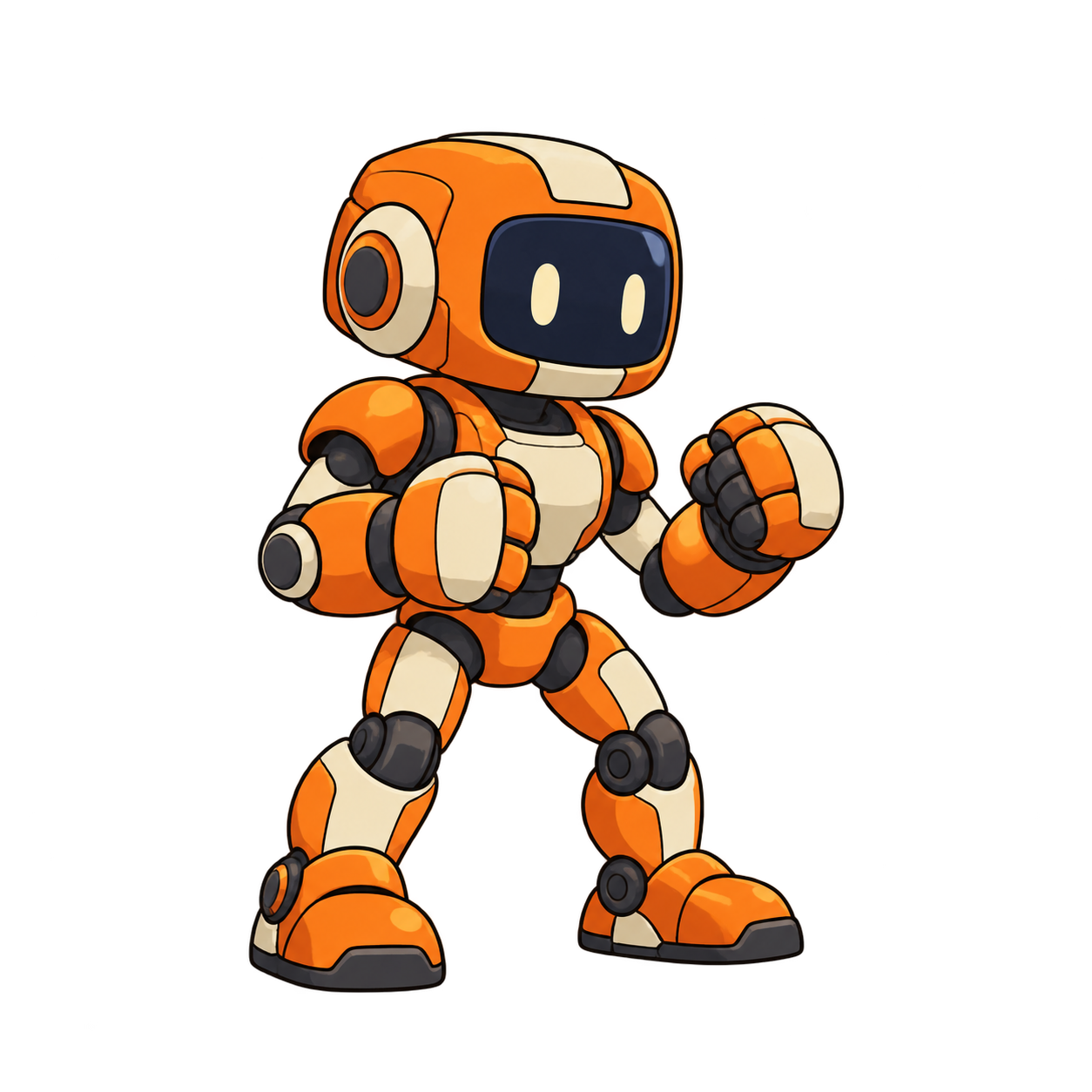
After discovering image.canvasSize, the command_run arguments were:
{
  "id": "image.canvasSize",
  "params": {
    "width": 2160,
    "height": 1620,
    "relative": false,
    "anchor": "bottom",
    "extensionColor": "transparent"
  }
}
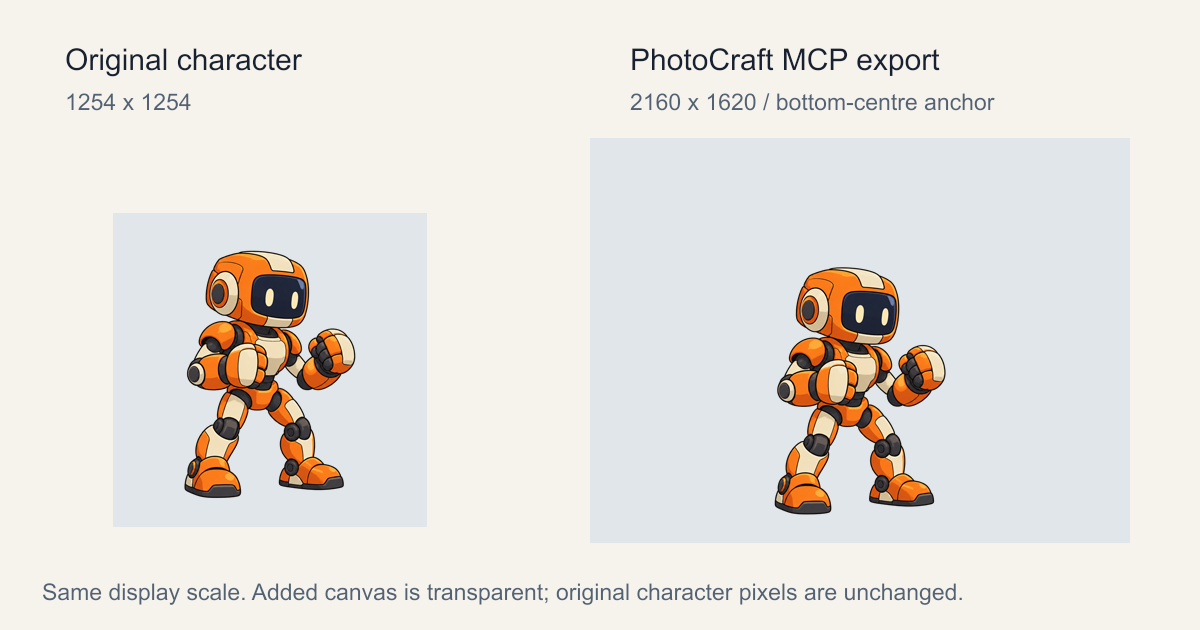
The original image moved to x=453, y=366 inside the larger canvas. Its RGBA pixels were unchanged; the new border had zero Alpha. The gray panels above show the canvas extents and are not part of the PNG. Download the actual prepared input to inspect it.
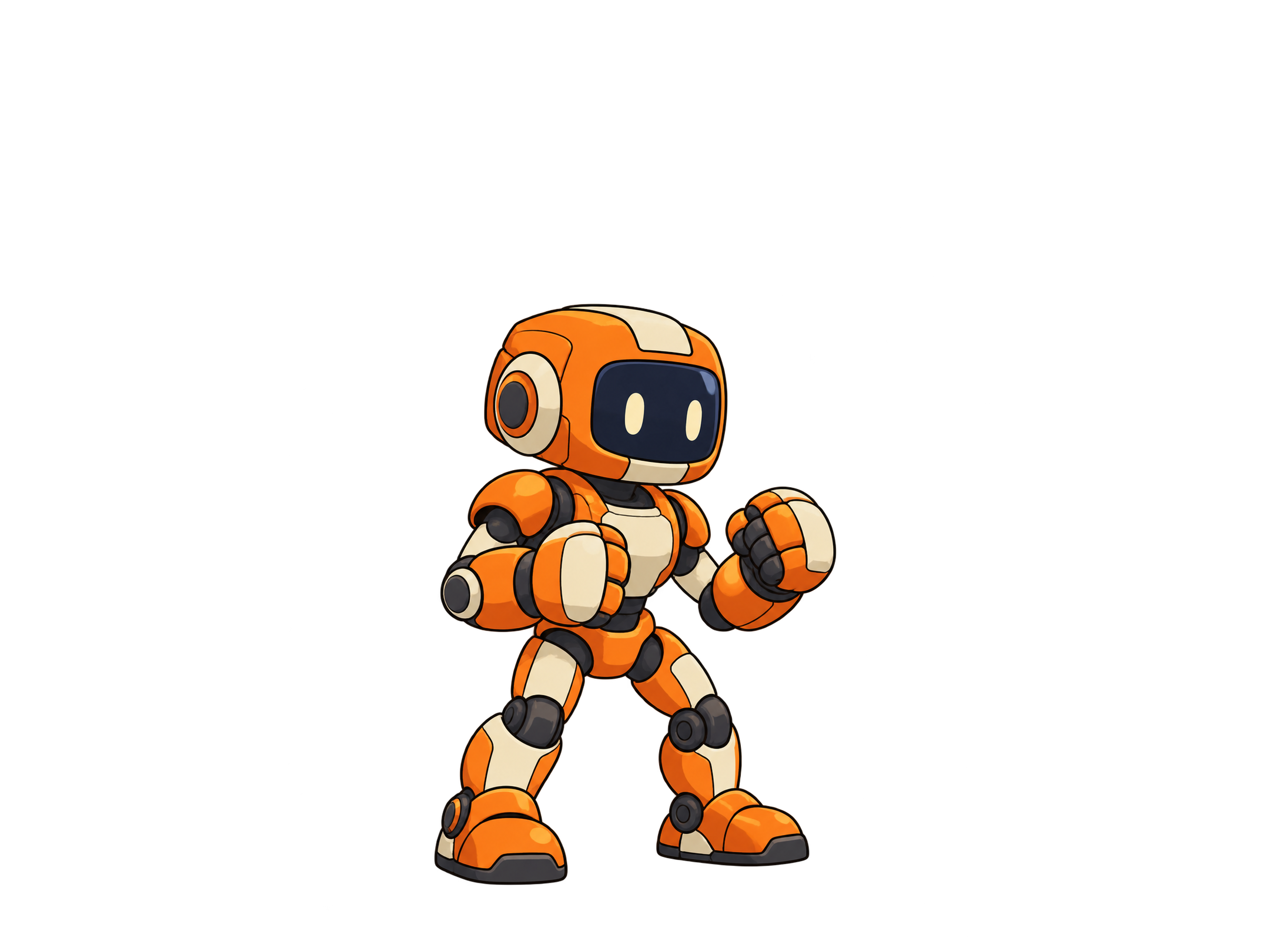
We saved both a .pcraft document and a PNG. AnimGen's own Expand Canvas stayed off for this run because PhotoCraft had already prepared the space.
Transfer the actual PNG to AnimGen
A local PhotoCraft path is not an image upload to a remote service. The client calls prepare_image_upload, sends the file bytes using the returned method and headers, then calls complete_image_upload. The returned file_id becomes the generation input. In this run, the upload's byte count and SHA-256 matched PhotoCraft's export.
This is a reusable instruction for an assistant with both MCP servers connected, rather than a transcript of every tool call:
Use PhotoCraft MCP to open my transparent robot PNG and duplicate it.
Expand the canvas to 2160 x 1620, bottom-centred, with transparent margins.
Save a new PNG without resizing the character.

Use AnimGen MCP to upload that PNG's actual bytes. Discover the available
models and quote a 4-second, 480p, 4:3 jump with automatic Alpha Key.
Show me the model and credit quote, and wait for approval before generation.

Keep the camera fixed and the whole robot in frame. Ask for a crouch,
an in-place jump and a landing. Save the task ID and wait for completion.
Reuse that source video for transparent exports; do not generate again
when selecting frames. Preserve 24 FPS and check the exported alpha.
The AnimGen MCP walkthrough covers upload, quotes and task polling in more detail.
Approve one generation and keep its source video
The approved request used Seedance 2.0 Fast, 4 seconds, 480p, a 4:3 ratio and automatic Alpha Key. Generation cost 36 credits. The transparent exports were quoted and charged at 0 credits; no second generation was made.
| Item | This run |
|---|---|
| Returned video | 752 × 560, 24 FPS, 97 frames |
| Measured duration | About 4.04 seconds |
| Motion | Two consecutive jumps, then a return to the ready pose |
| Final generation charge / refund | 36 / 0 credits |
| Export charge | 0 credits |
The model produced two jumps despite the single-jump request. That still gave us a useful first jump to select. These prices describe this recorded run; obtain a fresh quote for your own model and settings (pricing).
The current FPS export mode accepts the sprite sheet and matching JSON together. We exported those at 24 FPS, then requested the transparent videos and PNG sequence separately using the full video's 97 frames. Both requests reused the same source asset and had a zero-credit cap.
Clean two landing frames in PhotoCraft
Light and dark background checks of the original 97-frame export revealed faint greenish residue near the robot's head in source frames 48 and 49, around the first landing. It was easier to fix those two frames than to generate another video.
We opened copies of the affected PNGs in PhotoCraft, used select.rect and edit.clear on the small empty regions containing the residue, then saved them as PNG. Pixel checks confirmed that every pixel outside the selections was unchanged; the other 95 frames were also unchanged.
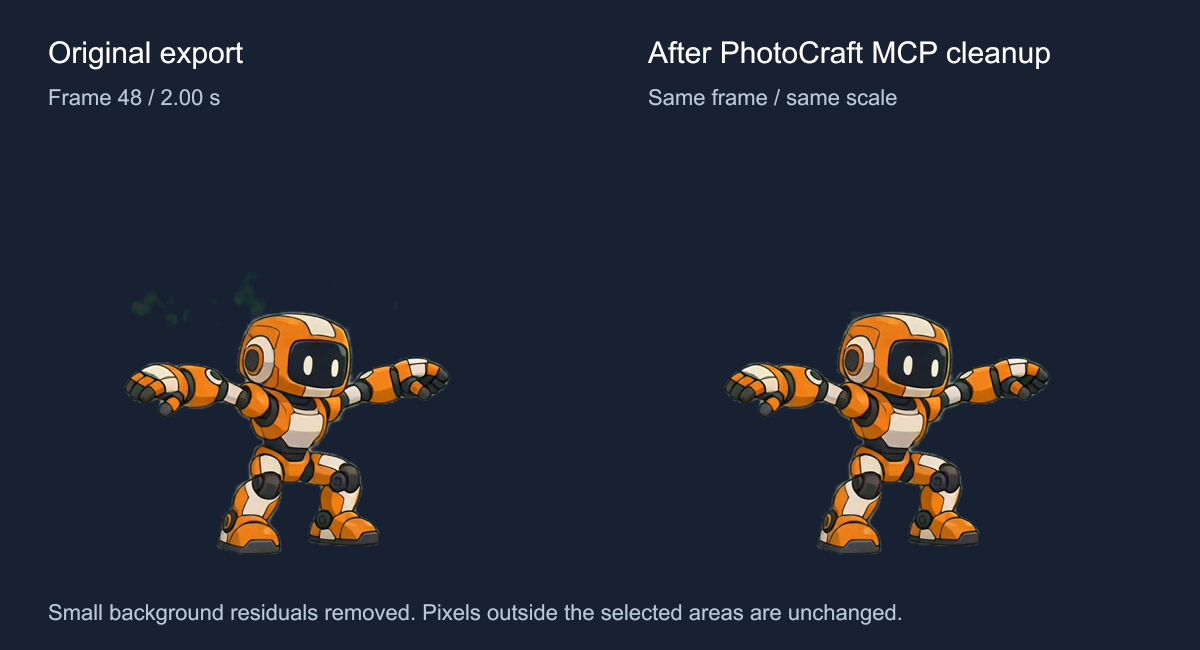
These are comparisons composed from the real exported frames, with English labels. They are not screenshots of an editor interface. The cleanup kept the original canvas size and ground shadow. If color spill touches the character itself, use the checks in our transparent-edge guide before clearing any pixels.
Keep one jump at 24 FPS
The final cut contains 77 frames at 24 FPS, about 3.21 seconds. It keeps the crouch, takeoff, airborne motion, landing and recovery. We used every frame of the complete WebM, without interpolation or a speed change.
The robot returns to its ready pose before the clip ends. Play it once and transition to your character's next state; it was not edited as a seamless loop. The attack-animation case explores this kind of one-shot playback, while the walking-animation guide covers loops.
Here is the same complete jump on light and dark backgrounds:
Download the files for your own project
| File | Contents |
|---|---|
| Prepared character PNG | The 2160 × 1620 PhotoCraft output used for generation |
| Transparent jump WebM | The complete 77-frame jump, 752 × 560, 24 FPS; compressed VP9, about 436 KB |
| PNG sequence ZIP | 77 transparent frames, numbered 0–76 within the complete WebM |
| Sprite sheet and JSON | The same 77 frames, packed at 6016 × 5600, with per-frame timing |
| Media record | Dimensions, costs, cleanup selections and file hashes |
The sprite sheet uses full-resolution frames; check your target's texture limit before importing a 6016-pixel-wide atlas. The PNG sequence lets you repack or resize it for that target. Keep the shared frame canvas so the robot's jump height is preserved.
PhotoCraft MCP questions
Does PhotoCraft MCP generate the AI animation?
In this workflow, PhotoCraft edits the source canvas and exported pixels. AnimGen generates the motion and supplies the initial transparent exports. The client coordinates the two servers and transfers the files between them.
Is the whole process free?
The local PhotoCraft edits required no generation credits. AnimGen generation cost 36 credits for this particular request, and its exports cost 0. Your MCP client's AI usage may have a separate cost.
Can I start with my own character?
Yes. Use a PNG with real transparency, leave space in the direction of movement, and check a crouched pose, the highest airborne pose and the landing. If you prefer to work directly in the browser, start with the transparent animation maker; you can apply the same frame checks there.