
In this guide
The official PhotoCraft download page offers two routes: install it through ArtCraft Launcher, or download PhotoCraft on its own. If you only need to edit a character image, the standalone editor is enough.
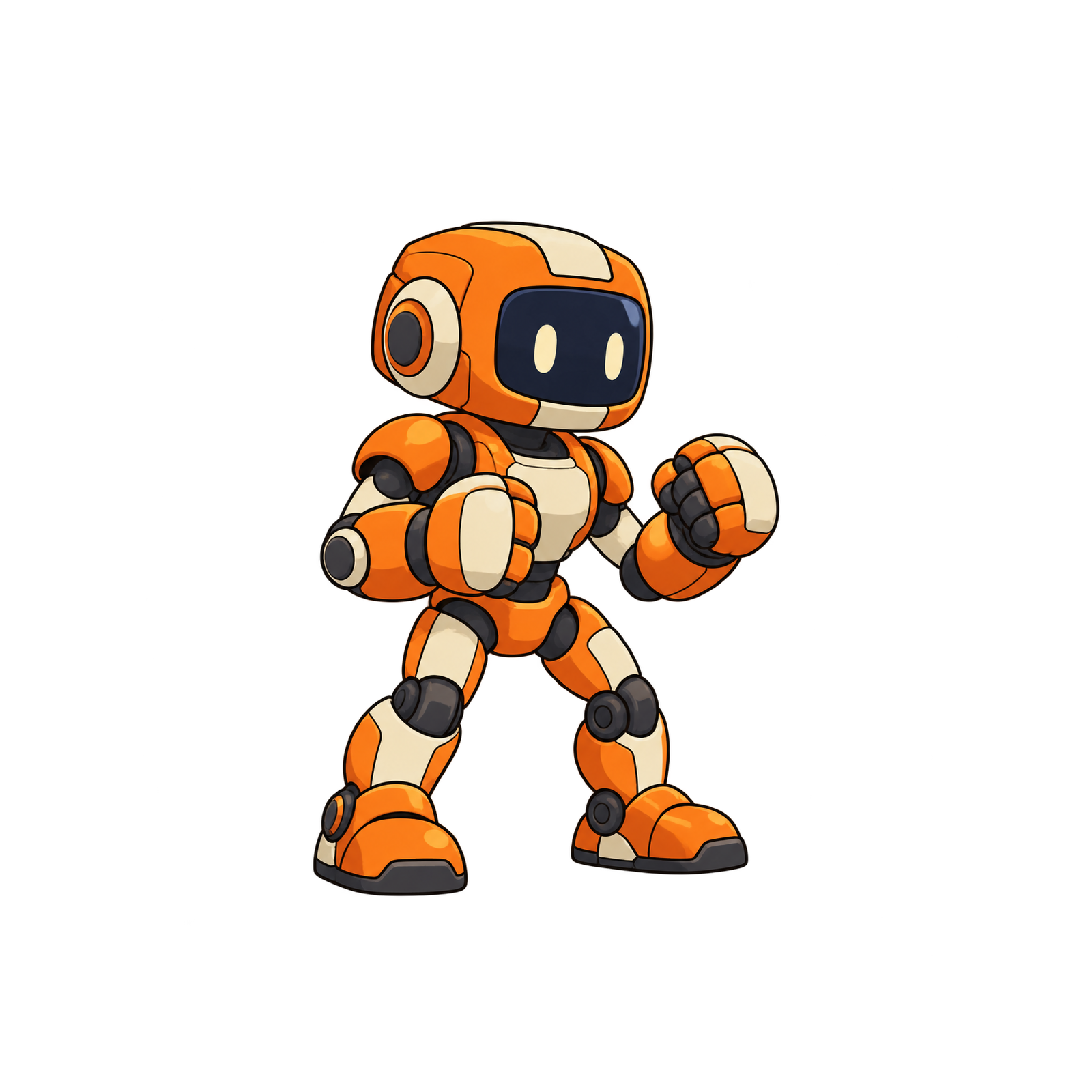
This is the PhotoCraft image editor from Brandon Thomas's ArtCraft. On October 14, 2026, its website lists PhotoCraft 0.7.0 and Launcher 0.3.2. Our first exercise uses a transparent orange robot: open the PNG, leave room for movement, and export a file you can use in an animation workflow. The editing screenshots and downloadable result come from our October 11 test of PhotoCraft 0.7.0's locally hosted web build.
Choose the official download route
Start from the PhotoCraft page above. Its Get PhotoCraft section contains the Launcher button, standalone downloads, release notes, and checksums.
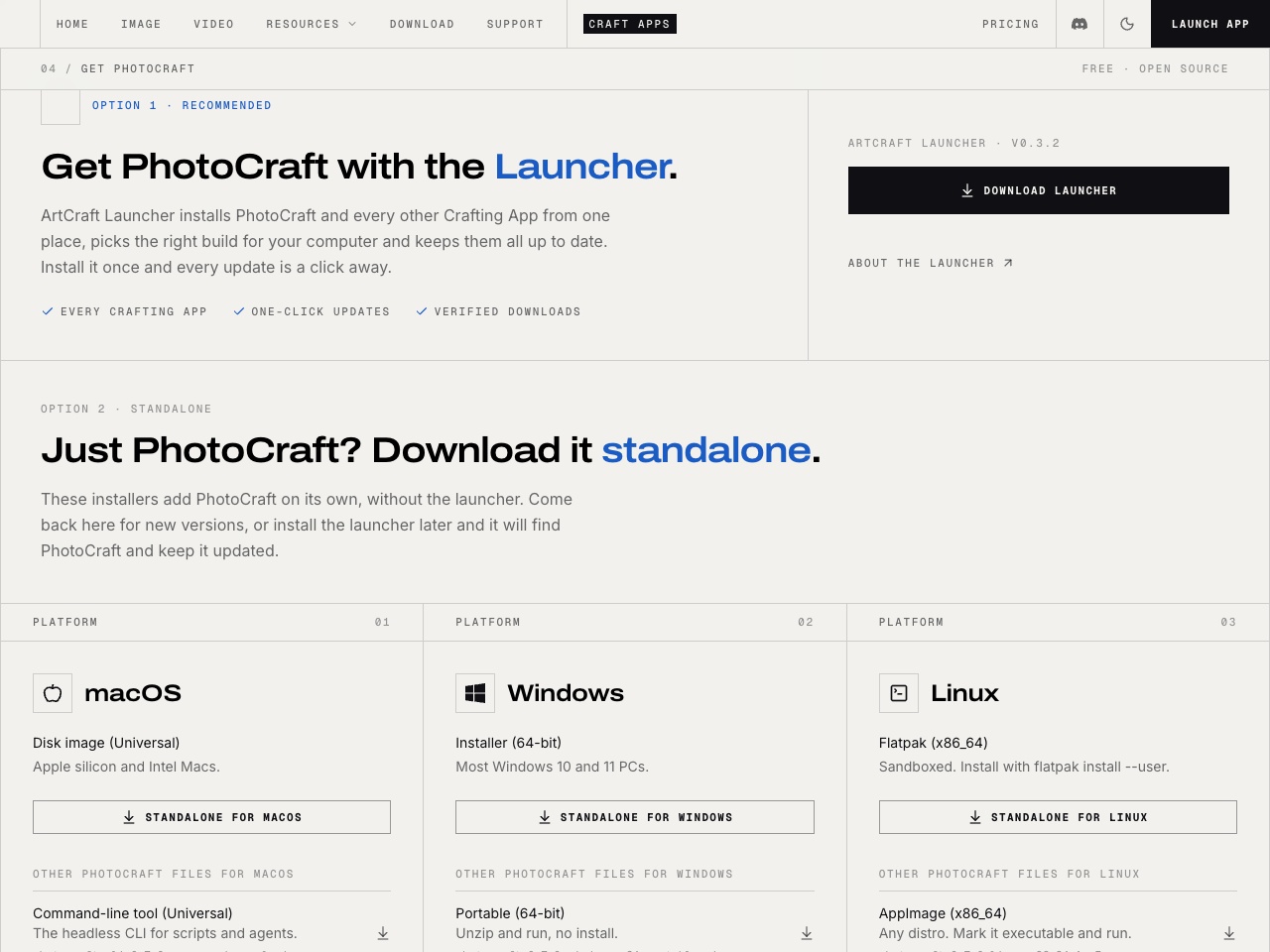
ArtCraft Launcher is useful if you want to try several Crafting Apps. It picks the package for your system and manages updates. The official Launcher repository links to its releases and explains installation.
Standalone PhotoCraft installs only the image editor. Choose this if you want to try the PNG exercise without adding a suite manager. The PhotoCraft 0.7.0 release is the version used for the screenshots here; the release list is the place to check for later versions.
The official release assets are under the storytold/photocraft and storytold/craft-launcher repositories. Check that destination before downloading from a search result. This guide links to the original files; AnimGen does not host a copy of the installer.
Pick the build for your computer
The PhotoCraft download page currently offers these common choices:
| Your computer | Build to look for | What to check |
|---|---|---|
| Apple silicon or Intel Mac | Universal .dmg |
The same universal package covers both Mac processor families |
| Most Intel or AMD Windows PCs | x64 .msi |
ARM64 and older x86 builds are separate choices |
| Windows without an installer | Portable .zip |
Extract the archive before opening the application |
| Linux | Flatpak, AppImage, .deb or .rpm |
Match the distribution and processor; x86_64 and ARM64 packages differ |
Open the downloaded installer and follow its prompts. For an AppImage, the file needs executable permission. The command-line tool is for scripts and agents; choose the desktop package if you want the editing window shown below. GitHub's Source code archives are also different from a packaged application.
The Web build is a ZIP containing the WebAssembly app to host on a web server. It is not a link to the ArtCraft AI studio. We served that official build locally for the image test. You do not need to set up a local web server just to use the desktop editor.
PhotoCraft is still marked early alpha. Keep the original artwork and save an edited copy while trying it. If the operating system raises a warning, verify the source and consult the project's instructions rather than disabling security checks for every app.
Open a character with real transparency
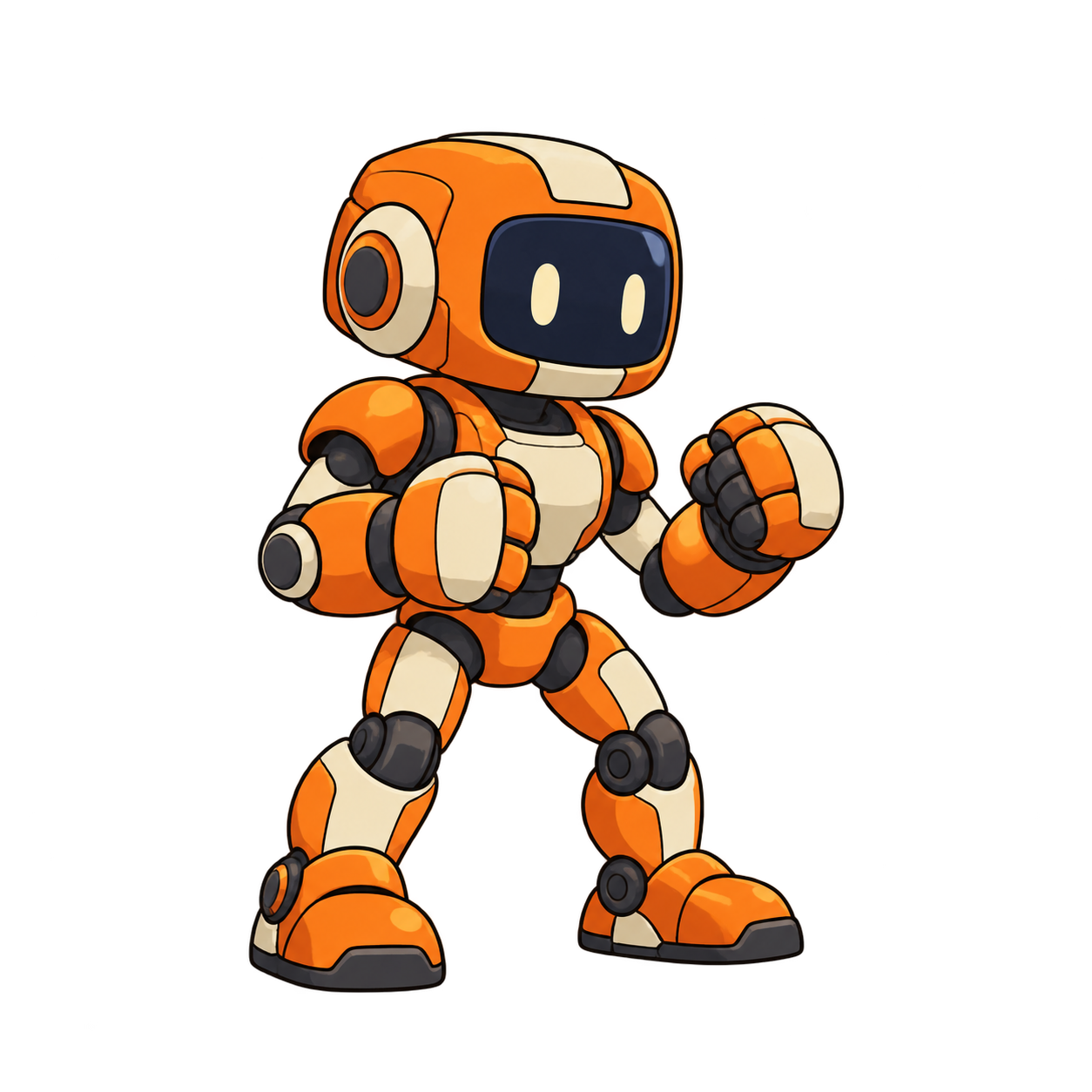
Download our original robot PNG. In PhotoCraft, choose Open and select that file. It is 1254 × 1254 pixels, with an alpha channel around the character.
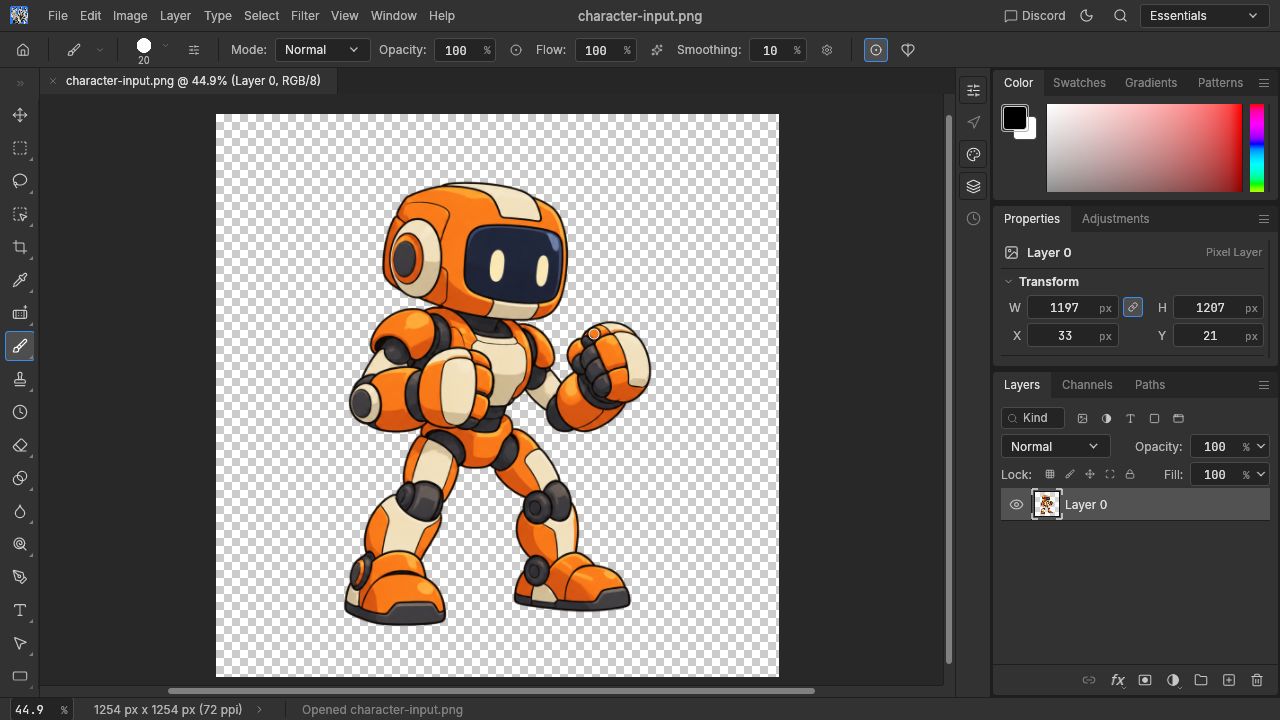
The checkerboard in this screenshot is the editor's transparency display. It should not appear in the exported PNG. An image that already has a checkerboard painted into its pixels will keep that pattern when saved.
If your own character has a white rectangle around it, exporting as PNG alone will keep that rectangle. Remove the background first, then check the edges of the hands, feet, hair, or weapon before generating motion.
Leave room for arms, feet and weapons
A tightly cropped standing pose leaves little room for a punch or jump. For our robot, we used Image → Canvas Size with these settings:
- Width and height: 1600 Pixels.
- Relative: unchecked.
- Anchor: centre.
- Canvas extension color: Transparent.
This added 173 transparent pixels to each side without resizing the drawing. Use Canvas Size for extra space; Image Size changes the size of the image itself. The full PhotoCraft canvas test includes the settings screenshot and before/after comparison.
If you only want more room for an AnimGen generation, Expand Canvas handles that in the input settings. Editing in PhotoCraft is useful when you want to keep a separate source PNG for other tools too.
Export a PNG and check it on two backgrounds
Choose File → Export → Quick Export as PNG and keep the download as a new file. You can compare it with our actual PhotoCraft export.
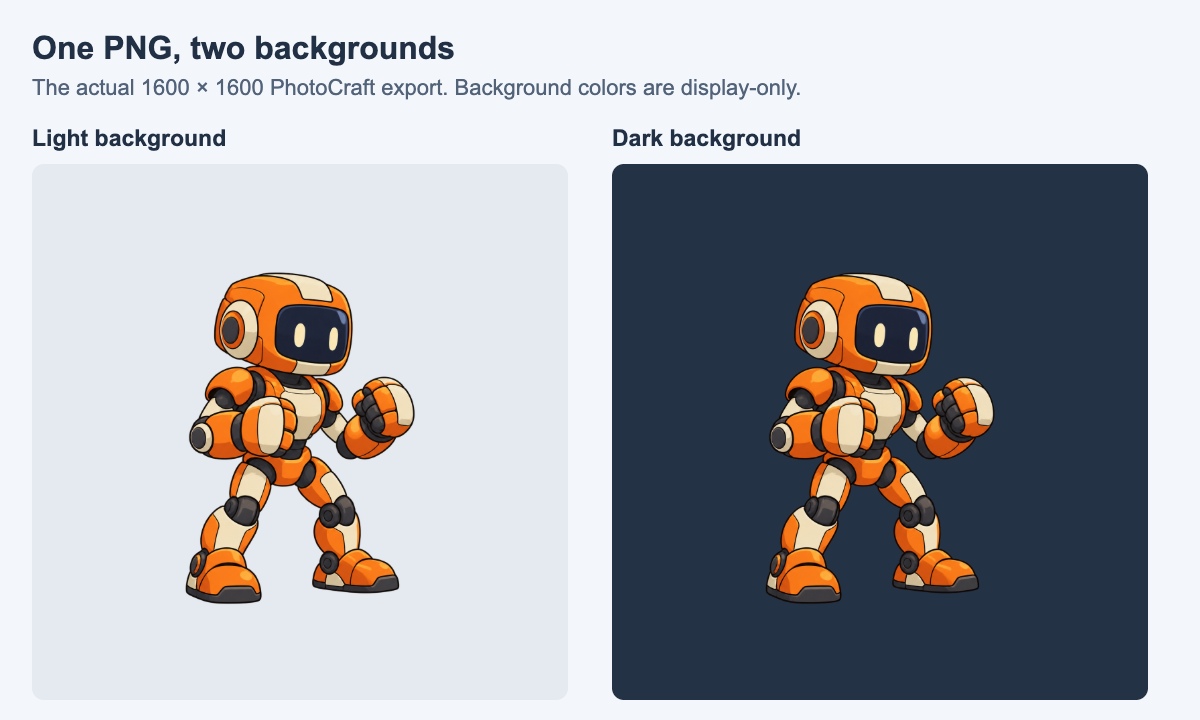
Both panels display the same PNG. Their background colors are supplied by the page, not saved inside the image. Put your own export over a light surface and a dark surface too: a baked-in background or a pale edge is easier to spot this way.
Our exported file is 1600 × 1600. Every original RGBA pixel was preserved in its centre, and the added border is fully transparent. The test record contains the measurements and file hashes. This gives you a downloadable result to compare with, rather than relying on the screenshot alone.
Use the character in an animation workflow
With the PNG ready, you can upload it to the transparent animation maker, describe one action, review the motion, and export the frames you need. Check that the full character stays inside the frame before packing a sprite sheet.
The robot below already has idle, run, punch and kick animations in our playable character example. This is footage from that earlier Godot project; these animations were generated before the PhotoCraft canvas edit.
If you already have a PNG sequence, use the free sprite sheet maker to pack it. If you already have a video, the free video to sprite sheet converter lets you select its useful frames. Neither step requires generating the motion again.
Download and export questions
Is PhotoCraft free?
PhotoCraft is free and open source. Our PNG editing and export test required no account or generation credits. The separate ArtCraft AI studio has its own paid plans; generating new animation in AnimGen also has a quoted model cost (pricing).
Do I need ArtCraft Launcher?
No. PhotoCraft has a standalone download. The Launcher is convenient when you want to manage several Crafting Apps and their updates from one place.
Is a download safe just because it says PhotoCraft?
The name alone does not establish the source. Follow the links from the official PhotoCraft page and compare the file with the release's SHA256SUMS.txt if needed. A matching checksum checks the downloaded bytes against that release; it is not a guarantee that early software has no bugs or security issues.
Why does my PNG look white or black in a viewer?
Some viewers place transparent images over a solid background. Reopen the exported PNG in PhotoCraft and check for transparency outside the character. If the solid rectangle is part of the image, it will remain visible on the two-background test above.
Try the robot input first, save your PNG, and compare it with the tested output. Then use the same checks on your own character artwork.