
In this guide
ArtCraft has been making the rounds as a free, open-source alternative to Adobe's creative apps. For a small game project, that raises a useful question: can any of these tools help with the artwork you need today?
We tried PhotoCraft with the orange robot from our animation tutorials. The job was small: open a transparent character PNG, add space around the character, and export it without changing its pixels. PhotoCraft 0.7.0 completed that job in the browser.
Updated October 14, 2026: the official lineup has grown to 13 apps, with an ArtCraft Launcher for installation and updates. The PhotoCraft screenshots and pixel checks below remain from our October 11 test. For download choices and your first export, use our PhotoCraft download and setup guide.
What is Brandon Thomas's ArtCraft?
Brandon Thomas is a software engineer and the founder of ArtCraft. In his original announcement, he described using Claude to help build seven creative applications in Rust. The project is now developing with community contributions; the PhotoCraft 0.7.0 release credits many contributors.
The official Crafting Apps page now lists 13 apps. These are their displayed statuses as checked on October 14, 2026:
| App | Work it covers | Status |
|---|---|---|
| PhotoCraft | Raster images / Photoshop | Early alpha |
| VectorCraft | Vector illustration / Illustrator | In development |
| FilmCraft | Video editing / Premiere Pro | In development |
| LightCraft | Photo library and RAW development / Lightroom | In development |
| PdfCraft | PDF documents / Acrobat | Early alpha |
| EffectCraft | Motion graphics and VFX / After Effects | In development |
| DesignCraft | Page layout / InDesign | In development |
| FigCraft | Interface design and prototyping | Early alpha |
| WordCraft | Word processing | In development |
| SoundCraft | Audio recording and mixing | In development |
| DeckCraft | Presentations | In development |
| CADCraft | Computer-aided design and drafting | In development |
| GridCraft | Spreadsheets | In development |
The official ArtCraft Launcher selects a build for your operating system and processor and manages app updates. Each app also has standalone downloads. You can install PhotoCraft alone if that is all you need.
Those comparisons describe the work each app targets, not feature parity with Adobe. PhotoCraft's own README calls it an early alpha. Try it on a copy of a real project before making it your daily editor.
There is also an ArtCraft AI image and video studio under the same brand. That studio already includes image-to-video workflows. The editing apps and the AI studio serve different parts of the creative process, and their costs need to be read separately.
PhotoCraft test: give a transparent character more room
Our input was a 1254 × 1254 transparent PNG. For a punch, kick, or jump, extra space around a standing pose can help keep the action inside the frame. We expanded it to 1600 × 1600, keeping the character at its original pixel size and adding 173 transparent pixels on each side.
We used the official PhotoCraft 0.7.0 web release, served locally on October 11. The screenshots below are from that session.
Open the original PNG
Choose Open and select the robot input PNG. The checkerboard behind the robot is PhotoCraft's transparency display. It is not part of the image.
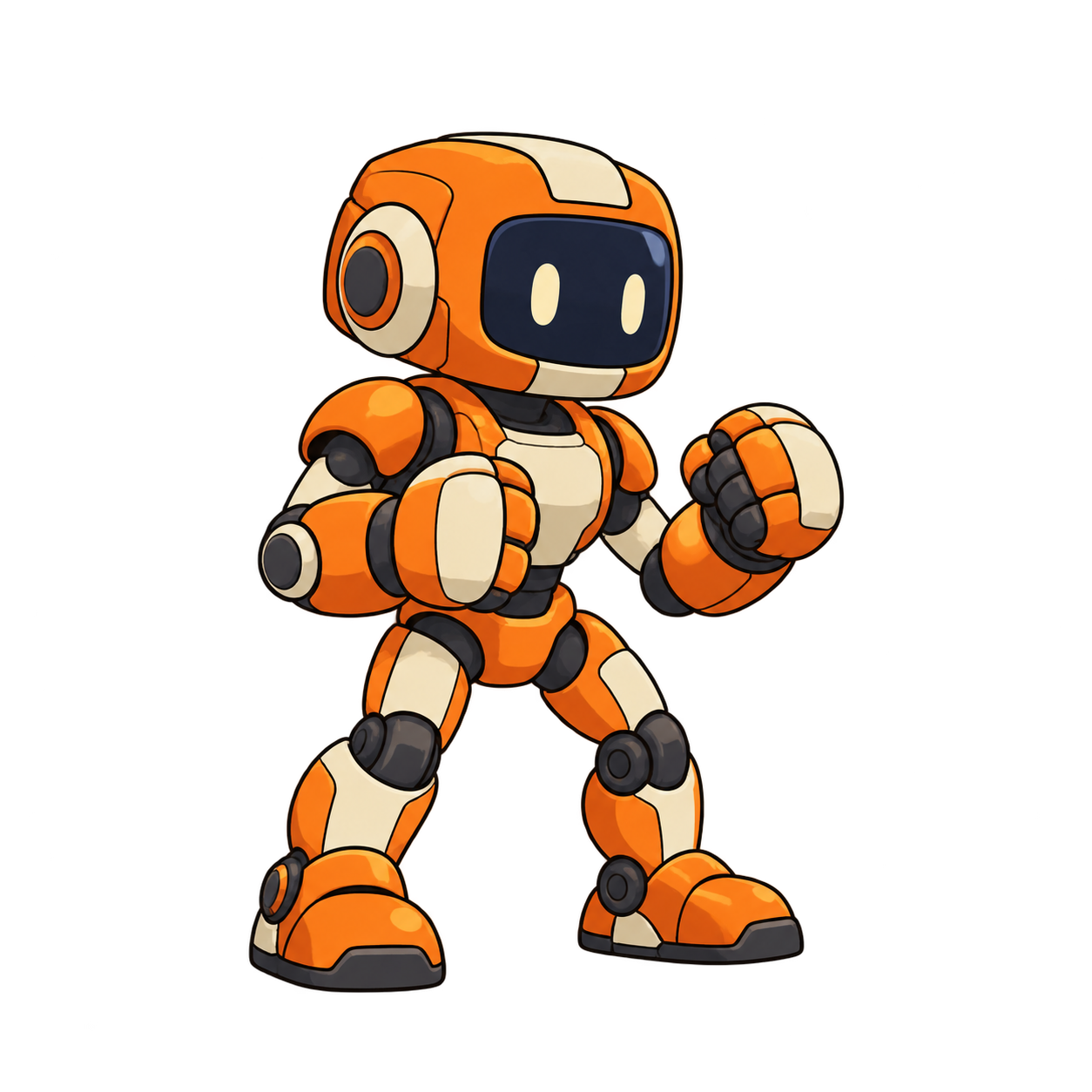
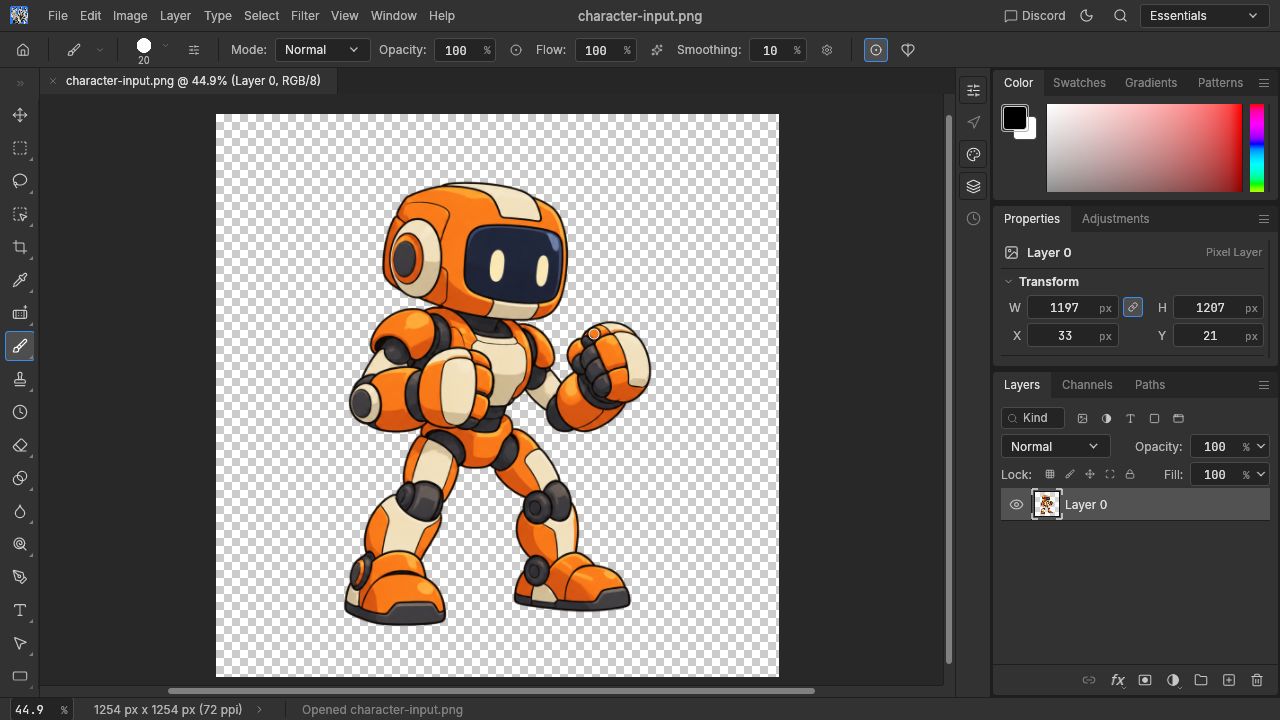
The robot was already cut out. This test did not remove a background, and enlarging a canvas will not remove one from a JPEG or an opaque PNG.
Add space with Canvas Size
Open Image → Canvas Size. Set width and height to 1600 pixels, leave Relative unchecked, keep the centre anchor, and change Canvas extension color to Transparent. Then confirm with OK.
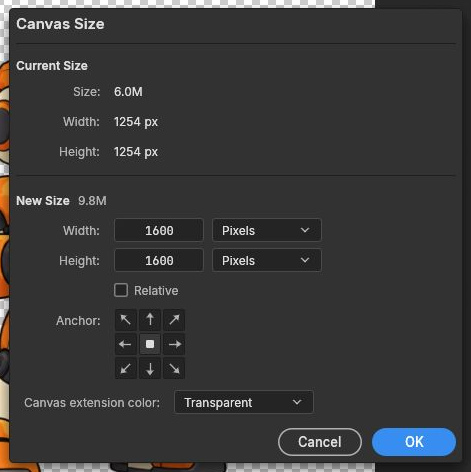
Canvas Size changes the document boundary. Image Size rescales the image. For this job, we wanted the former: more room around the existing drawing, with no resampling of the character.
At the same displayed width, the expanded version looks smaller because the canvas contains more empty space. The exported robot itself still has exactly the same pixels.
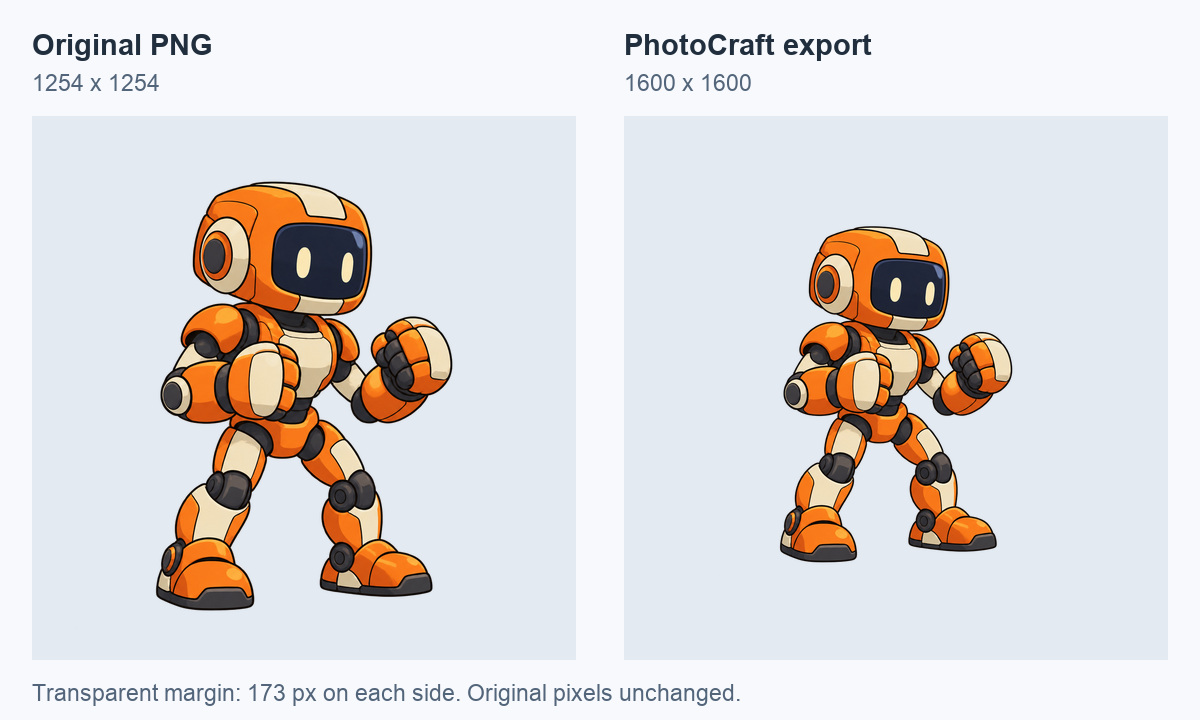
The pale backgrounds in this comparison are for display only. Both downloadable PNGs have transparency. If your next step is AnimGen and you only need extra room, its built-in Expand Canvas can do that during input setup without saving another local image. PhotoCraft is useful when you also want to keep an edited source file for other tools.
Export and check the transparency
Choose File → Export → Quick Export as PNG. Our downloaded file was 1600 × 1600. Comparing its centre with the original found no differences in any red, green, blue, or alpha value; every pixel in the added border had alpha zero.
Download the actual PhotoCraft export to try it yourself. The test record includes the settings, dimensions, and file hashes.
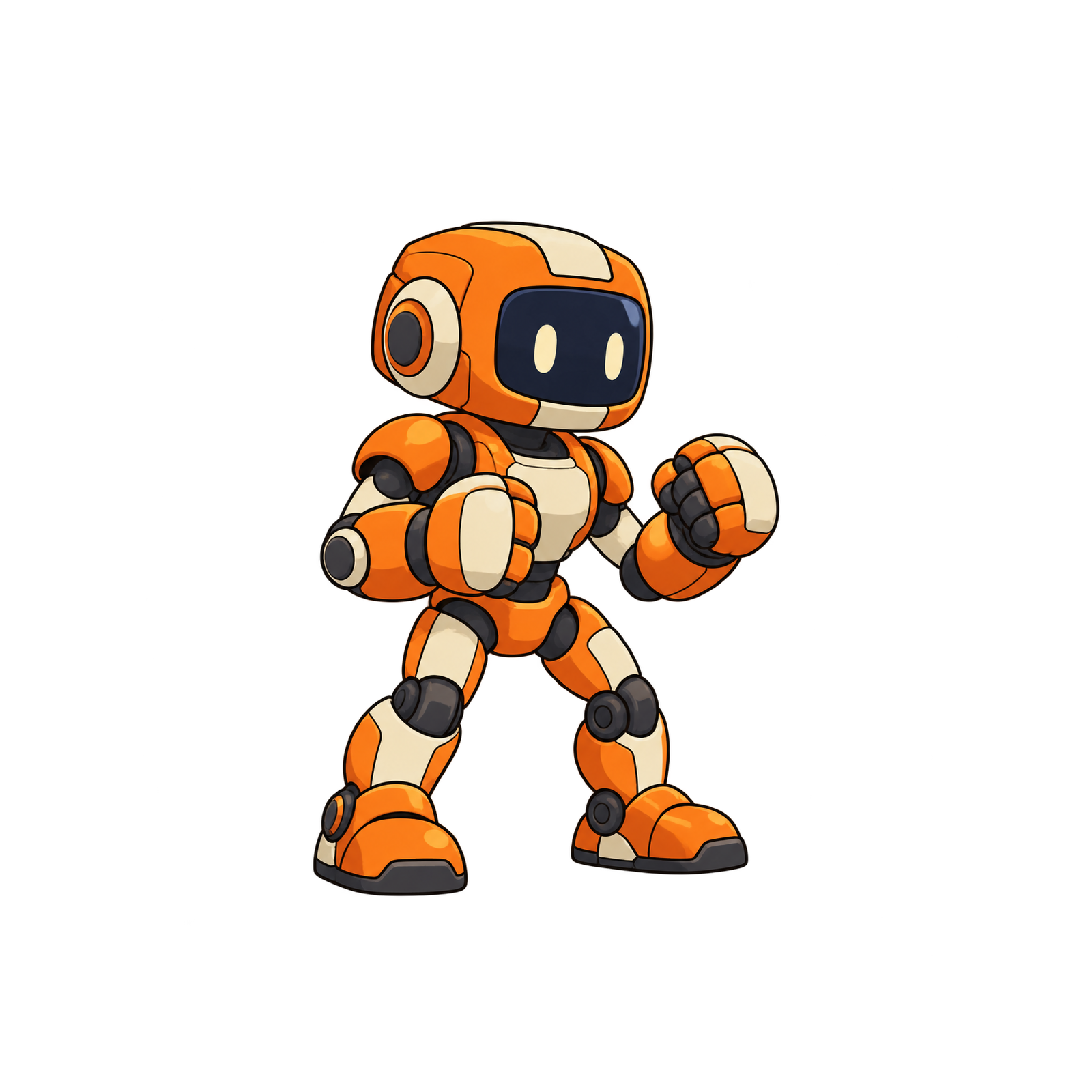
More margin gives a model room to place moving limbs. It does not guarantee that every generated action will stay in frame. For a long weapon swing or a high jump, review the complete motion before choosing a crop.
From a character PNG to a playable game character
The same robot already has idle, run, punch, and kick animations in our playable character case. This is footage from that earlier Godot test; those animations were made before the PhotoCraft canvas edit above.
The next tool depends on what you already have:
- One character PNG: generate motion, choose the useful frames, and export with transparency. The transparent animation maker covers this route. Keep the character fully visible and give outstretched arms, feet, or weapons space to move.
- A video containing the motion: select the useful range in the free video to sprite sheet converter. An existing alpha channel can carry through to the frames; an opaque source needs background removal.
- A folder of finished PNG frames: pack them in the free sprite sheet maker. If you edited frames in PhotoCraft, keep the same canvas size and character alignment across the sequence. Re-centring each frame separately can make the animation wobble.
The sprite sheet tutorial includes downloadable frames and JSON examples. For an engine project, the Godot 4 import walkthrough goes through loading and playing an exported package.
Which parts are free?
The Crafting Apps are free and open source. Opening the PNG, enlarging its canvas, and exporting it in this PhotoCraft test required no account or generation credits. AnimGen's two browser tools linked above—packing existing frames and converting an existing video—are also free and require no account.
Generating new motion uses model inference. ArtCraft's AI studio has paid plans and credits; AnimGen also quotes generation costs according to the selected model and settings (pricing). A free editor does not make an external AI model call free.
We did not generate any new animation for this article. We used our existing character and animation files, so the practical exercise here is the free image-editing step.
A useful detail for developers: CLI and MCP
PhotoCraft also documents a command-line client and an MCP server. Its MCP instructions let you restrict file access to a project directory:
photocraft-cli mcp --automation-read-root /path/to/game-art --automation-write-root /path/to/game-art
Replace the path with your own folder after installing the native CLI. This is a documented automation option; our canvas test used the browser interface. A frame-editing pipeline could use that interface for repeatable changes, then pass the results to a packer. AnimGen has a separate MCP animation example for generation and export.
Try the canvas edit with the robot
Download the original PNG, open it in PhotoCraft, and repeat the 1600 × 1600 canvas edit. Compare your export with ours.
If you already have animation frames, skip generation and try the sprite sheet maker. If you are starting from character art, the playable robot case shows how we turned this character into four actions and connected them to game controls.