
In this guide
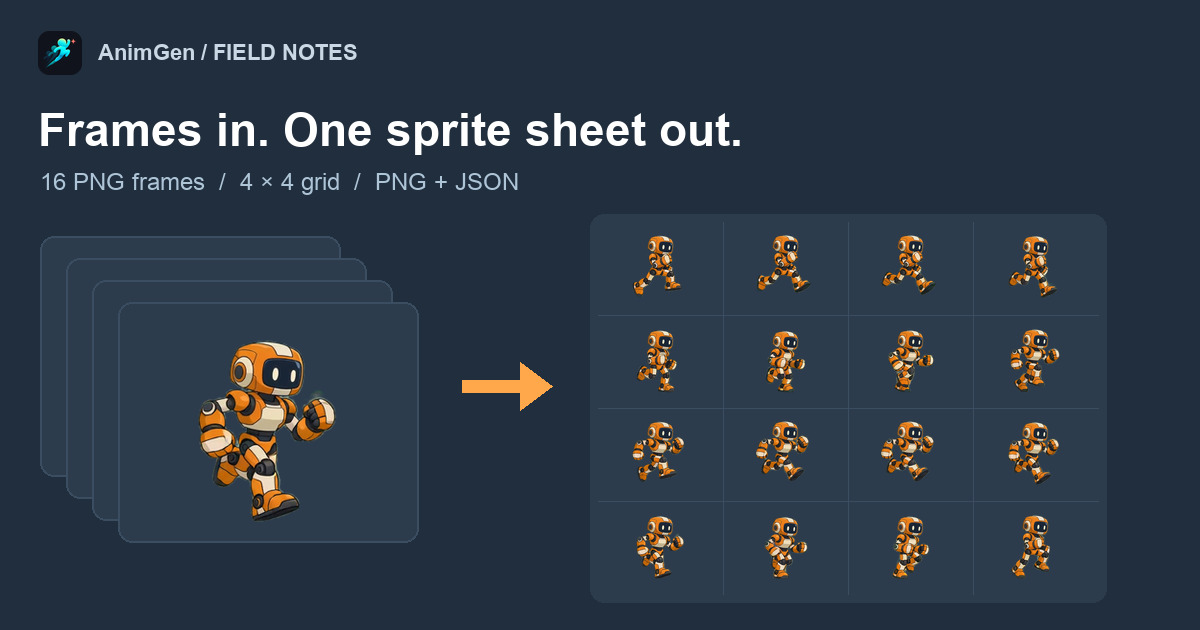
A sprite sheet is one image that holds every frame of an animation, usually in a grid, plus a small data file that says where each frame sits and how long it plays. A game engine loads the image once and draws one cell at a time.
How you make one depends on what you have. If the frames already exist as separate PNGs, you only need to pack them. If the motion is in a video, you pick a range and sample frames from it. If all you have is a character drawing, the animation has to be made first.
We went through all three on October 8, 2026, with files you can download: 16 frames of an orange robot running, packed in the free sprite sheet maker; a 4-second transparent WebM converted in the free video to sprite sheet converter; and the AI generation those robot frames originally came from. Both free tools run in the browser, so the files stay on your computer and no account is needed.
What a sprite sheet file contains
The robot run has 16 frames, each 376 × 280 pixels. Packed four to a row, they make a 1504 × 1120 PNG.
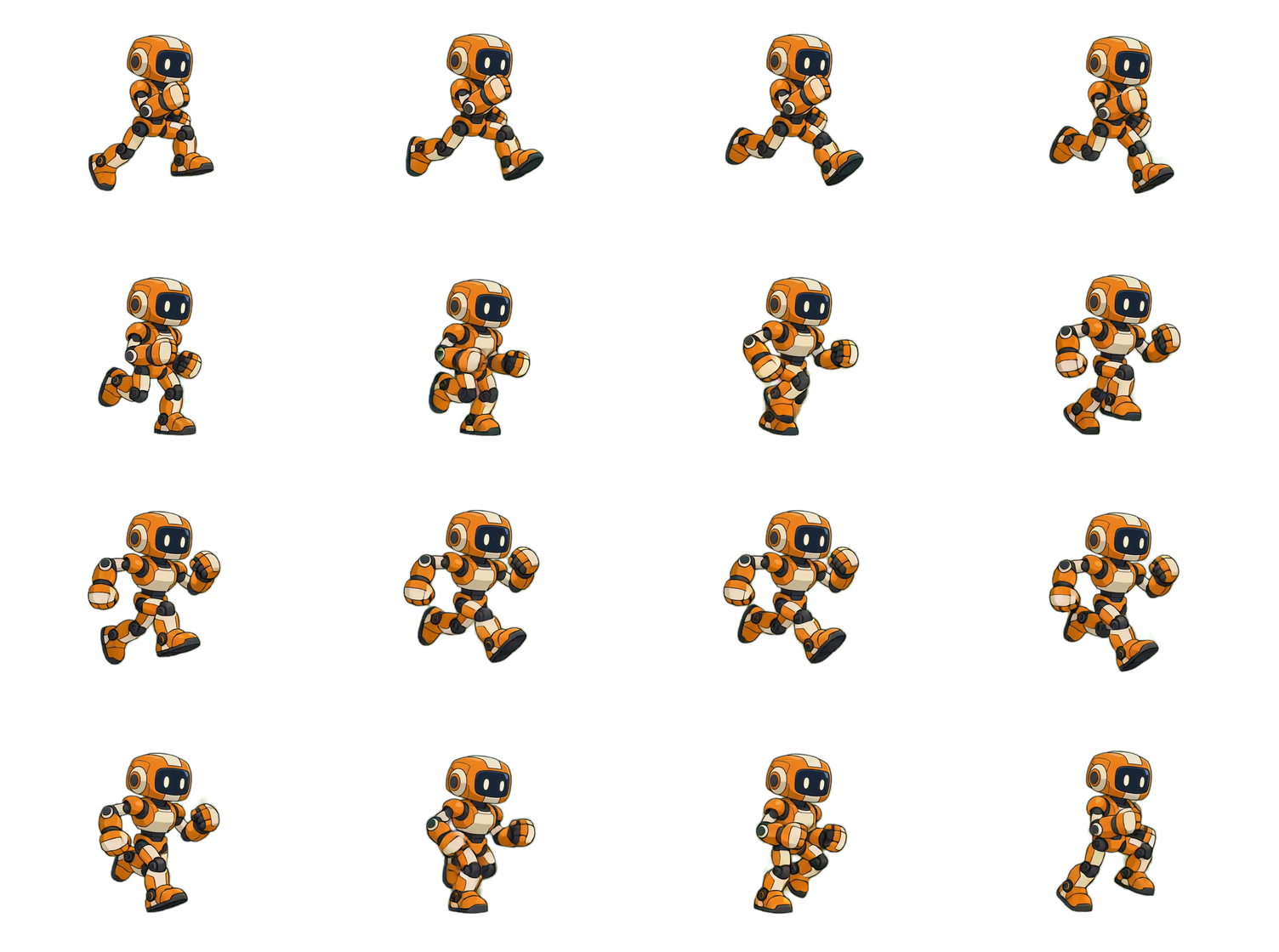
The PNG alone does not say where one frame ends and the next begins. The JSON file next to it does. This is the sixth frame's entry and the sheet-level data from the file the sprite sheet maker exported:
{
  "frames": {
    "frame_0005.png": {
      "frame": { "x": 376, "y": 280, "w": 376, "h": 280 },
      "rotated": false,
      "trimmed": false,
      "spriteSourceSize": { "x": 0, "y": 0, "w": 376, "h": 280 },
      "sourceSize": { "w": 376, "h": 280 },
      "duration": 42
    }
  },
  "meta": {
    "image": "robot-run-spritesheet.png",
    "size": { "w": 1504, "h": 1120 },
    "frameTags": [{ "name": "robot-run", "from": 0, "to": 15, "direction": "forward" }],
    "animgen": { "frameCount": 16, "frameDurationMs": 42, "durationMs": 672, "fps": 23.81, "loop": true }
  }
}
frameis the rectangle to cut from the sheet, in pixels from the top-left corner.durationis how long the frame stays on screen, in milliseconds.frameTagsnames a run of frames as one animation. A sheet that holds several actions has one tag per action.spriteSourceSizeandsourceSizematter only when frames were trimmed. They tell the engine where to put a cropped frame back inside its original canvas.
The field names match Aseprite's hash-style JSON export, so code that already reads Aseprite sheets can read this one. The animgen block is extra and can be ignored.
Durations are whole milliseconds. At 24 FPS a frame lasts 41.67 ms, which is stored as 42, so 16 frames add up to 672 ms instead of 667 ms. That is why fps reads 23.81. Over one loop the difference is 5 ms. If the clip must stay in sync with sound or other animations, set the engine's clip speed to 24 FPS rather than summing the per-frame durations.
Pack frames you already have
This route applies when the animation exists as separate images: frames from Krita's Render Animation as an image sequence, a PNG frames ZIP from AnimGen, renders from a 3D tool, or a folder someone sent you. If you draw in Aseprite, its own File → Export Sprite Sheet writes the PNG and JSON directly, and you can skip the packer.
To follow along, download the 16 robot frames (ZIP, 700 KB). They are named robot-run-1.png to robot-run-16.png without zero padding, like a lot of real exports.
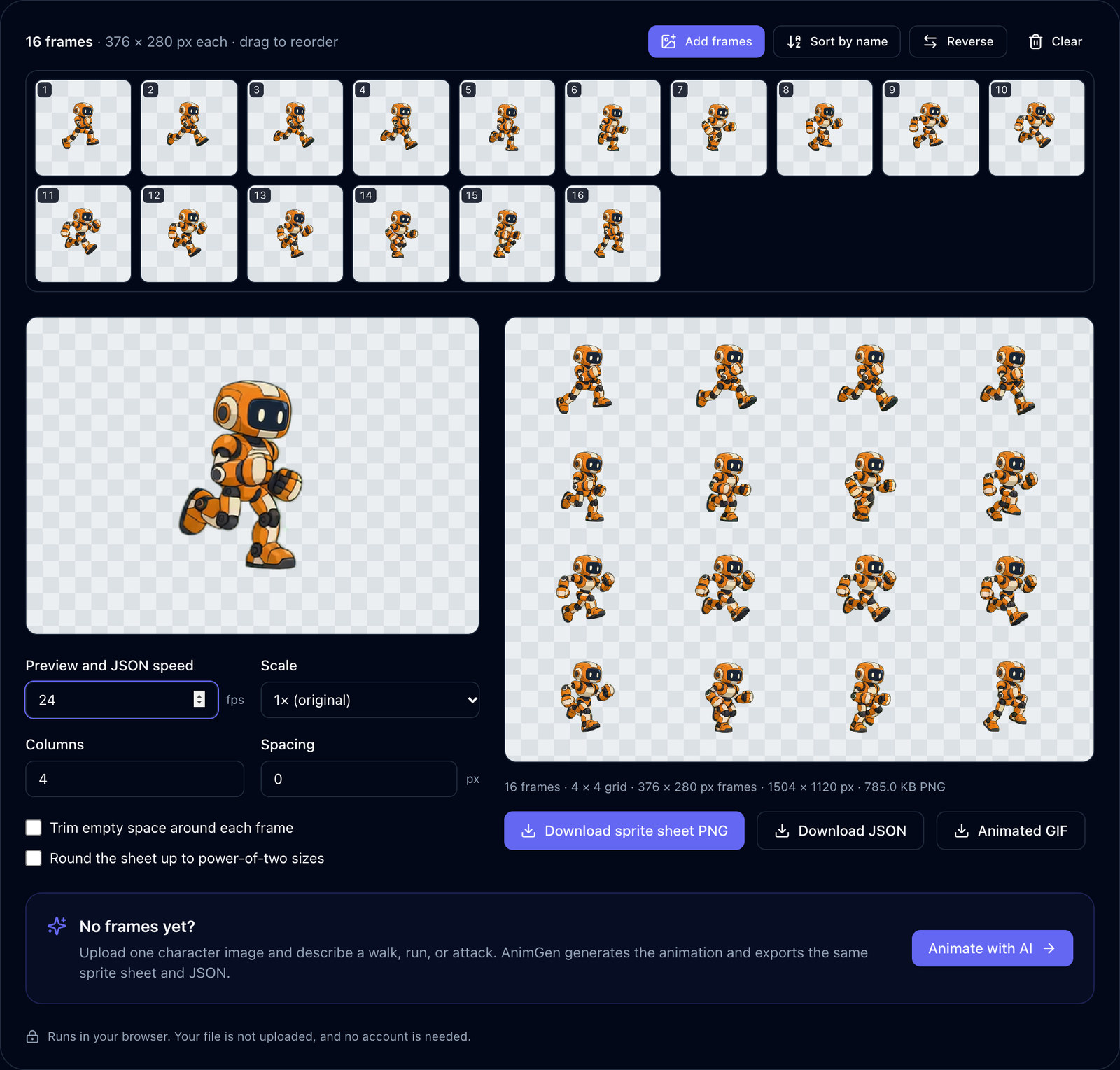
- Open the sprite sheet maker and drop the files, or choose the folder.
- Check the order. A plain alphabetical sort puts
robot-run-10.pngright afterrobot-run-1.png. The packer sorts by the number in the name, so it listed the frames 1 through 16. Frames can also be dragged into a different order, removed, or reversed. - Set the speed. It controls the preview and the durations written to the JSON. We used 24 FPS, the rate the robot was generated at.
- Choose the columns. The default for 16 frames is 4, which gives a square 4 × 4 grid.
- Download the sprite sheet PNG and the JSON. An animated GIF of the same frames is available for sharing.
We decoded the exported sheet and compared every cell with its source frame. Alpha matched exactly in all 16 frames, and so did the colour of every fully opaque pixel. Colours on semi-transparent edge pixels differed by at most 1 level out of 255, which comes from the browser canvas storing colour premultiplied by alpha. The exported PNG, its JSON, and the measurements with SHA-256 hashes are available to check.
If your animation is an animated GIF, drop it on the packer as well: each GIF frame becomes a cell, and the speed is taken from the GIF's frame delay.
Leave trim off when the frames share a canvas
The packer has an option to trim empty space around each frame. On the robot frames it shrinks each cell to 163 × 190 and the sheet to 652 × 760, which is 71% fewer pixels. The PNG file only drops from 785.0 KB to 736.7 KB, because fully transparent areas already compress to very little.
Trim crops every frame to its own bounding box and then lines the boxes up at the bottom centre. In this run cycle the robot leaves the ground, so the bottom of its body moves over a 22-pixel range from frame to frame. After trimming, every frame touches the bottom of its cell: the bounce disappears, and the body also shifts sideways by up to 16 pixels as the swinging arms and legs change the width of the box.
Frames exported from one animation tool usually share a canvas, and that canvas already encodes where the character stands. Keep it. Trim helps when the frames arrive at different sizes, such as sprites cut out of an old sheet: then the bottom-centre anchor puts the feet back on one line.
Power-of-two sizes and spacing
Rounding the sheet up to power-of-two sizes turned 1504 × 1120 into 2048 × 2048. The PNG grew only from 785.0 KB to 843.6 KB, but the decoded texture grew from 6.4 MiB to 16 MiB at four bytes per pixel. Turn this on only when the target needs it, for example PVRTC compression on older iOS devices or mipmaps in WebGL 1. Most current 2D engines accept any size.
Spacing adds transparent pixels between cells. With linear filtering or mipmaps, the GPU can sample a pixel or two across a cell boundary and show a thin line from the neighbouring frame. The robot frames have at least 39 transparent pixels on every side, so zero spacing is safe here. For tightly cropped frames, add a couple of pixels of spacing and enter the same value as the separation when you slice the sheet in the engine.
Convert a video clip to a sprite sheet
This route applies when the motion exists as footage: a screen recording, a rendered clip, a green-screen video, or a generated animation saved as MP4 or WebM.
We used the converter's sample, a 640 × 640 WebM of a cyan figure running, 4.00 seconds long, with a transparent background (source video).
- Open the video to sprite sheet converter and drop the clip. The timeline fills with thumbnails.
- Drag the handles around the motion you need and press Play range to watch it loop. We kept 2.50 to 3.83 seconds of running.
- Pick the frame rate and frame width. At 12 FPS the 1.33-second range gives 16 frames, and at 256 pixels wide the sheet is a 4 × 4 grid of 1024 × 1024 pixels, 560.1 KB.
- Download the sprite sheet PNG and JSON, or a ZIP of numbered PNG frames.
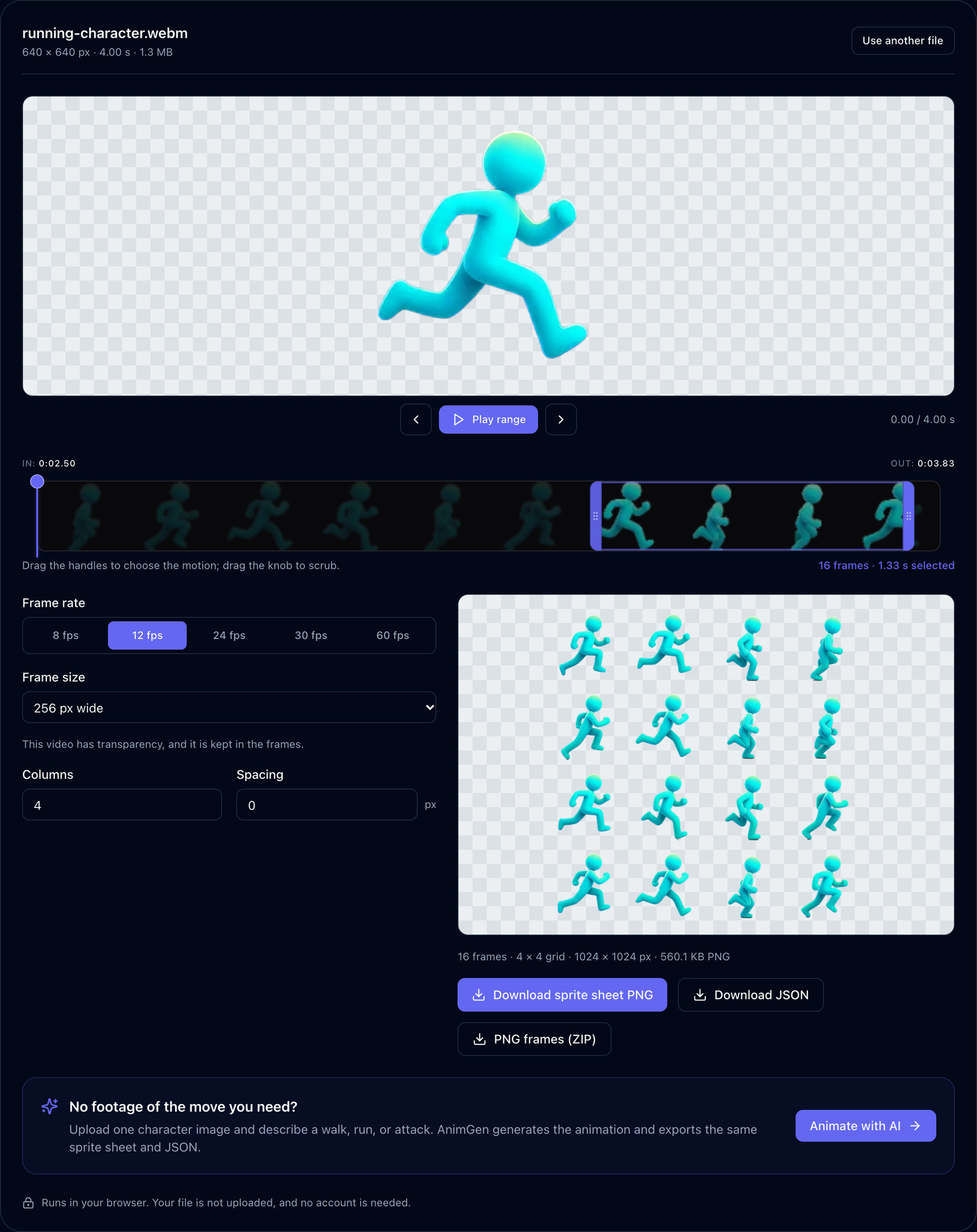
The source runs at 24 FPS, so 12 FPS keeps every other frame. Choosing 24 FPS would keep all of them and double the frame count to 32. For a loop, watch the jump from the last frame back to the first in Play range: a visible hitch there means the range should start or end a frame earlier or later.
This WebM carries its own transparency, and the frames keep it. An MP4 has no alpha channel. If the clip was shot on a solid or green background, the converter detects that colour and can remove it, with controls for tolerance and edge clean-up. Hair, smoke, and motion blur against a green screen need proper keying, which the free tool does not do.
Generate the animation from one character image
The third route starts with a drawing and no motion. The robot frames used above were made this way: one 1254 × 1254 PNG of the robot and a prompt asking for continuous right-facing running in place, with a fixed camera and consistent scale. The request used Seedance 2.0 Fast, 4 seconds, 480p, and Alpha Key, and cost 36 credits on October 3, 2026. It returned a 752 × 560 clip of 97 frames at 24 FPS.
From those 97 frames we kept source frames 44 to 59 as the loop, and halved them to 376 × 280 for this article. The playable character article has the exact prompt, the original key-colour video, and how the loop range was chosen. The walk cycle article covers finding a clean loop in more detail.
When the animation is generated in AnimGen, the export already includes a sprite sheet with JSON, or a package for Godot, Unity, Unreal Paper2D, Cocos Creator, or Construct 3 (output formats). The free packer is only needed if you edit the frames elsewhere first. Credit costs depend on the model and settings, so check the quote shown before you generate and the current pricing.
Import the sheet into Godot 4 or Unity
Godot 4. Add an AnimatedSprite2D node and create a new SpriteFrames resource in its Sprite Frames property. In the SpriteFrames panel at the bottom of the editor, use Add frames from a Sprite Sheet, choose the PNG, and set Horizontal to 4 and Vertical to 4. Enter the spacing as Separation if you used any. Select the 16 cells, click Add 16 frames, then set the animation speed to 24 FPS and turn on looping. Godot's 2D sprite animation tutorial shows the same dialog. For a sheet with zero spacing, a plain Sprite2D with hframes = 4 and vframes = 4 also works if you prefer to step the frame property from code.
Unity. Select the PNG and set Texture Type to Sprite (2D and UI) and Sprite Mode to Multiple. For pixel art, also set Filter Mode to Point. Open the Sprite Editor, choose Slice, set Type to Grid By Cell Size with 376 × 280 pixels, set the pivot to the bottom centre, and apply. Select the 16 sprites in order and create an animation clip at 24 samples per second. Unity's Sprite Editor guide covers the slicing options.
If the last row is not full, for example 15 frames in a 4 × 4 grid, both engines create a cell for the empty slot. Leave it out of the animation. AnimGen's own Godot and Unity packages skip this manual step, and the Godot 4 import test checks one of them in a running project.
Problems to check before using the sheet
| What you see | Likely cause | What to do |
|---|---|---|
| Frames play out of order | File names without zero padding, sorted alphabetically | Sort by the number in the name, or export with padded names such as run_0001.png |
| The character slides or loses its bounce | Each frame trimmed and re-centred on its own | Turn trim off when the frames share one canvas |
| Thin lines from the next frame appear at the edges | Linear filtering sampling across cells with no spacing | Add spacing, enter it as the separation in the engine, or use point filtering for pixel art |
| The sheet is rejected or shows up blank on some devices | The texture is larger than the device allows | Use a smaller frame width, fewer frames, or split the animation into several sheets |
| The loop hitches once per cycle | The first and last frames are the same pose, or the range cuts mid-stride | Drop the duplicate frame, or move the range by a frame |
On size limits: 4096 × 4096 is a common safe ceiling for mobile and WebGL. The sprite sheet vs PNG sequence comparison measures a 5120 × 5120 sheet that crosses it and shows how to split one.
Questions people ask about making sprite sheets
Is there a free tool to make a sprite sheet?
The sprite sheet maker and the video converter used in this article are free, run in the browser, and need no account. The other free sprite tools convert GIFs, cut existing sheets apart, and turn sheets back into GIFs. If you already work in Aseprite, its built-in exporter does the packing. TexturePacker, a commercial atlas packer, adds features such as polygon packing and exporters for specific engines, which matter more for large atlases of mixed sprites than for one animation.
Can ChatGPT make a sprite sheet?
Image models can draw several poses of a character in one picture laid out as a grid. We did not test ChatGPT for this article. Before using such an image, check that every cell is the same size, the character keeps the same scale and proportions from cell to cell, no pose overlaps a neighbouring cell, and the background is transparent or a single colour you can remove. The sprite sheet cutter can cut a picture like that into separate frames and repack them on one frame size. To generate motion from a character image as a video and export it as frames, use the AI route described above.
What format is a sprite sheet?
Usually a PNG, because it keeps transparency without losing detail, plus a data file. JSON is the most common data file for custom code and web games. Engines also have their own formats, such as a Unity .meta file with the slice rectangles, a Godot SpriteFrames resource, or a Cocos Creator .plist. Pick the one your engine or loader reads, and keep the PNG and its data file together.
To try the whole process, download the robot frames, pack them in the sprite sheet maker, and load the result into your engine with the steps above. If you have a character but no animation yet, start from the AnimGen studio and export the sheet from there.