In this guide
A character sprite sheet can contain running, attacks and several empty cells. Playing every cell in order turns them into one long sequence. To share a running GIF, select the complete run first, then set its speed and background.
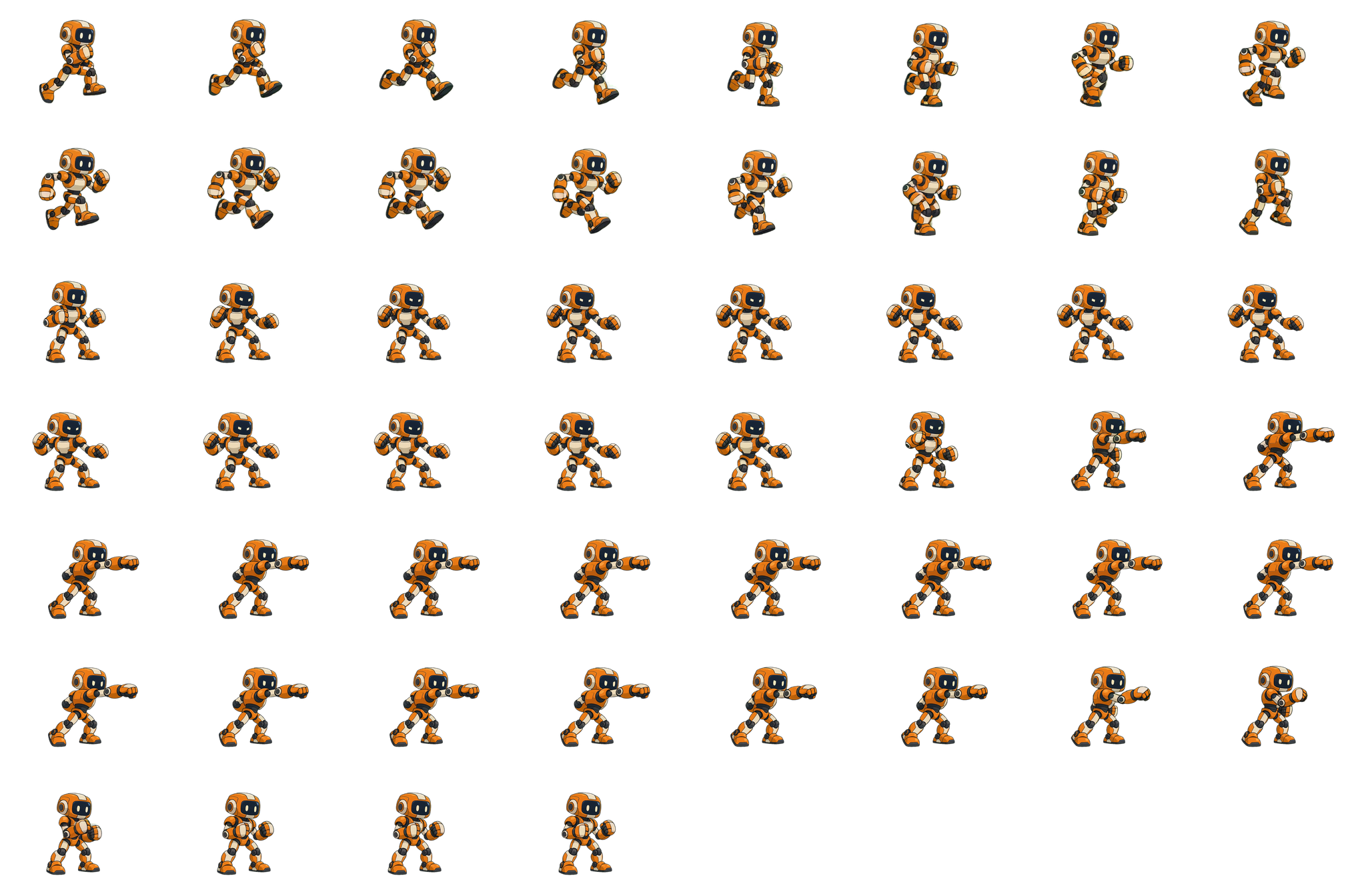
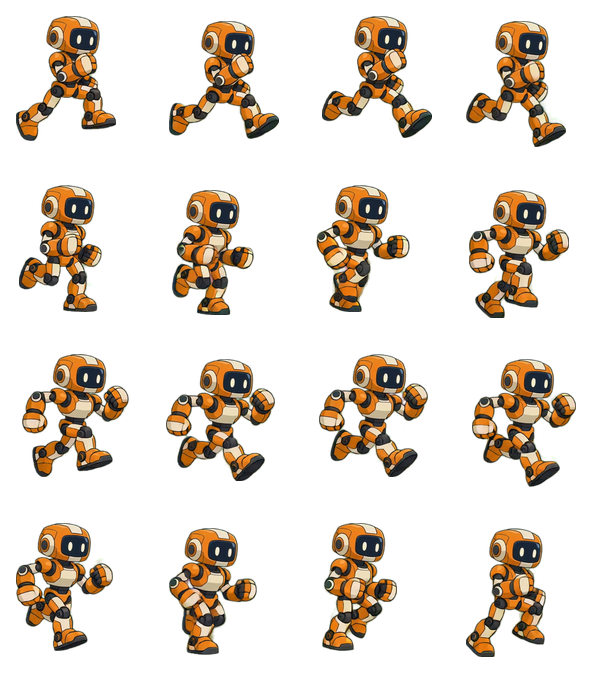
Our practice sheet holds 16 running frames and 36 punching frames from the playable robot example. We converted just the run with AnimGen's free sprite sheet to GIF converter. The tool works in your browser without an account or file upload.
Download the practice sprite sheet and finished transparent GIF to compare your result. The GIF is 256 × 192 pixels and about 106 KB.
Check the grid before selecting frames
Open the converter and load the practice sheet. Choose Grid under Frames from, then expand the grid settings. Automatic detection gives you a starting point; check the outlines against the actual drawing.
| Setting | This practice sheet |
|---|---|
| Image size | 2048 × 1344 px |
| Columns × rows | 8 × 7 |
| Each cell | 256 × 192 px |
| Left and top offsets | 0 px |
| Horizontal and vertical spacing | 0 px |
The first two rows contain the run. The remaining rows contain the punch, with four empty cells at the end. Keep Remove bits of neighbouring frames off for this clean sheet: every frame already fits inside its cell.
If the outlines cut through a hand or foot, fix the grid before adjusting speed. On other sheets, a border around the whole image is an offset; a gap between cells is spacing. Neither belongs inside the character's frame.
Select the whole run, without the punch
For this sheet:
- Choose Clear to remove the initial selection.
- Click the top-left cell.
- Hold Shift and click the last cell in the second row.
- Check that the readout says 16 frames selected, with numbers 1–16 running left to right across the first two rows.
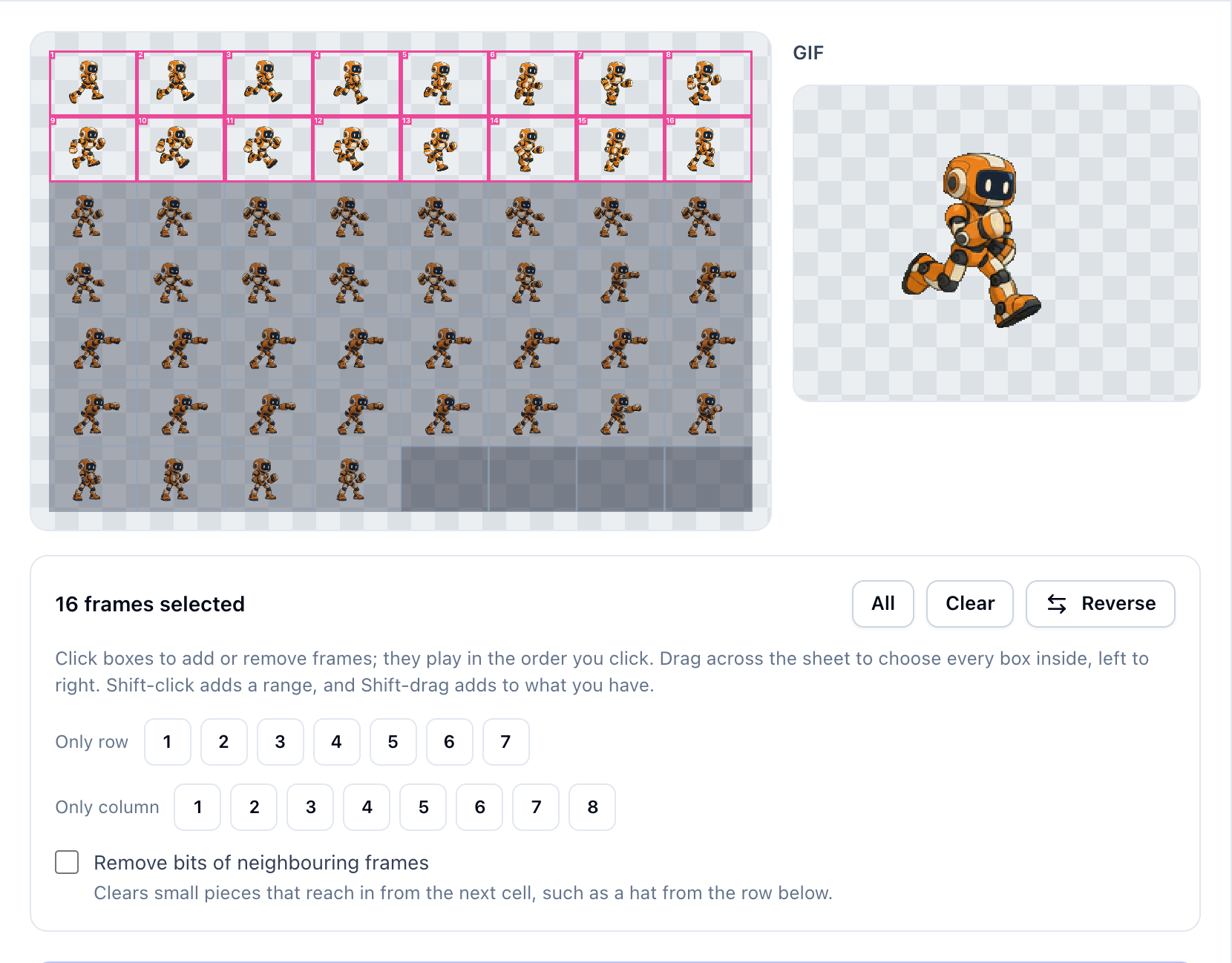
Only row is useful when one row contains a complete action. Here, choosing row 1 alone would leave out half the run. Each row button replaces the selection; use the range above to include both rows.
Clicking individual cells adds them in click order. If you accidentally put frame 9 before frame 2, clear the selection and pick the range again. Reverse reverses playback order; it does not mirror the character or change which direction the drawing faces.
Match the playback speed to the source
Set Frame rate to 24, Scale to 1×, and Playback to Loop forever. This run came from 24 FPS animation. Leaving the tool at its default 12 FPS would make it much slower.
Keep Transparent checked, then choose Make GIF and Download GIF. Open the downloaded file as well as watching the preview.
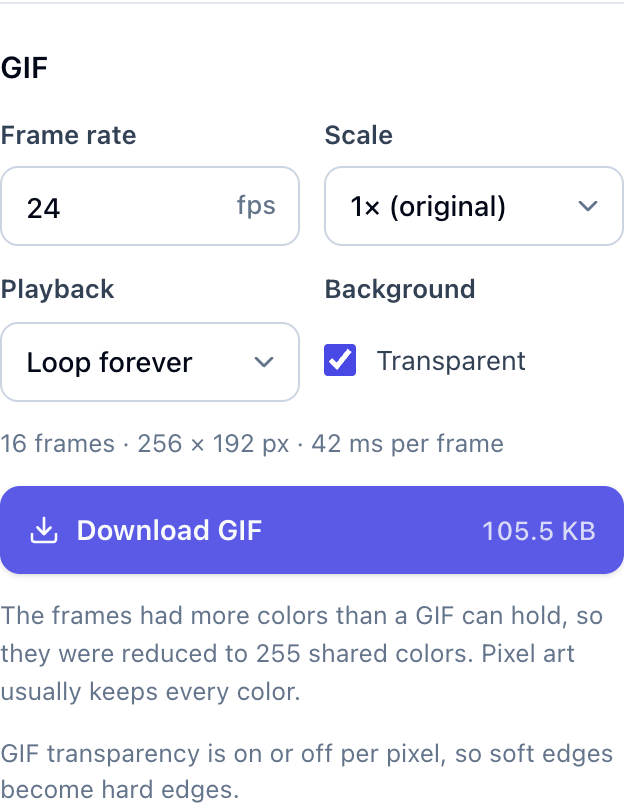
GIF stores delays in 10 ms units (GIF89a specification). In this converter, selecting 24 FPS gives a 42 ms preview delay, which rounds to 40 ms in the saved GIF. Our 16-frame file therefore lasts 0.64 seconds, compared with about 0.67 seconds for the source. No frames were removed. Keep the PNG frames or a video if you need exact 24 FPS timing.
For pixel art, use the speed intended by the artist. Raising FPS plays the same frames faster; it does not create intermediate poses. Check the last-to-first transition too. A loop setting repeats the sequence, but cannot repair a mismatched ending.
Keep existing frame positions; align loose sprites only when needed
The grid version preserves each frame's canvas and the character's position inside it. That matters when the body rises and falls during a run. Cropping each pose tightly and centring it again can change that motion.
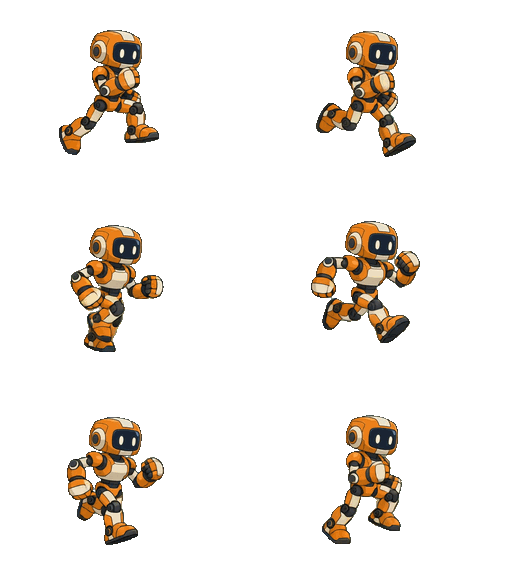
Some sheets have already discarded those canvases. To try that case, load our separate-sprite practice file, made by tightly cropping the same 16 run frames and placing them apart. Choose Separate sprites. For this input, Join pieces closer than: 1 px finds 16 frames.
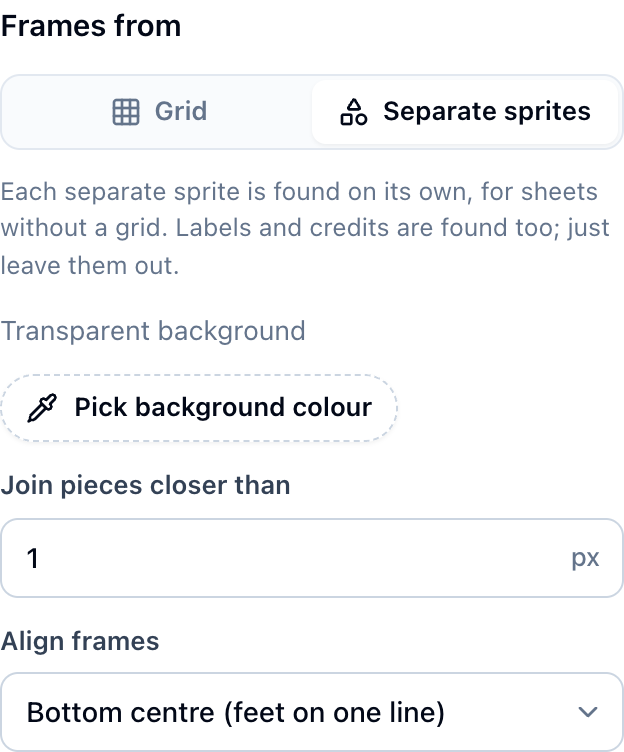
Align frames → Bottom centre places the boxes on a common canvas with their lowest points aligned. This export is 110 × 129 pixels; the bottom-aligned GIF is available for comparison. The individual poses were not stretched to fill that canvas.
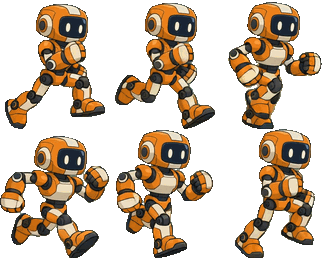
This is geometric alignment. It cannot recover the original anchor or tell whether a foot is deliberately above the ground. For a jump, forcing every frame's lowest point onto one line can erase the vertical movement. Use the original grid or the atlas's trim and pivot metadata when those are available.
Check transparency on the background where the GIF will appear
Our PNG sheet already has transparency, so this example needs no background removal. GIF makes each pixel fully transparent or fully opaque. Soft PNG edges become harder, and a colourful illustration may need palette reduction; this robot uses 255 shared colours in the export.
View the GIF over both light and dark backgrounds. If the edge is distracting, a solid background matching the destination may look better. For more edge examples, see how to make a transparent GIF. Keep the PNG sequence or sprite sheet for game-engine use when you need the original partial transparency.
Fix the problem you can see in the preview
| What you see | What to check |
|---|---|
| Running suddenly changes into an attack | Selected cells include a second action |
| Hands or feet are cut off | Columns, rows, offsets and spacing |
| Poses play in a strange order | Clear and reselect in playback order |
| The character jumps around inside the frame | Preserve the original grid; check the anchor if using separate sprites |
| The loop pauses or snaps back | Duplicate end frames or incompatible first and last poses |
| A checkerboard appears in the downloaded GIF | The pattern may be painted into the source pixels |
For a large sheet, select fewer frames and start at 1× scale. If you only need individual images, the sprite sheet splitter exports PNG frames without making a GIF. To build a sheet from separate files, use the sprite sheet creation guide.
Give the character another action
This conversion uses motion already present in the sheet. If your character also needs a jump, idle or attack, start a separate generation from a character image. The playable robot case shows how we assembled those actions and connected them to game controls.