
In this guide
The swordswoman preview on the AnimGen homepage lasts four seconds. It contains a complete attack, but also idle at both ends and noticeable pauses while crouching, holding the sword overhead, and staying in the follow-through pose. Connect the whole clip to an attack button and those waits become part of every attack.
We trimmed the idle and removed frames from the pauses and some transitions, keeping 28 of the original 96 frames. The edited version below still plays at 24 FPS and lasts about 1.17 seconds. Try the one-shot attack demo to feel the timing from a button press through to the return to ready.
The demo uses the homepage's gray-background 448 × 192 preview at native size, without interpolation or regeneration. Transparent game assets still need to be exported from the corresponding source material.
Trimming the ends still leaves pauses inside the attack
Here is the original four-second preview for comparison. Watch when the character starts moving, how long the sword stays overhead, and how long it takes to start recovering after the swing.
We selected source frames 17 through 78, counting from zero. The first frame keeps the pose just before anticipation; the last keeps the recovered pose. The stretches of idle before and after them are removed.
That leaves 62 frames, or about 2.58 seconds. The pauses before raising the sword, at the top of the swing, and after the follow-through are still there. The clip needs editing inside that range as well.
| Version | Frames | Duration at 24 FPS |
|---|---|---|
| Homepage source | 96 | 4.00 seconds |
| Leading and trailing idle trimmed | 62 | About 2.58 seconds |
| Internal holds and selected transition frames removed | 28 | About 1.17 seconds |
Shorten the holds and keep the swing continuous
Following the sword and body positions makes it easier to decide which anticipation and recovery frames to keep. We edited this clip in three sections:
- Anticipation, source frames 17–42: reduced from 26 frames to 9. Keep the crouch, lift, and overhead poses, with less time spent holding them.
- Swing, source frames 43–51: keep all 9 consecutive frames so the slash, sword landing, and fading effect stay connected.
- Recovery, source frames 52–78: reduced from 27 frames to 10. Shorten the low follow-through hold while retaining the rise, sword return, and ready pose.
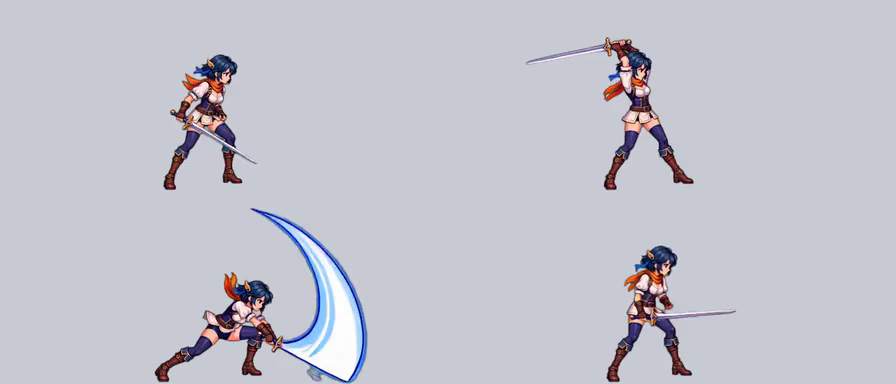
These stills come from the edited clip at 0.000, 0.333, 0.458, and 1.042 seconds. The poses remain readable with shorter waits between them. Keeping only these four pictures would lose too much motion: the frames connecting the sword lift, swing, and recovery need to be checked in playback too.
Here is the full selection, using zero-based source frame numbers. Play these 28 frames in order at 24 FPS:
17, 18, 20, 30, 32, 33, 35, 37, 42,
43, 44, 45, 46, 47, 48, 49, 50, 51,
52, 67, 68, 69, 71, 73, 74, 75, 77, 78
The web video was re-encoded locally using this frame selection recipe. The original clip is kept separately for comparison.
Adjust your own attack in the Advanced Editor
Open a generated or imported video in AnimGen. Use trimming and export to identify the action range, then open the Advanced Editor to edit frames inside it.
- Select the range from anticipation through recovery in Source Video Frames and add it to the Animation Sequence.
- Select and delete unnecessary idle and hold frames in the output sequence. Start with sections where the pose changes very little, replaying after each small group of deletions.
- If anticipation or recovery still drags, remove selected transition frames as well. Keep the continuous swing initially and assess it in the context of the shorter attack.
- Keep the output at 24 FPS. Check the entry from the ready pose and the return to it, then confirm the edit is saved before exporting.
At 24 FPS, removing one frame takes about 41.7 milliseconds off the clip. Increasing the overall playback speed also speeds up the slash and return. Editing individual sections lets you shorten the opening wait and recovery hold separately.
If the character suddenly jumps between poses, restore nearby transition frames. This 28-frame selection is specific to the swordswoman clip; follow the motion in your own character's animation to choose its frames.
Play once on input, then return to the ready pose
Open the click-to-attack demo, press Attack, and let it finish. It uses two main states, ready and attacking, with a loading message while the video starts.
- Show the ready pose when the page opens.
- On an attack-button press, play the selected range from its first frame.
- While it is playing, ignore another attack press so it cannot keep restarting the clip.
- When the action finishes, return to the ready pose and allow another attack.
The demo uses the edited 28-frame version by default. Its first frame serves as the ready pose while waiting for input, so an idle sequence no longer occupies part of the attack. Each completed playback adds one to the counter and returns to that still. Reset cancels playback at any time and clears the counter.
Ready → Attack press → Play once from the start → Playback ends → Ready
Another press during playback: do not restart
Reset: cancel playback and clear the counter
The page returns to ready when the video actually ends, and the time display reads the edited file's duration. Looping is off and playback remains at 1× speed.
Try repeated presses as well as a single press. If every press restarts playback, the character may keep preparing the attack without ever reaching the swing.
Input buffering can come later: remember a press near the end of the current action and use it to start the next attack when permitted. This demo does not store attack input during playback. Combos and dodge interruptions can be added when the game needs them.
Connect the visible swing to the game's hit logic
The demo handles playback and state changes, with no collision or damage logic. A game also needs to decide when the attack can hit. Scrub through the section where the blade reaches toward the target and use it to choose an active window in the engine.
Check timing again after removing frames. Source frames 43–51 now occupy output frames 9–17, a playback interval of about 0.375–0.750 seconds. Reusing the original timestamps would put hit logic out of sync with the sword. Which of those frames should deal damage still depends on the enemy position and attack reach.
Movement during the attack, follow-up timing, and interruption when taking damage belong to the game's controls. Put the animation in a small scene and test actual input before settling those rules.
Export with room for the sword and a consistent canvas
A sword swing reaches beyond the standing pose. Before exporting, inspect the frames with the furthest sword tip, extended arms, and widest effects. A tight crop around the ready pose may cut into the action. If the motion is likely to leave the frame during generation, use Expand Canvas to reserve space first.
Keep the ready pose and attack sequence on a consistent canvas with consistent placement. Use a matching origin convention in the engine so switching between them does not introduce an offset. The canvas and pivot guide explains those settings.
PNG sequences are useful for individual-frame work. A sprite sheet or engine asset package can carry the selected motion into the runtime. See the sprite-sheet and PNG-sequence comparison for the trade-offs.
With your own character, connect the entry, complete attack, and return to ready before adding an enemy and hit feedback. Repeated presses often reveal transition and input-handling problems that a continuously looping preview will hide.