In this guide
A transparent website animation lets the page itself show through. A black, white, green, or checkerboard rectangle baked into every frame blocks that effect.
This guide uses a real AnimGen WebM Alpha export, not a reconstructed GIF. You can open the live browser demo, download the complete HTML example, and test the same files in your own target browser.
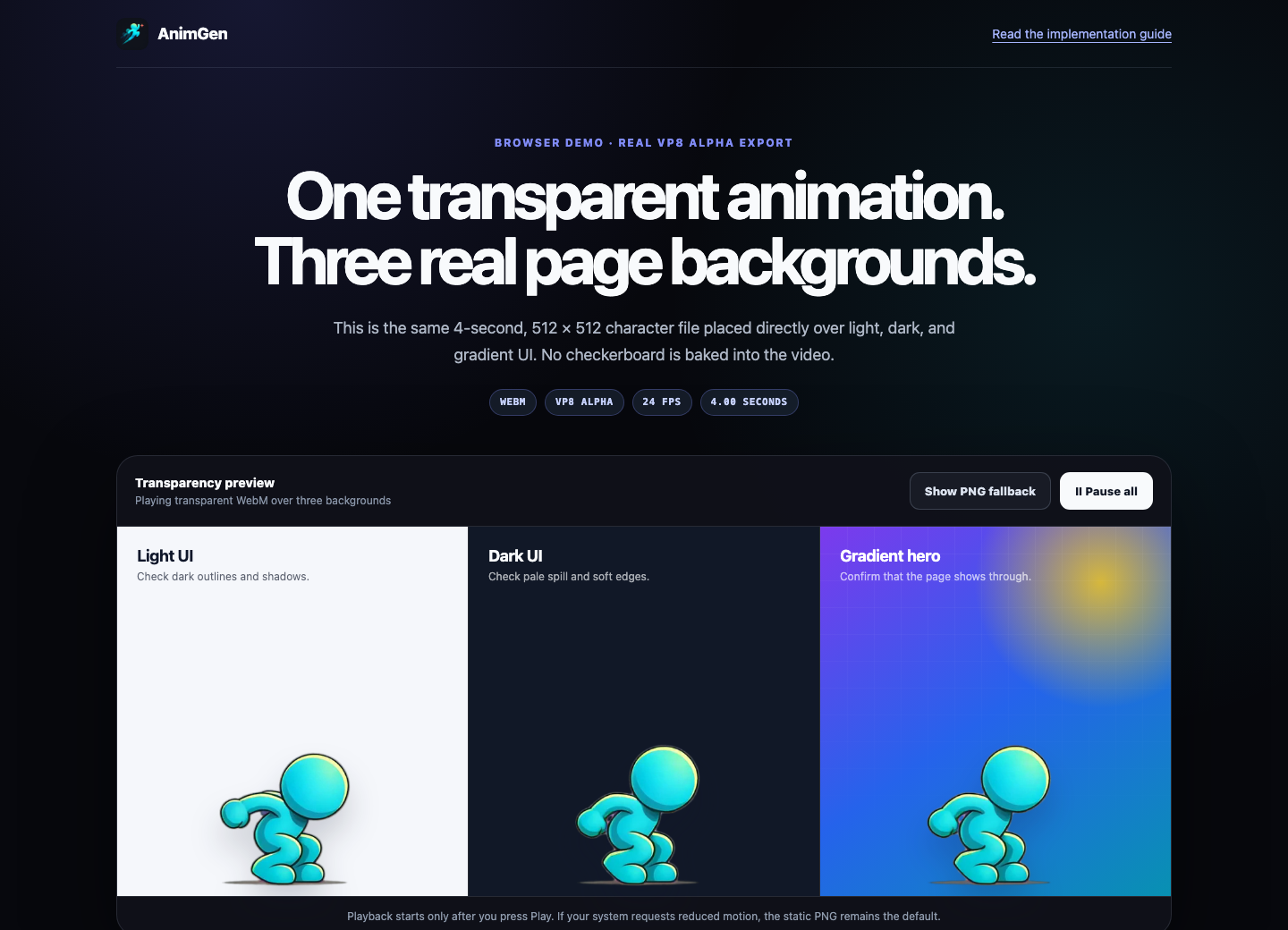
See the result before copying the code
The demo places one character video over a light panel, a dark panel, and a gradient hero. That simple three-background test makes transparency visible immediately and exposes edge problems that can disappear against one convenient color.
The exact sample used here is:
| Asset | Measured details | Purpose |
|---|---|---|
| Transparent WebM | VP8 Alpha, 512 × 512, 24 FPS, 4.00 seconds, 1,611,685 bytes | The animated layer |
| PNG poster | 512 × 512 RGBA, 121,667 bytes | Initial frame and static fallback |
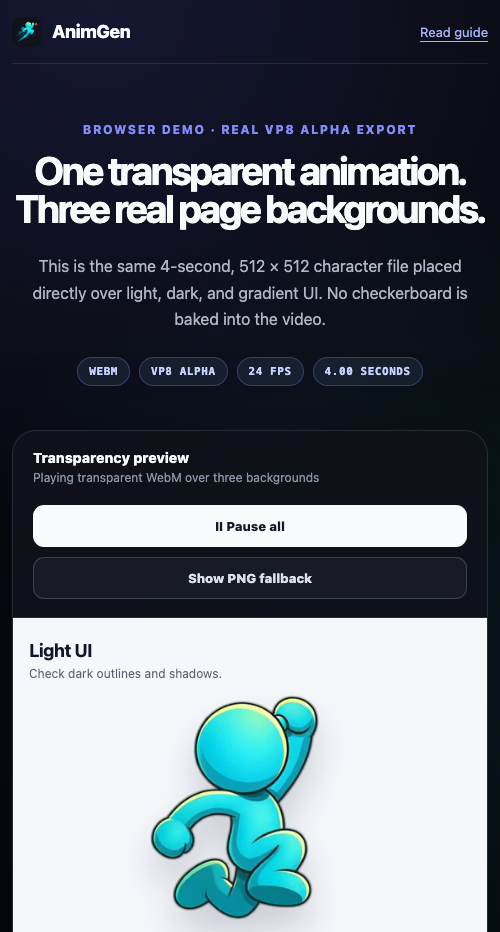
We decoded all 96 video frames with libvpx; the decoded Alpha plane spans 0–255. We then opened the page in Chrome 152.0.7977.84 on macOS 26.5.2 and observed the three videos advancing while each background remained visible through the transparent pixels. The responsive page was also checked at a compact 500-pixel viewport.
Those are facts about this file and test environment. Browser support for ordinary WebM does not automatically prove support for WebM Alpha. MDN's current video codec guide specifically notes that Safari does not support Alpha transparency in VP8 or VP9 video, so treat the browser list for your own site as a product requirement, not an assumption.
Start with a separate WebM and PNG
Keep the animation and its static fallback as two real assets:
public/
└── animation/
    ├── character-run.webm
    └── character-run.png
The PNG should be an actual transparent frame, not a screenshot of a checkerboard. Here is the fallback used by the demo; the checkerboard you see on this blog page comes from the page's image viewer, not from the file.

Do not use a normal MP4 as the transparency fallback. The regular MP4 or original model preview is opaque. In the AnimGen workflow, WebM Alpha, ProRes 4444, RGBA frames, and transparent sprite assets are separate export deliverables. The transparent format guide explains where each one fits.
Use progressive HTML markup
Start with the PNG visible. Reveal the video only after the browser reports that it can play VP8 WebM, and return to the PNG if media loading fails.
<div class="animation-stage">
  <img
    id="character-fallback"
    src="/animation/character-run.png"
    width="512"
    height="512"
    alt="Blue character running"
  />

  <video
    id="character-video"
    width="512"
    height="512"
    muted
    loop
    playsinline
    preload="metadata"
    poster="/animation/character-run.png"
    aria-label="Blue character running"
    hidden
  >
    <source
      src="/animation/character-run.webm"
      type='video/webm; codecs="vp8"'
    />
  </video>
</div>
Providing width and height reserves the correct aspect ratio before media loads. playsinline keeps playback inside the page on mobile, muted makes a decorative clip silent, and preload="metadata" avoids eagerly downloading the entire animation before it is needed. The MDN <video> reference describes the attributes and the browser's poster behavior.
One important detail: text or images placed inside <video>...</video> are fallback content for browsers that do not understand the video element. They are not guaranteed to appear when a modern browser understands <video> but cannot decode any supplied source. A separate sibling <img> plus an error handler covers that more common failure.
Place the animation over the page with CSS
The transparent pixels reveal whatever background is on .animation-stage:
.animation-stage {
  position: relative;
  width: min(100%, 32rem);
  aspect-ratio: 1;
  overflow: hidden;
  border-radius: 1.5rem;
  background: linear-gradient(145deg, #7c3aed, #0891b2);
}

.animation-stage > img,
.animation-stage > video {
  position: absolute;
  inset: 0;
  display: block;
  width: 100%;
  height: 100%;
  object-fit: contain;
}
Use object-fit: contain when the full character canvas must remain visible. Use cover only when cropping is intentional. A CSS drop-shadow() can help the character separate from a busy hero section, but first inspect the original edges without effects; a shadow can hide spill or halos during review.
Switch safely between animation and fallback
canPlayType() is useful for choosing the first path, but it can only report codec/container support. It cannot prove that the browser will composite this Alpha encoding correctly.
const video = document.querySelector("#character-video");
const fallback = document.querySelector("#character-fallback");
const playButton = document.querySelector("#play-character");

function showFallback() {
  video.pause();
  video.hidden = true;
  fallback.hidden = false;
}

const canPlayWebM = video.canPlayType(
  'video/webm; codecs="vp8"'
);

if (canPlayWebM) {
  fallback.hidden = true;
  video.hidden = false;
} else {
  showFallback();
}

video.addEventListener("error", showFallback);
playButton.addEventListener("click", () => video.play());
For a critical hero or onboarding step, validate the real target browser and keep an explicit application-level fallback. If transparent motion is optional decoration, a good PNG can preserve the design without blocking the page.
Let the visitor control motion
Transparent video is still motion. Do not make an infinite decorative loop the only way to understand or use the page.
The downloadable demo begins on its poster and provides a Play/Pause button. It also checks prefers-reduced-motion; when the visitor requests reduced motion, the PNG fallback remains visible until they deliberately start playback.
const reducedMotion = matchMedia(
  "(prefers-reduced-motion: reduce)"
).matches;

if (reducedMotion) {
  showFallback();
}
If autoplay is genuinely necessary, keep the video muted and inline, handle the rejected play() promise, and still offer Pause. A short animation should not turn into a permanent CPU and network cost just because it loops.
Keep the delivery lightweight
The three simultaneous videos in this demo exist to prove the Alpha result against three backgrounds. A production page usually needs one video element, not three decoders playing the same asset.
Use this checklist before shipping:
- Trim the clip to the motion that is actually visible.
- Size the export near its largest rendered size instead of delivering a huge source to a small card.
- Use
preload="none"for below-the-fold or strictly opt-in media; usemetadatawhen dimensions and duration are useful early. - Include a representative transparent PNG poster.
- Pause when the animation is offscreen or the tab is hidden if it runs for long periods.
- Serve the WebM with the correct
video/webmcontent type and cache immutable versioned files. - Keep ProRes 4444 for editing and compositing workflows, not routine inline website playback.
For reference, this 4-second sample is about 1.54 MiB. That is reasonable for a focused demo, but it is not a universal budget. Measure it alongside the rest of your page on a throttled mobile connection.
Fix a black rectangle without regenerating the motion
When a transparent animation appears on black, separate the asset question from the playback question:
- Open the matching RGBA PNG over both light and dark backgrounds.
- If the PNG is transparent but the WebM is black, inspect browser/decoder support, the exact codec, and the video compositor.
- If both files are opaque, check the source Alpha, export mode, and whether a background was baked into the artwork.
- Confirm that the server returned the complete file with
Content-Type: video/webm. - Repeat the check in the real browser, OS, device, and embedded webview used by the product.
The transparent export troubleshooting guide goes deeper into halos, color spill, blurred edges, and files that carry an Alpha channel but are displayed incorrectly.
Build the animation, then test the destination
For an AnimGen website asset, start with a PNG that contains meaningful Alpha, choose Transparent animation, generate the motion, trim the useful range, and export WebM Alpha plus a PNG frame for fallback. The transparent animation workflow shows the source and export boundary, while the run-and-jump case study covers motion generation and cleanup before delivery.
Then test the actual web component—not just the downloaded file—on your real backgrounds and smallest supported viewport. You can download this complete example as a starting point or open AnimGen Studio to make a transparent character animation of your own.