In this guide
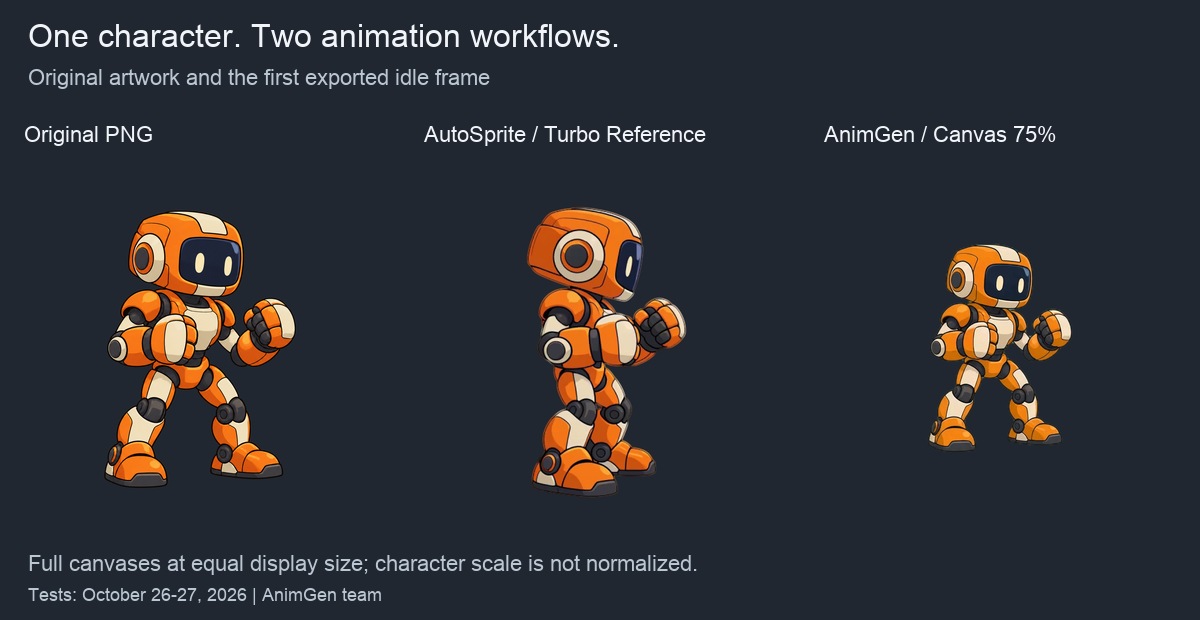
If you already have character art, the first thing to check in an animation tool is whether the character still looks like your drawing once it moves. We tested that with one orange robot, drawn facing right at a three-quarter angle, in AutoSprite and AnimGen.
AutoSprite's 2D text flow asks you to choose Side-scroller or Isometric before you describe the action, and in our text-driven idle and runs the robot turned noticeably more side-on. Its Motion Library Sprint kept a view closer to the original. AnimGen starts from the image itself: describe the movement, give the character room with Expand Canvas, then choose the frames and transparent format to export. Our AnimGen idle and jump stayed closer to the robot's original view. Working from your artwork and action requirements is the starting point for our design.
The second difference came after generation. With 86 AutoSprite credits still in the account, we couldn't unlock a new result for download because the export allowance had run out. AnimGen's $4.99 one-time pack unlocks all export formats for 365 days, with no per-result export count.
We're the AnimGen team. We tested on October 26–27, 2026: four text-driven AutoSprite clips, four Motion Library clips and three AnimGen clips, with one generation per configuration. Every clip is shown in full. Pricing and access rules were rechecked on October 29.
AnimGen vs AutoSprite at a glance
| Aspect | AutoSprite, as tested | AnimGen |
|---|---|---|
| How you start | Choose Side-scroller or Isometric in the 2D text flow, or pick a reference in Motion Library | Upload the image and describe the action |
| Our three-quarter-view robot | Text-driven idle and runs shifted side-on; Motion Library Sprint stayed closer | Idle and jump stayed closer to the input view |
| Room for movement | Handled inside the chosen workflow | Expand Canvas sets the canvas shape and the character's scale |
| Amortized cost per tested generation | About $0.12 Turbo, $0.24 Pro, $0.96 per Motion Library action, on Starter | About $0.33 on Basic, $0.36 with the Small Pack |
| One-time purchase | $5 for 100 credits and five new-result export unlocks | $4.99 for 500 credits and all export formats for 365 days |
| Limits with a one-time pack | Export unlocks for new results | Reusable 200 MB cloud storage; credits and advanced-export access last 365 days |
| Editing still needed | The text-driven jump needed substantial changes; the Motion Library jump states need aligning | The run needs a clean loop; the jump's hang time is too long |
Generation costs assume all included plan credits are used and exclude tax. The export-unlock limit above applies to one-time purchases; AutoSprite Starter includes unlimited spritesheet exports.
The test: one robot, three workflows
The input is our own 1254 × 1254 transparent PNG of a robot facing right at a three-quarter angle. For this project, keeping that angle matters more than turning the robot into a conventional side-view character.
| Setting | AutoSprite Turbo | AutoSprite Pro | AnimGen |
|---|---|---|---|
| Actions tested | Idle, run | Run, jump | Idle, run, jump |
| Workflow | 2D → Side-scroller → custom action | 2D → Side-scroller → custom action | Image to animation |
| Starting-frame option | Reference image | Let AutoSprite handle it; automatic first/last frames | Original image with Expand Canvas |
| Generation setting | 2-second tier | 4-second tier | Seedance 2.0 Fast, 4 seconds, 480p |
| Canvas preparation | Through AutoSprite's selected workflow | Through AutoSprite's selected workflow | 1:1 canvas, subject at 75%, centered |
| Transparent export tested | 512 × 512, MAX frames | 512 × 512, MAX frames | 640 × 640, Alpha Key |
| Actual exported sequence | 56 frames, 24 FPS, 2.33 seconds | 97 frames, 24 FPS, 4.04 seconds | 97 frames, 24 FPS, 4.04 seconds |
We turned off AutoSprite's equipment, sound and AI prompt enhancement options. For each action in the text-driven set, both tools received the same motion text; the prompts are at the end of this article. Canvas and starting-frame controls differ between the products, so this compares the workflows you can actually use and does not isolate the underlying models. The Motion Library follow-up used built-in motion references instead of prompts.
Every configuration shown was generated once, with no regeneration to pick a better take. The four text-driven AutoSprite clips used 30 credits, the Motion Library follow-up 160 and the three AnimGen clips 108. An earlier Isometric/Southeast experiment used another 10 AutoSprite credits; we left those two clips out because they asked AutoSprite for a different view.
In AutoSprite's text-driven flow, our robot turned side-on
In AutoSprite's 2D text-driven web flow, we had to choose Side-scroller or Isometric before generating. With an existing three-quarter-view image, test that choice on one action before you generate a whole moveset. Motion Library is a separate entry point with its own angle and direction controls; we cover it further down.
With the Turbo Reference image option, AutoSprite did use our character, but its idle shifted toward a more side-on view. AnimGen's idle stayed closer to the original. To compare them, watch how much of the chest and far arm you can see, as well as which way the face points.
The run shows the same shift. AutoSprite's right-facing run turns the body more side-on. That may suit a side-scroller, but it loses the three-quarter look we wanted to keep.
AnimGen's run needs editing too. The robot starts standing, moves into the run and drifts around the canvas, so the full four seconds are not yet an in-place loop. A game-ready cycle means selecting the running section and checking where its ends meet, as in our walking-loop example.
AutoSprite's custom-animation guide also documents uploading a custom first frame and setting first and last poses. We didn't use that route in this batch, so the view changes above apply to the text-driven configurations we tested.
AutoSprite's four-second Pro tier: straight into the run, trouble with the jump
Switching to Pro removed the Turbo Reference image option from the interface we used, so we selected automatic first/last frames instead. Both the duration and the starting-frame handling changed.
Pro goes straight into the run, which helps if you want a side-view run without an idle lead-in. It still doesn't keep the three-quarter presentation of our original PNG.
The jump made the difference clearer. We asked for one jump in place: crouch, take off, land with bent knees, then return to the guard stance, keeping the original camera angle.
AutoSprite's jump would need substantial changes for this move. Its animation documentation warns that custom actions can underperform on Turbo and Pro, and recommends higher tiers or Motion Library for complex motion. We followed up with Motion Library on Pro, below. The higher-tier engines and uploaded custom motion references remain untested here.
AnimGen's jump stays closer to the input view and includes the landing and recovery. Its hang time is too floaty for a snappy platformer jump, though. We'd shorten the airborne section and check it against the game's jump timing before using it. Keeping the artwork's angle is only half the job; the motion still has to feel right in the game.
Motion Library: a closer Sprint, separate jump states
Motion Library lets you preview a motion before generating it with your character. We chose Sprint, Jump Start, Jump (In Air) and Jump Land, all on the Pro engine with a 0° camera angle and the SE direction. We picked SE because its preview showed a three-quarter view close to our input. This workflow is separate from the earlier Isometric/Southeast experiment, even though the direction labels match.
Each action was generated once, for 40 credits. Transparent exports came as 64 frames of 512 × 512 pixels each, with default background removal, no sharpening and no compression.
Sprint kept a view closer to the original robot
Sprint keeps more of the original three-quarter view and illustrated outlines than our text-driven Pro run, with clear alternating strides and arm swing. When the library has the movement and view you need, its preview gives you a more specific starting point than a written description.
This is AutoSprite working well with a reference that fits the character. The trade-off is an extra step to find that reference and 40 credits per action, four times the 10-credit Pro text generation.
Three jump phases give you separate states to work with
Takeoff, airborne and landing poses can serve as separate game states. We generated all three from the same robot and direction. Below, they play side by side as independent outputs, not as an assembled jump.
| Motion | What we observed | Work still needed |
|---|---|---|
| Jump Start | Takes off into a raised-knee pose, then holds in the air for a long time; the opening frame has visibly distorted details | Inspect the opening and select the takeoff section |
| Jump (In Air) | Mostly holds both legs down with the arms out, while the selected reference held one knee up | Decide whether that pose works for the game; it did not reproduce the reference's leg pose |
| Jump Land | Dips down, returns upright and holds the standing pose | Select the landing and recovery frames, then line them up with the other states |
Splitting the jump is useful, but the three boundary poses don't line up on their own. We haven't edited them into a finished jump or tested the transitions in an engine. In this follow-up, Sprint was the clear success; the jump states still need pose selection and transition work.
What a generation costs, and what it takes to download it
Credit counts can't be compared directly across products. These estimates divide each listed plan price by its included credits, then multiply by the credits charged for one generation. Prices were rechecked on October 29, 2026.
| Tested generation | Pricing basis | Credits charged | Approximate cost per generation |
|---|---|---|---|
| AutoSprite Turbo, 2-second tier | Starter: $12/month, 500 credits | 5 | $0.12 |
| AutoSprite Pro, 4-second tier | Starter: $12/month, 500 credits | 10 | $0.24 |
| AutoSprite Motion Library, one Pro reference action | Starter: $12/month, 500 credits | 40 | $0.96 |
| AnimGen Seedance 2.0 Fast, 4 seconds, 480p | Basic: $9.99/month, 1,100 credits | 36 | $0.33 |
| Same AnimGen generation | Small Pack: $4.99 once, 500 credits | 36 | $0.36 |
These figures exclude tax and assume every included credit gets used. They are neither the minimum you pay nor the cost of a finished game asset. Sources: AutoSprite credits and plans, AnimGen pricing.
The tested AnimGen setup costs less than Motion Library Pro
In the tested configurations, an AnimGen four-second, 480p generation costs about $0.33 on Basic or $0.36 with the Small Pack, against $0.96 for one Motion Library action on Starter. If your action works through AnimGen's image-and-prompt workflow, that is a lower generation cost, with an option that needs no subscription. AutoSprite's text-driven Pro tier is cheaper still at $0.24. The videos show that the results differ, so the saving only counts when the output meets your needs.
The three Motion Library jump states used 120 credits, about $2.88. With Sprint, the follow-up came to 160 credits, about $3.84, with no retries or export charges. That produced three independent state clips to select and align. The earlier text-driven set produced continuous jumps, so the editing work and deliverables differ.
You can also spread one generation's cost over two short actions: put both in one request and export each frame range separately. In our punch-and-kick example, one 720p take produced two distinct attacks. Its cost differs from the 480p figures here, and the saving only holds when both actions are usable; count any retake too.
AutoSprite counts credits and export unlocks separately
During testing, we still had 86 AutoSprite credits but couldn't unlock a new result for export because the export allowance was used up. Files we had already unlocked could still be downloaded. We subscribed to Starter to finish the downloads.
The purchase screen we recorded showed a $5 one-time pack with 100 credits and five additional exports. At five credits per Turbo generation, that pack covers 20 generations but only five new-result export unlocks. The limit was shown on the purchase screen, and there are other ways to add allowance: another pack, the Free plan's small monthly allowance, or Starter, which removes the spritesheet export count limit. In our batch, though, the download limit was what pushed us to subscribe, even with credits left.
AnimGen credit packs have no per-result export count
AnimGen's $4.99 Small Pack unlocks all export formats for 365 days without a subscription, and assets generated during paid access can be used commercially. There is no per-result export count. Our three transparent exports were each quoted and charged at zero credits; other processing can still carry a quote.
The pack includes 200 MB of cloud storage; Basic includes 5 GB. When storage fills up, download and check your finished files, delete the resources you no longer need for editing, and reuse the space for the next batch. Delete the resources themselves, because clearing task history alone doesn't free space, and keep any source files an edit still depends on. The storage and cleanup guide walks through it.
If you keep finished assets in your own project anyway, reusable storage is easier to plan around than a count of export unlocks. The pack's credits and advanced-export access do expire after 365 days, while AutoSprite's purchased credits don't, which matters if you only animate occasionally. Current terms are on the pricing page and in AutoSprite's credit documentation linked above.
When AnimGen is the better AutoSprite alternative
Start with AnimGen when your project already has:
- a character drawn at a camera angle you want to keep;
- a specific action you would rather describe than find in a library;
- occasional asset batches you would rather pay for with a one-time pack than a subscription.
AnimGen lets you work directly from that image, give the action room with Expand Canvas, and choose which frames and formats to keep, without fitting the request into a Side-scroller or Isometric choice first. In our matched-prompt test, its idle and jump stayed closer to the robot's view. It still leaves editing: the run needs a clean loop and the jump needs tighter timing.
AutoSprite can be the better fit when your game matches its presets or Motion Library has the move you need, as Sprint showed. For text-driven actions on existing three-quarter art, check the view on one action before generating the rest.
To try AnimGen, bring your own image to the character animation workflow, generate an idle and the action that matters most to your game, then download the transparent files and test the transition. Our playable-character example shows how to turn generated motions into states you can switch between, and the AI sprite generator tests cover four more tools.
How we tested: frames, timing and prompts
Our first AutoSprite exports used the lower 25-frame setting and 12 FPS playback. After subscribing to Starter, we rebuilt the sheets at MAX frames and 512 pixels without regenerating the videos. The source MP4 hashes stayed the same, and rebuilding used no generation credits.
The four text-driven comparisons use those full-frame exports at the verified source rate of 24 FPS: 56 frames for the Turbo clips and 97 for the text-driven Pro and AnimGen clips. We didn't interpolate frames or change playback speed. Transparent frames are composited onto the same dark background, and each whole canvas is scaled to an equal-sized square panel, so no character is cropped, recentered or enlarged to match the other. On the two Turbo comparisons, a label marks where the shorter clip ends and its final frame holds.
Motion Library exports need different timing. All four generated source videos contain 104 frames at 30 FPS, about 3.47 seconds, while their transparent sheets contain 64 frames. Played at 24 FPS, those 64 frames would shorten the action to 2.67 seconds; at 30 FPS, to 2.13 seconds. For the Sprint export panel, we spread all 64 frames evenly across the original duration, about 18.46 frames per second, and held frames on the comparison video's 30 FPS clock. The export JSON does not provide individual source sampling timestamps, so this matches the overall duration without claiming frame-by-frame alignment. The source panel and the jump-phase video stay at native 30 FPS; judge the generated motion and the sampled export separately.
We checked all eleven PNG/JSON exports for transparency, frame count and border contact. All contain transparent pixels, and none has opaque pixels touching the canvas edge. This batch did not include a game-engine import test.
These were the motion descriptions for the text-driven set. Motion Library used the four built-in actions named above. Each product's frame preparation and any internal prompt processing remain part of its workflow.
Idle
Idle fighting stance in place: subtle breathing, fists raised, feet stay planted. Make a seamless loop. Keep the same character, camera angle and right-facing orientation as the input. Fixed camera. Keep the whole character in frame.
Run
Run in place with clear alternating strides and arm swing; the body stays in the same area of the frame. Make a seamless loop. Keep the same character, camera angle and right-facing orientation as the input. Fixed camera. Keep the whole character in frame.
Jump
One jump in place: bend the knees, push off with both feet, rise into the air, land on both feet with a visible knee bend, then return to the starting guard stance. Perform one jump only. Keep the same character, camera angle and right-facing orientation as the input. Fixed camera. Keep the whole character in frame.