In this guide
A Twitch emote is a square PNG in three sizes: 112 × 112, 56 × 56 and 28 × 28 pixels. You can upload the three files yourself, or upload one square image between 112 and 4096 pixels and let Twitch make the smaller two. Animated emotes use the same sizes as GIFs. Subscriber and Bits badges use a smaller set: 72, 36 and 18 pixels.
We read every limit in this guide on Twitch's own help pages on November 14, 2026, and each one links to its page. The file sizes come from one of our characters, an orange robot, resized with AnimGen's free emote resizer. The resizer runs in your browser and does not upload the image.
Every size and limit Twitch lists
| Upload | Pixel size | Format | File size limit | Other rules |
|---|---|---|---|---|
| Still emote, one image | Square, 112 × 112 to 4096 × 4096 | PNG | 1 MB | Transparent background |
| Still emote, three files | 112, 56 and 28 px | PNG | 1 MB; the upload guide says under 100 KB each | The same image at every size |
| Animated emote, one GIF | Square, 112 × 112 to 4096 × 4096 | GIF | 1 MB | At most 60 frames; no more than 3 flashes in one second |
| Animated emote, three GIFs | 112, 56 and 28 px | GIF | 512 KB each | The same frame and flashing rules |
| Subscriber badge | 72, 36 and 18 px | PNG | 25 KB | Transparent background |
| Badge flair, Tier 2 and Tier 3 | 72, 36 and 18 px for each tier | PNG | 25 KB | Transparent background |
| Bits badge | 72, 36 and 18 px | PNG | Not stated | Still images only |
The emote rows come from Emote Formatting & Instant Emote Upload Requirements and the Subscriber Emote Guide. The badge rows come from the Subscriber Badge Guide and Custom Bit Badge and Emote Reward Slots. Emotes that viewers unlock with Bits follow the still emote rows.
Twitch writes these limits in MB and KB without saying whether a kilobyte is 1,000 or 1,024 bytes. Our resizer counts 1,000, the stricter reading, so a file it accepts is inside the limit either way.
One image or three files
Twitch calls the two upload routes auto-resize and manual mode. With auto-resize you upload one square image and Twitch converts it to the other sizes. With the Auto-resize toggle off, you upload the 28, 56 and 112 px files yourself, and all three must show the same image.
Auto-resize is quicker and suits bold shapes. Manual mode suits thin lines, small text and pixel art, where you want to decide what the 28 px version keeps.
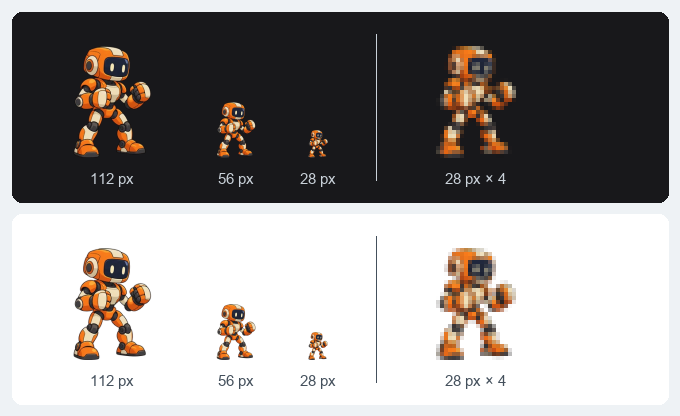
The three PNG files from the resizer on a dark and a light chat background, drawn at their pixel sizes. On the right, the 28 px file enlarged four times. Select the image to see it at full size.
Judge the emote by its 28 px file. In Twitch's API that size is scale 1.0, with 56 px as 2.0 and 112 px as 3.0 (Get Channel Emotes), and the tips in Twitch's emote guide warn that 28 px leaves little room for detail or words. In the enlarged view above, the robot's visor is a dark patch a few pixels wide, the eyes inside it have blurred together, and each fist is a handful of pixels. A head-and-shoulders crop of the same character would spend those pixels on the face.
The two help pages give different file sizes for manual mode. The requirements page allows a still emote up to 1 MB. The upload guide says each of the three manual files must be under 100 KB. An ordinary export reaches neither figure: a 112 × 112 image has 12,544 pixels, which is 50,176 bytes of 8-bit RGBA data before PNG compression, so the file stays under 100 KB unless the editor embeds a large block of metadata. The robot's three files are 18.6 KB, 5.7 KB and 1.8 KB, and the resizer checks each still file against the stricter 100 KB.
The 1 MB limit matters for the single image. Twitch accepts up to 4096 px, but the largest size it serves is 112 px, so extra resolution only adds weight: the 1024 px PNG of this robot is 509 KB. A source that is a whole multiple of 112, such as 448 or 560 px, lets every emote pixel average a whole block of source pixels at all three sizes. For pixel art, draw on a 28 px canvas and enlarge it with sharp pixels: each source pixel becomes a clean 2 × 2 block in the 56 px file and a 4 × 4 block in the 112 px file.
Animated emotes: a GIF of up to 60 frames
An animated emote is a GIF at the same pixel sizes. Twitch adds three rules: at most 60 frames, no flashing or flickering more than three times in one second, and a file limit that depends on the route. One GIF that Twitch resizes can be 1 MB; each of three GIFs you upload yourself can be 512 KB. Animated emotes also sit in their own slots, which the Animated Emotes page lists for Partners and Affiliates.
In our own loops, the frame limit arrived before the file limit. The four examples on the animated emote maker page run 56 to 58 frames at 15 frames per second, a little under four seconds, and their 112 px GIFs weigh between 229 KB and 300 KB with all 256 colours kept. The robot wave is 229 KB at 112 px, 72 KB at 56 px and 22 KB at 28 px.



Sixty frames buys a different length at each frame rate:
| Frame rate | Longest emote in 60 frames |
|---|---|
| 10 frames per second | 6 seconds |
| 15 frames per second | 4 seconds |
| 24 frames per second | 2.5 seconds |
| 30 frames per second | 2 seconds |
A GIF with more than 60 frames has to lose some. The resizer drops frames evenly and lengthens the ones that remain, so the emote keeps its speed. If a file is still over 512 KB, it uses fewer colours first and then fewer frames, and tells you what it changed.
The first frame of the GIF becomes the emote's still thumbnail unless you upload a separate image for it, so start the loop on a pose that reads by itself.
Twitch can also animate a still emote for you. Easy Animate, on the same page, takes a square PNG between 112 and 4096 px, up to 1 MB, and applies one of six motions: Shake, Rave, Roll, Spin, Slide In or Slide Out.
Badge sizes: 72, 36 and 18 px
A subscriber badge is a PNG with a transparent background in three sizes, 72, 36 and 18 px, each up to 25 KB. Twitch's badge guide has no auto-resize route: you upload all three sizes, and the uploader has one box for each. Badge flair, the overlay for Tier 2 and Tier 3 subscribers, needs the same three sizes for each tier, six images in total. Bits badges use the same three sizes as PNGs; their page gives no file size and says animated Bits badges are not supported.
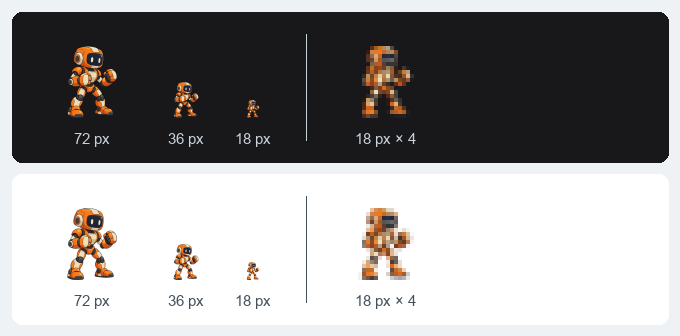
The badge files at 72, 36 and 18 px, drawn at their pixel sizes, and the 18 px file enlarged four times.
The 25 KB limit is comfortable for the same reason as the emote limit. A 72 × 72 image is 20,736 bytes of pixel data before compression, and the robot's badge files are 8.6 KB, 2.7 KB and 950 bytes.
What 18 px can show is the tighter constraint. At that size the robot is a few blocks of orange and cream, as the enlarged view shows. Keep a badge to one simple shape with a strong outline. For the badges of different subscription lengths, a change of colour reads at 18 px, and a change in the drawing mostly does not.
Make the files and check them before uploading
- Open the emote resizer and drop a PNG, JPEG, WebP or GIF.
- Tick Twitch emotes, and Twitch badges if you need them. All three sizes of each are made at once.
- Compare the previews on the dark and the light chat background. Leave Trim empty edges on so the art fills the square. For pixel art drawn on a 28 px canvas, choose Sharp pixels and turn the trim off, so every pixel is enlarged by a whole number.
- Read the line under each file. It gives the file size and whether it fits the limit. Download one file or all of them as a ZIP.
To upload emotes, open the Creator Dashboard and go to Viewer Rewards, then Emotes, then Subscriber Emotes. Badges are under Monetization, then Subscriptions, then Subscriber Badges. A new emote waits for manual review unless the channel has instant upload; a badge appears as soon as it is saved.
The same art needs different files on Discord: an emoji is 128 px and a sticker is 320 px, with its own format and limits. The Discord sticker size guide covers both.