In this guide
A Discord sticker file is 320 × 320 pixels and no larger than 512 KB. A still sticker is a PNG. An animated sticker is an APNG, the animated form of PNG, and can run for up to 5 seconds. Custom emoji are a separate upload with smaller numbers: 128 × 128 pixels and 256 KB.
Discord publishes these rules in two places, its developer documentation and its help centre, and the two do not agree on every point. We read both on November 14, 2026, and the first table shows them side by side. The file sizes further down come from our own files: one robot character as a still sticker and as a 58-frame animated one, made with AnimGen's free Discord sticker maker. The tool runs in your browser and does not upload the image.
What Discord's two pages say
| Requirement | Developer documentation | Help centre |
|---|---|---|
| Pixel size | 320 × 320 | 320 × 320, marked "exact" |
| File types | PNG, APNG, GIF and Lottie JSON; Lottie only on verified or partnered servers | PNG for a still sticker, APNG for an animated one |
| File size | 512 KiB | 512 KB |
| Animation length | Up to 5 seconds | Not stated |
| Frame rate | Not stated | Up to 60 frames per second |
| Name | 2 to 30 characters | Required; no length given |
| Description | Empty, or 2 to 100 characters | Optional, for people who use screen readers |
| Related emoji | Stored as the sticker's tags | Required at upload; used for suggestions and search |
The developer column is the Sticker Resource page. The help-centre column combines Tips for Sticker Creators FAQ and Custom Stickers FAQ.
Two differences affect the file you export. The first is the unit: 512 KiB is 524,288 bytes, and 512 KB read as decimal is 512,000 bytes. A file under 512,000 bytes satisfies both, and that is the number the sticker maker checks. The second is the file type. GIF and Lottie appear only in the developer documentation, and the tips article, whose text was last edited in May 2022, names PNG and APNG alone. PNG and APNG are on both pages, so the sticker maker writes those two.
Why the file is 320 pixels when chat shows 160
Discord's tips article says desktop chat renders a sticker at 160 × 160 dp, and recommends a file of exactly 320 × 320 px so the sticker stays crisp on most displays. The file is twice as wide and twice as tall as the space it fills. The same article adds that the displayed size varies with the device and with where the sticker appears, such as the sticker drawer or the chat.
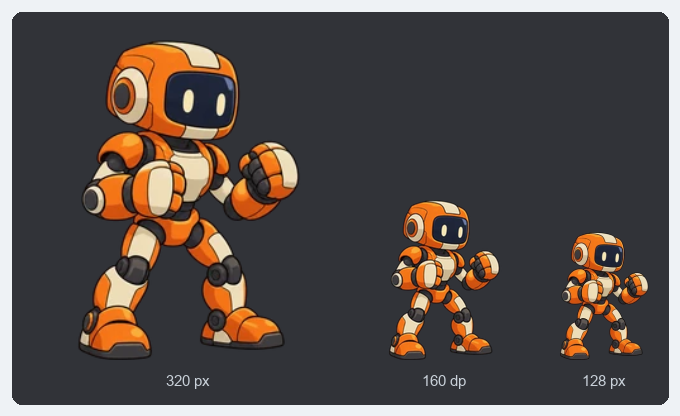
Left to right: the 320 px sticker file, the same file at half size, as desktop chat lays it out, and the 128 px emoji file. Select the image to see it at full size.
On a display that shows the sticker at 160 pixels, a line one pixel wide in the file is averaged with its neighbour and fades, so keep outlines at least two pixels wide. Discord also advises letting the art take up as much of the canvas as possible, and notes that stickers are often made with a transparent background. The sticker maker trims the transparent space around the art so it fills the square, and it either pads an image that is not square or crops it to a centred square.
Sticker and emoji sizes side by side
| Sticker | Custom emoji | |
|---|---|---|
| Pixel size | 320 × 320 | 128 × 128 |
| File size limit | 512 KB | 256 KB |
| Still file | PNG | PNG, JPEG or WebP |
| Animated file | APNG | GIF |
| Animation length | Up to 5 seconds | Not stated |
| Name | 2 to 30 characters | At least 2 characters: letters, numbers and underscores |
| Our robot, still | 121.2 KB | 23.6 KB |
| Our robot, 58-frame wave | 435.6 KB, after dropping to 29 frames and 64 colours | 251.1 KB, with every frame and 128 colours |
The emoji column comes from the Emoji Resource page and How to Add Custom Emojis on Discord. The 128 × 128 figure is in the developer documentation only; the help article gives a file size and no pixel size. The developer documentation also lists AVIF among the upload formats.
The two files are separate uploads, and neither can stand in for the other. The sticker maker writes the 320 px file. The 128 px emoji file for the same art comes from the emote resizer, which also makes the Twitch sizes covered in the Twitch emote size guide.
An animated sticker has to fit 512 KB at 320 pixels
A 320 × 320 frame has about eight times the pixels of a 112 px Twitch emote and about six times those of a 128 px emoji, and the animated sticker still has to stay inside 512 KB. In our test, the file size limit arrived long before the 5-second limit.
The test loop is a cartoon robot with shading and outlines, waving: 58 frames over 3.87 seconds, exported from AnimGen as a 512 × 512 transparent GIF. We set the frames and colours by hand in the sticker maker to see what each choice costs at 320 × 320:
| Frames kept | Colours | File size | Under 512 KB |
|---|---|---|---|
| 58 | Every colour | 4.80 MB | No |
| 58 | Up to 256 | 1.29 MB | No |
| 58 | Up to 128 | 1.06 MB | No |
| 58 | Up to 64 | 853.5 KB | No |
| 29 | Every colour | 2.40 MB | No |
| 29 | Up to 256 | 648.6 KB | No |
| 29 | Up to 128 | 536.5 KB | No |
| 29 | Up to 64 | 435.6 KB | Yes |
Left on automatic, the tool arrives at the last row by itself. It keeps every frame and colour when that fits, and otherwise uses fewer colours and then fewer frames, only as far as needed. Dropped frames give their time to the frames that remain, so the wave still lasts 3.87 seconds.
The 435.6 KB file exactly as the tool wrote it: 320 × 320 px, 29 frames, 3.87 seconds, up to 64 colours. Select it to open the file.
A shorter part of the same loop keeps more of its motion. The first 1.53 seconds fit with all 23 frames at up to 128 colours (482.9 KB), and the first 2 seconds fit with all 30 frames at up to 64 colours (506.2 KB). For this character, a sticker holds roughly 23 to 30 frames however long it runs, so the choice is between a short, smooth loop and a longer one at half the frame rate.
Flat colours change the result. The sample file in the tool, a pixel-art walk cycle of 16 frames over 2.08 seconds, comes to 113.8 KB at 320 × 320 with every frame and every colour kept. That is about 7 KB a frame, against about 83 KB a frame for the robot with every colour.
Sticker slots, permissions and the upload window
Every server has 5 sticker slots. Boosting adds more: 10 at Level 1, 15 at Level 2 for 30 in total, and 30 at Level 3 for 60 in total. If a server loses a Boost level, the stickers in that level's slots cannot be used until the level returns.
| Step | What Discord's help centre says |
|---|---|
| Who can upload | The server owner, or a role with the Create Expressions permission. Editing and removing need Manage Expressions |
| Where | Server Settings, then Stickers, then Upload Sticker, in the desktop or web app. The mobile apps cannot upload, edit or delete stickers |
| What you enter | A name and a related emoji, plus an optional description |
| Changing a sticker | The file cannot be replaced. Delete the sticker and upload the new file |
| How many at once | One sticker per upload |
Check an animated sticker in that upload window. According to the tips article, an APNG added through the chat bar's file upload does not render, so the preview in Server Settings is the place to judge it.
Make the file and check both limits
- Open the Discord sticker maker and drop a PNG, JPEG, WebP or GIF. A still image becomes a PNG sticker and an animated GIF becomes an APNG.
- Frame the art. Leave Trim empty edges on, choose whether an image that is not square is padded or cropped, and pick Sharp pixels for pixel art.
- For an animation longer than 5 seconds, the tool starts with the first 5 seconds. Change First frame and Last frame to use another part.
- Read the two checks under the preview: the file size against 512 KB and the length against 5 seconds. With Keep the file under 512 KB ticked, the reduction is automatic; untick it to choose the frames and colours yourself.
- Download the file. Its name ends in .png for both kinds of sticker.
If you need an APNG at another size, for a use other than Discord, the GIF to APNG converter keeps the GIF's own dimensions and timing.