
Import transparent animations into Construct 3
Export a Construct 3 animation ZIP, import PNG frames with FPS, loop and origin settings, and verify playback with a tested sample.
On this page
Try the tested sample first
Download the Construct 3 sample pack. It contains 96 transparent PNG frames at 96 × 96 pixels, playing at 24 FPS. You can test the import without generating or buying an animation.
This guide was verified in Construct r495.2 Free, Chrome on macOS, on September 28, 2026. We checked animation settings, playback and transparency, and compared the saved project against the exported frames. This is an animation asset workflow, not a Construct addon or a complete .c3p game project.
Prepare your animation in AnimGen
Generate or import a video, choose the usable range, and check the frame sequence. For transparent output, use appropriate source material and enable transparent export; selecting an engine package alone does not remove the background. See the transparent workflow.
Choose Construct 3 Pack in the export dialog. Web Studio requires paid export entitlement for this package; the public sample is free to download for compatibility testing. See credits and access.
For frame-level edits, use Advanced Editor, set playback FPS and loop, and wait for the recipe to save before exporting. Advanced exports preserve that saved loop flag. Quick and Public API exports default to looping; you can adjust the imported animation in Construct.
Unpack the outer ZIP only
The downloaded package has this structure:
AnimGen_<id>_Construct3/
  animation.zip
    c3-import-settings.json
    frame_0000.png
    frame_0001.png
    ...
  spritesheet.png
  animgen-manifest.json
  README_Construct3.md
Extract the outer package, but leave the inner animation.zip intact. The inner ZIP is the import target. Its settings carry frame order, animation name, FPS, loop and image origins. The atlas is a reference image; do not load it as another animation frame.
Import through the top toolbar
- In a small Construct test project, create a Sprite or open an existing Sprite's Animations Editor.
- Find the folder/load icon in the top toolbar and open its dropdown.
- Choose Load animations, then select the inner
animation.zip. - Select the newly imported animation and check its properties. Do not use Load frames for this workflow.
- Close the editor. Set the Sprite instance's Initial animation to the imported animation before previewing the layout, especially if a blank default animation remains.
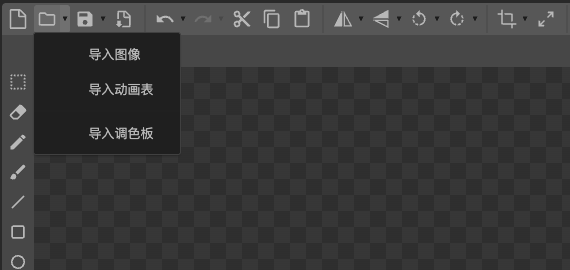
The screenshot uses the Simplified Chinese UI: 导入动画表 is Load animations, the second menu item. The official Animations Editor manual documents animation ZIP imports.
Check the imported result
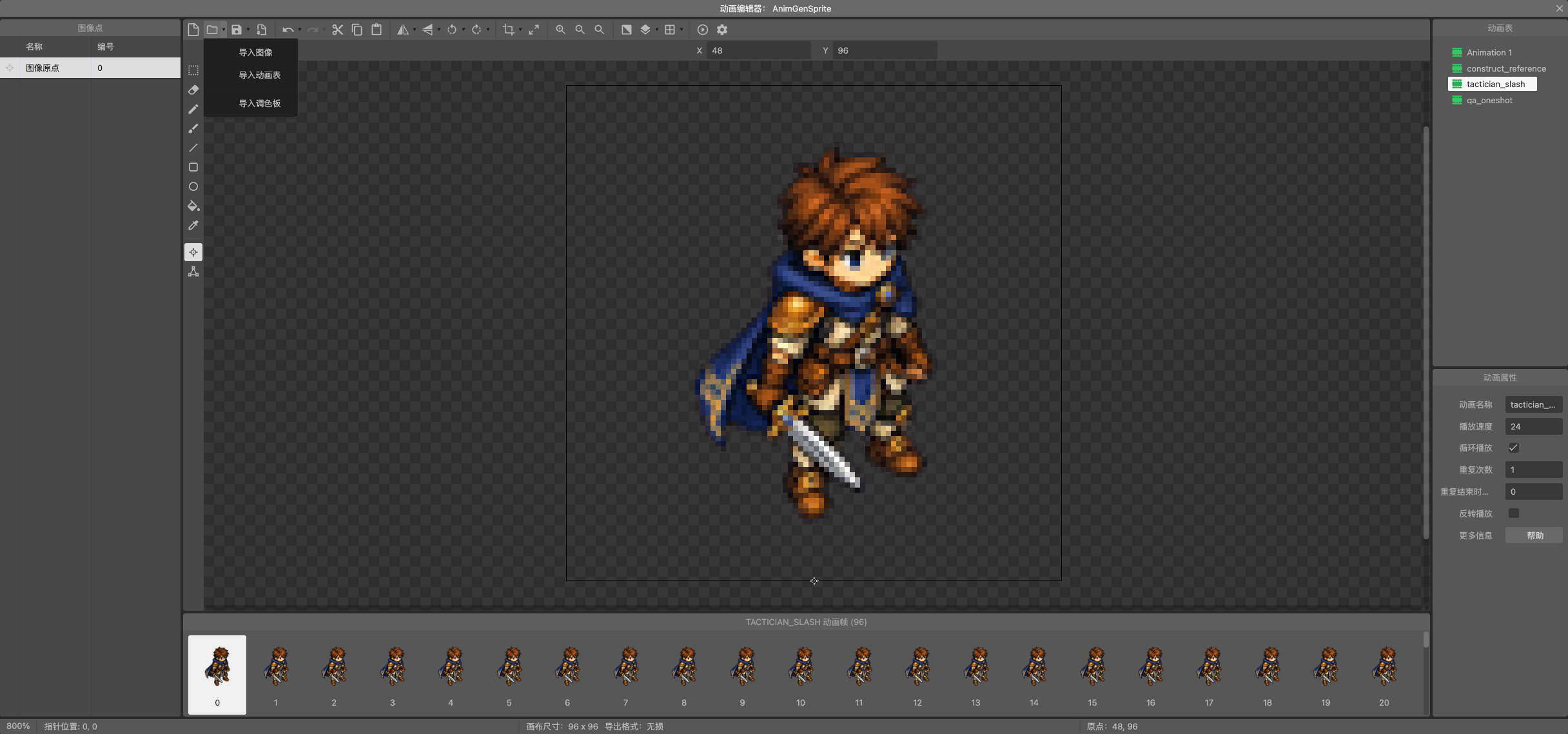
This is the actual test editor, not a mockup. Only tactician_slash is the sample animation; other names in the screenshot belong to our separate QA fixtures.
| Check | Expected sample result |
|---|---|
| Animation | tactician_slash |
| Frame count and size | 96 frames, each 96 × 96 |
| Speed | 24 FPS |
| Loop / repeat / ping-pong | On / 1 / off |
| Origin | Pixel (48, 96): bottom center |
| Transparency | Checkerboard visible outside the character; no opaque rectangle over the scene |
| Runtime | Continues after a full cycle; first and last frames remain in order |
Preview the layout and compare it with AnimGen. In a separate one-shot test, 45 frames at 23.976 FPS with loop off stopped at frame 44. A saved AnimGen pivot of (0.25, 0.75) imported as pixel (24, 24) at 96 × 96.
AnimGen's normalized pivot uses a bottom-left origin; Construct's image origin uses top-left coordinates. The exporter converts Y automatically: originY = 1 - pivotY. Do not flip it again manually. See canvas and pivot.
Use the same format through API or MCP
Request construct3_pack in export.output_formats using the frame-count workflow. The staged API's export.fps sampling path currently accepts only the sprite-sheet/JSON pair; do not add a Construct package to that FPS request. See selection and FPS.
Follow the usual quote, approval, create, poll and download steps. API/MCP access follows the developer contract; commercial-use rights still follow the paid terms. See API quickstart and MCP workflow.
Fix common import problems
- One large sheet or duplicate images: confirm that you selected the inner ZIP, not the outer package or reference atlas.
- Unexpected speed, loop or anchor: use the toolbar route and compare with
animgen-manifest.json; check that the intended animation is selected. - Blank or static scene: check Initial animation, Speed and whether you are previewing the layout, not just the image editor.
- Character jumps between actions: keep canvas size and pivot consistent across exports. The pivot is not an automatically detected foot position.
- Collision does not fit: review collision polygons and gameplay behavior inside Construct. The package does not configure collisions, events, controllers or special VFX materials.
Return to output formats, export troubleshooting, or start with your own artwork.
Was this page helpful?
No search queries, code, or free text are collected. This switch controls documentation interactions only; general site analytics follow the privacy policy. Privacy policy